You can customize your event listing to mimic the styles/elements of your own website in order to maintain the same brand as your own public website.
Head to the top menu of your ThunderTix account
From your top menu in the upper right corner, click the browser icon then click "Fonts and CSS Styles".
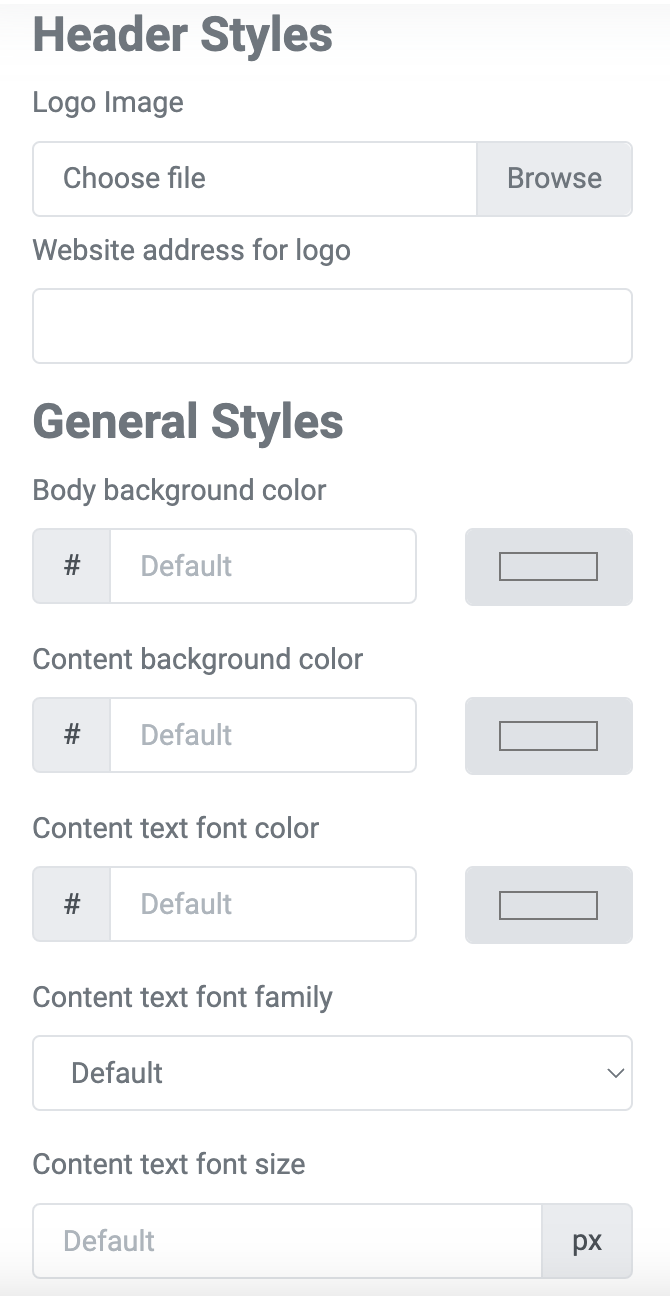
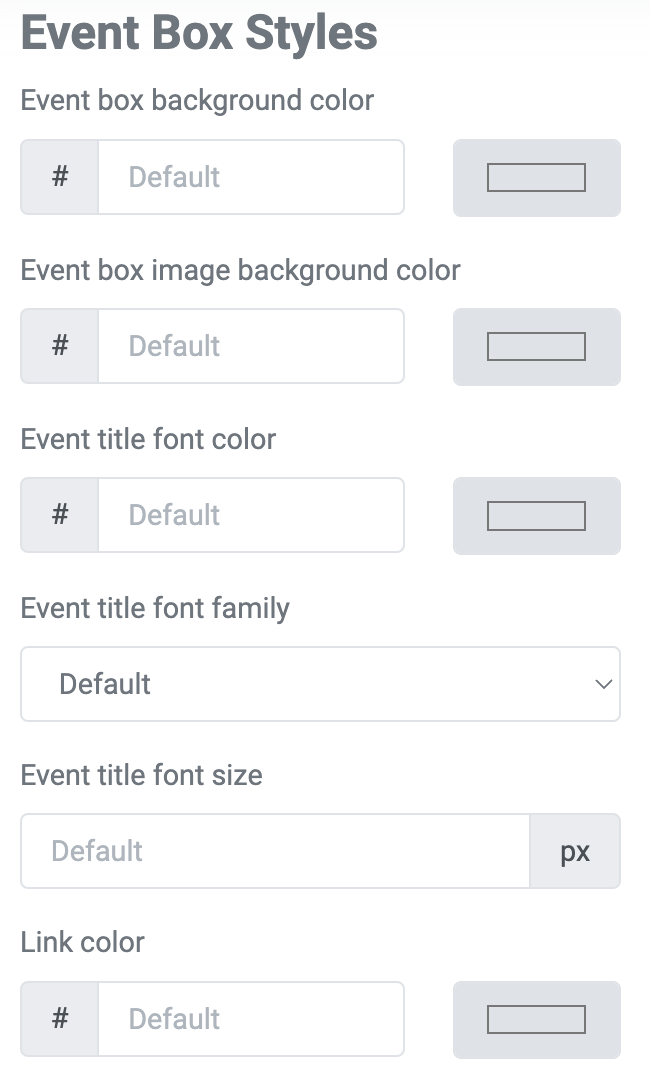
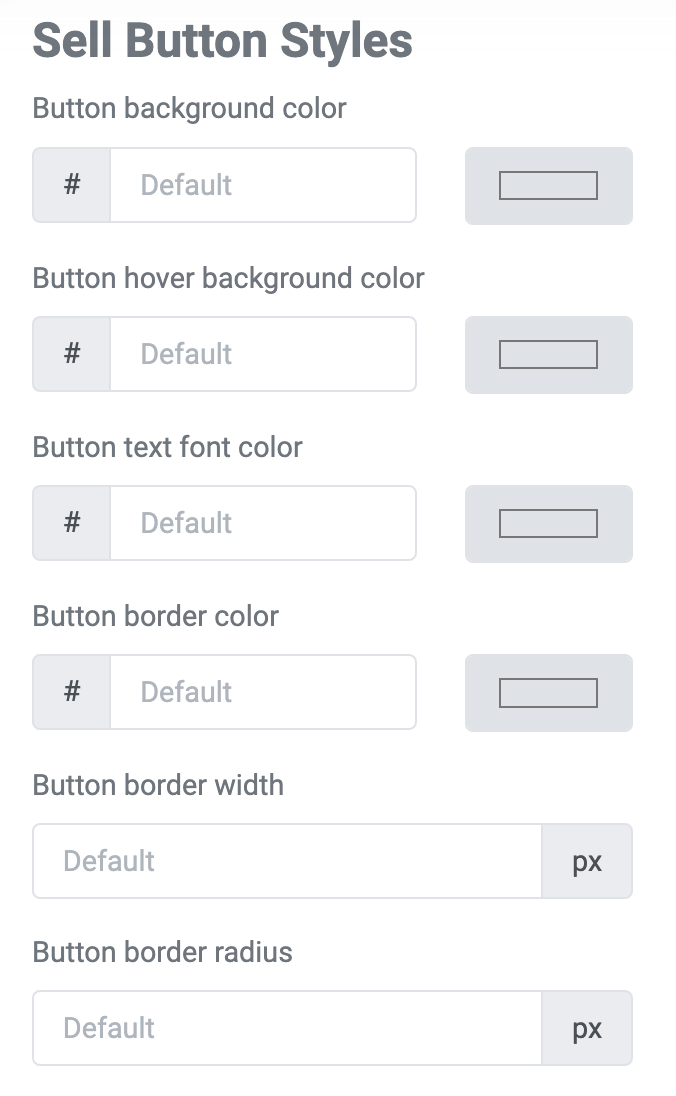
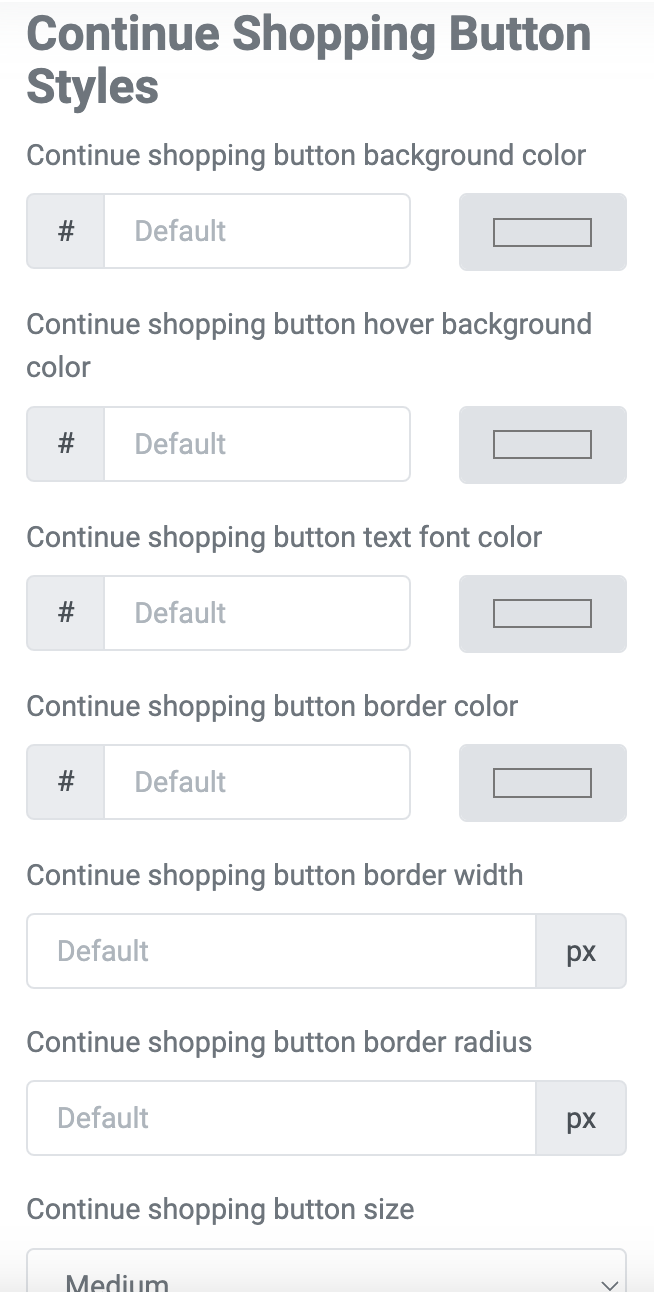
Scroll down on the page and you'll see that we now offer a way to customize your fonts and button colors. You can even upload a logo to the top of the page
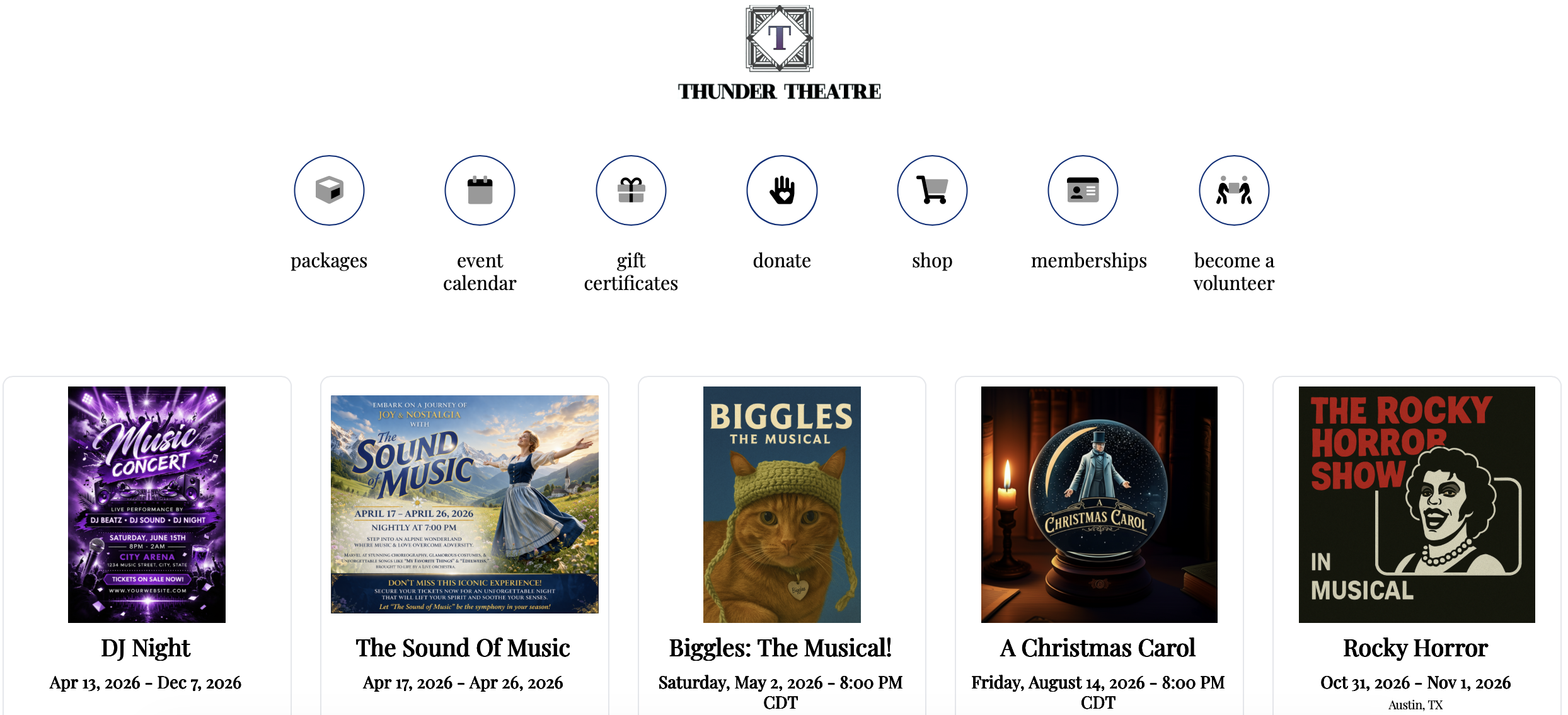
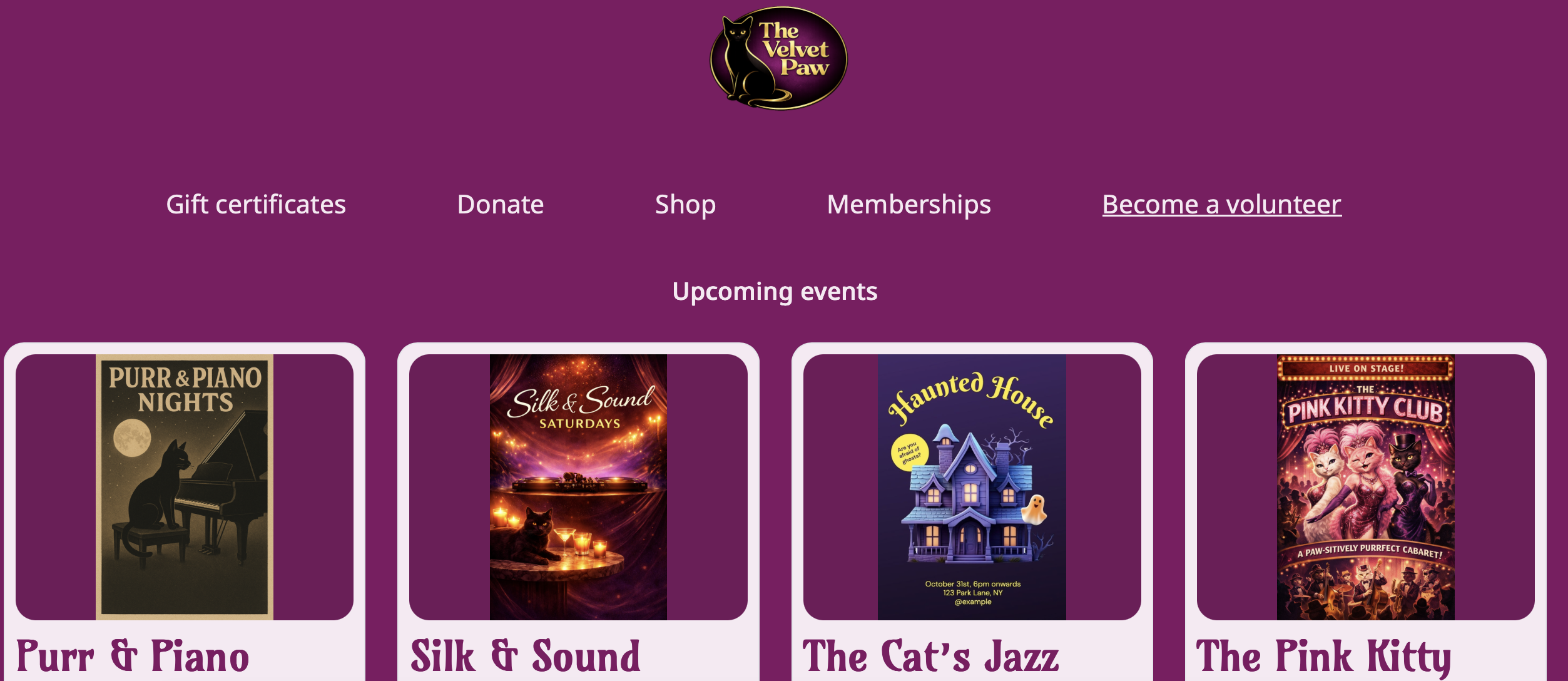
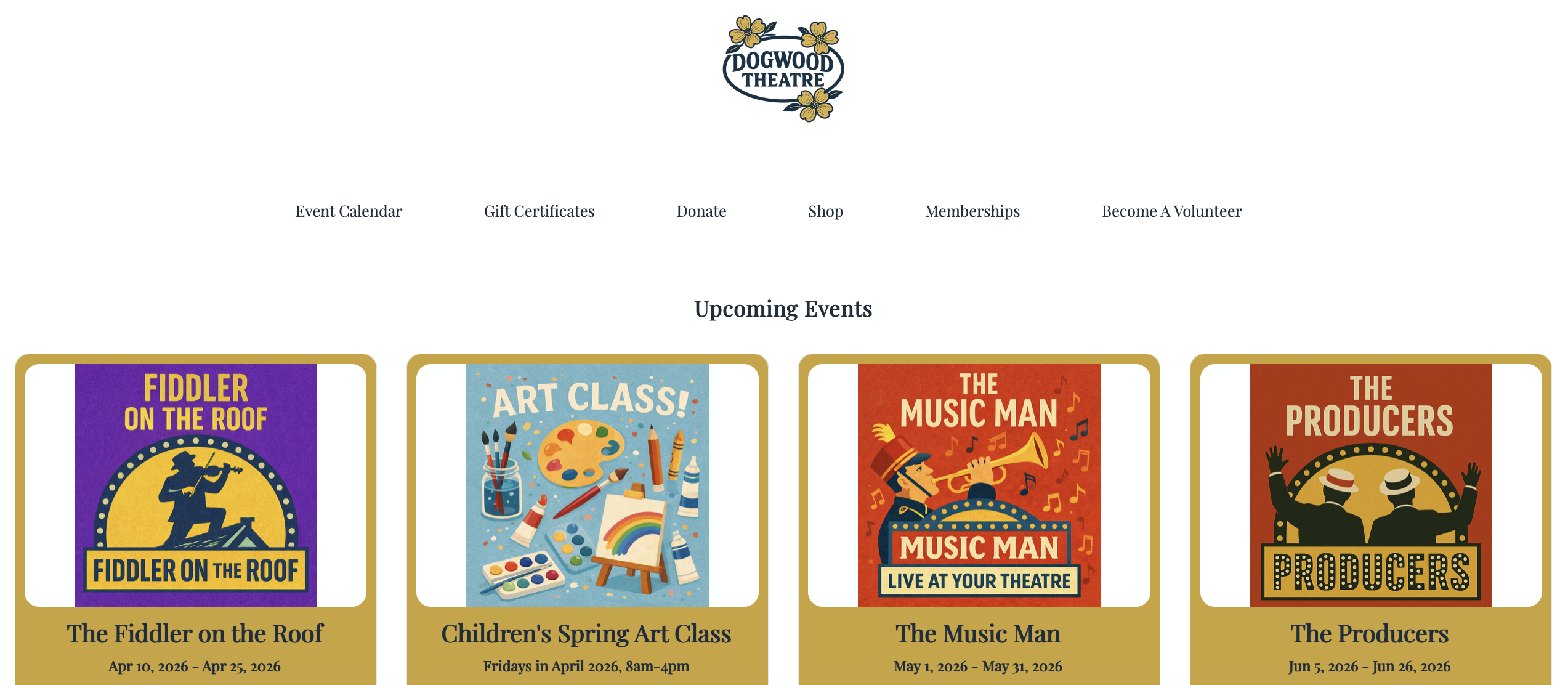
You can customize the overall background color of the public events list, font style and size, button colors, etc. The branding tool is seen below: Screenshot 2024-10-24 at 5.42.40 PM.png 108 KBScreenshot 2024-10-24 at 5.42.57 PM.png 85.07 KBScreenshot 2024-10-24 at 5.43.04 PM.png 89.43 KBScreenshot 2024-10-24 at 5.43.13 PM.png 127.81 KB You can also add a link to your logo on this screen. This will open your website address in a new window if a customer clicks on the logo. To enable this, simply enter your website address in the field that says 'Website address for logo'. Then click update to save your changes. Here are some examples of how the customization can look: Thunder Theatre page uses icons for the top menu navigation, neutral colors, and custom fonts Velvet Paw uses bright colors, plain text navigation, rounded edges, and custom fonts Dogwood Theatre uses neutral colors, plain text navigation, and custom fonts
Web Design Tools, Public Display Editor, Edit Public Display, Edit ThunderTix hosted subdomain, customize public display

 You can customize your event listing to mimic the styles/elements of your own website in order to maintain the same brand as your own public website.