
Support Forum
How can I scan all barcodes from a group order at once? - Mon - Mar 31, 2025 - 11:16am
-
 When you are scanning tickets for a single performance, after scanning any one ticket in an order, you'll have the option to scan in all of the remaining tickets on the order.
Scan Tickets from the ThunderTix App
Follow the steps below to learn how to scan in all tickets and barcodes from an order with two or more tickets.- Login to the ThunderTix App
- From the Scan Tickets tab, choose an event
- Choose a performance
- Scan a ticket for the selected performance
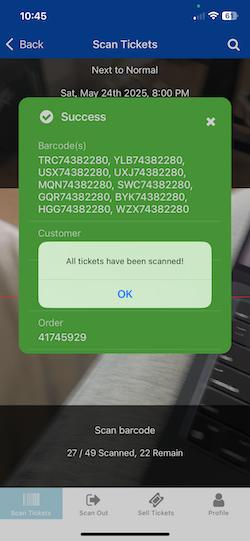
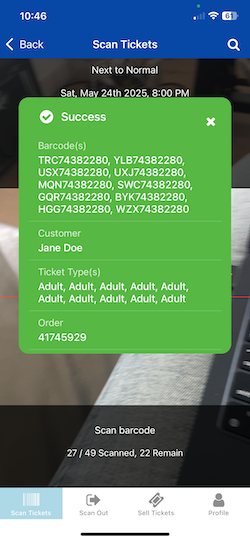
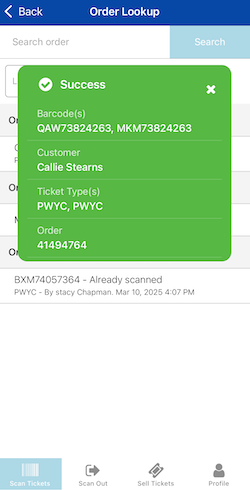
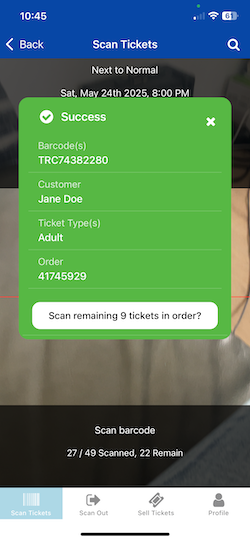
- When the "Success" screen for that barcode appears, you'll see a button to "Scan remaining tickets in order" as shown below
- Upon clicking the button, you'll see that "All tickets have been scanned" and the final screen will show all barcodes and ticket types for that order
Search orders from the ThunderTix App
Follow the steps below to learn how to scan in all tickets and barcodes from an order with two or more tickets.- Login to the ThunderTix App
- From the Scan Tickets tab, choose an event
- Choose a performance
- Click the "search" icon in the upper right corner of the screen
- Search for a customer by last name, order ID or none (leave "search order" blank and just click Search)
- Tap on the desired barcode
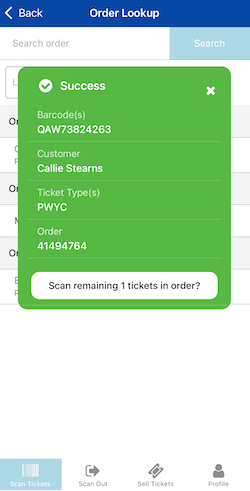
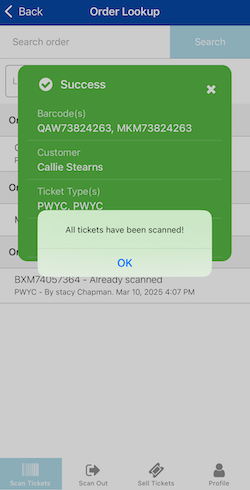
- When the "Success" screen for that barcode appears, you'll see a button to "Scan remaining tickets in order" as shown below
- Upon clicking the button, you'll see that "All tickets have been scanned" and the final screen will show all barcodes and ticket types for that order
View our video tutorials
Will the scanners identify the ticket type and display the name at the time the ticket is scanned?
How do I scan barcoded tickets for an event?
Are there available USB scanners that once they're in the cradle the scan light stays lit?
Barcode Scanning: How To Guide
Barcodes: Using the Order Lookup Tool
How can I do some test scans to prepare for my event?
Can we set the computers to make an audible tone when scanning tickets?
