
Support Forum
How can I use QR codes instead of traditional barcodes? - Wed - Apr 2, 2025 - 2:46pm
-
 We offer both barcodes and QR codes. You might choose to use QR codes on your thermal tickets while you use barcodes on your eTickets and vice versa.
Thermal Tickets
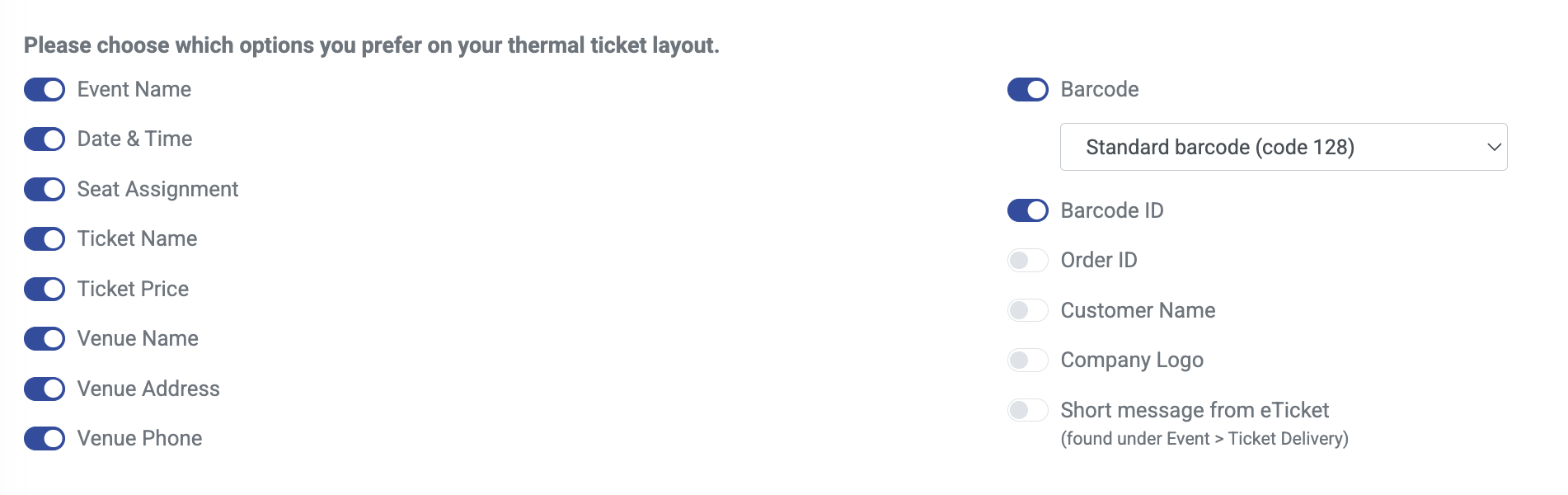
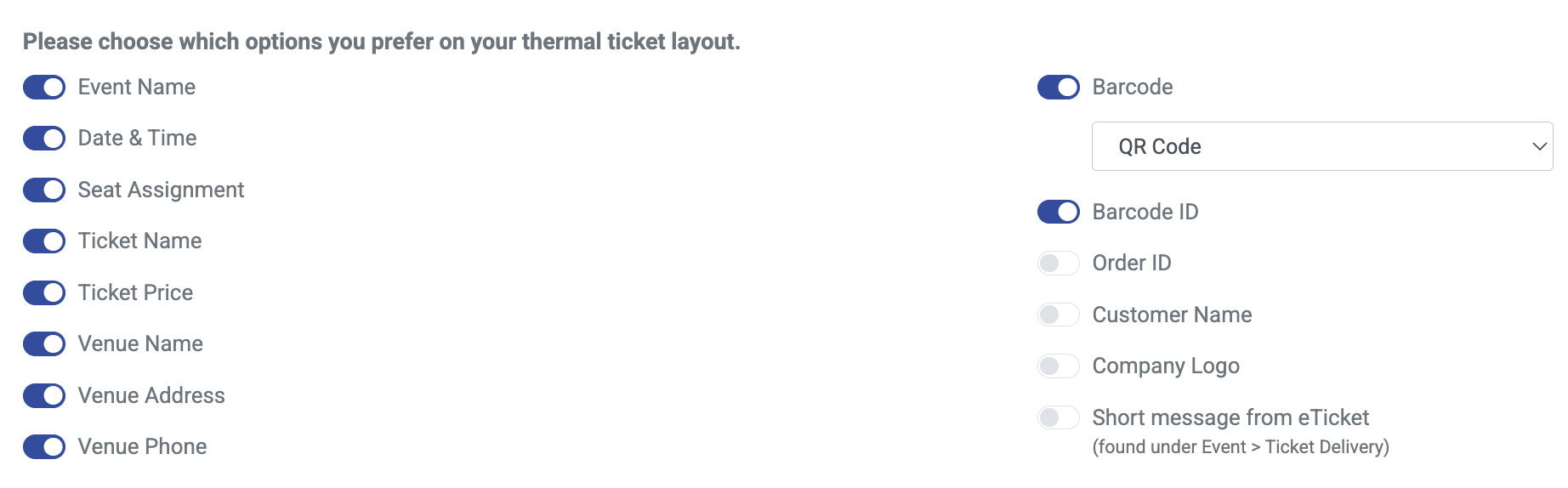
First, it's important to understand that a change from the standard barcode to the QR code requires an update to the layout of your thermal ticket template. While changing the barcode to the QR code will take place immediately, the layout will look out of alignment until our team can make the necessary adjustments on your behalf. If you have a couple of days before your next show and you want to switch to the QR code, that should be enough time for our team to step in and help with the update.- Head to Templates > Thermal Ticket
- In the section where you choose which options you want displayed on your ticket, make sure you have "Barcode" enabled.
- From the drop-down, you have the choice of either QR Code or Standard barcode (c128)
- Make sure you click Update at the bottom of the page to save your template changes.
eTickets, Apple Wallet and Google Wallet
QR Codes must be enabled to your account by the ThunderTix staff. If you want QR codes enabled, simply open a support request and we'll enable QR codes on your account.
When QR codes are turned on for eTickets, the standard barcode will be replaced with the QR code on the top part of the PDF eTicket. In addition, at the bottom of every confirmation email receipt, we'll show each QR code along with the barcode ID as long as you have barcodes enabled in your Confirmation email template. Finally, customers will still have the option to save their tickets to Apple Wallet or Google Wallet. The saved ticket will show a QR code for scanning at the entrance rather than the standard barcode.
View our video tutorials
Will the scanners identify the ticket type and display the name at the time the ticket is scanned?
How do I scan barcoded tickets for an event?
Are there available USB scanners that once they're in the cradle the scan light stays lit?
Barcode Scanning: How To Guide
Barcodes: Using the Order Lookup Tool
How can I do some test scans to prepare for my event?
Can we set the computers to make an audible tone when scanning tickets?
