
Support Forum
How do I set up my Chainway C90 device to work with the ThunderTix app? - Thu - Apr 17, 2025 - 10:04am
-

About the Chainway C90
The Chainway C90 is a mobile computer that operates on the Android operating system. The device itself has a built-in barcode scanner that uses a laser to scan both barcodes and QR codes. The scanner is able to scan barcodes from both paper tickets, off smartphone screens and directly from Apple and Google Wallet.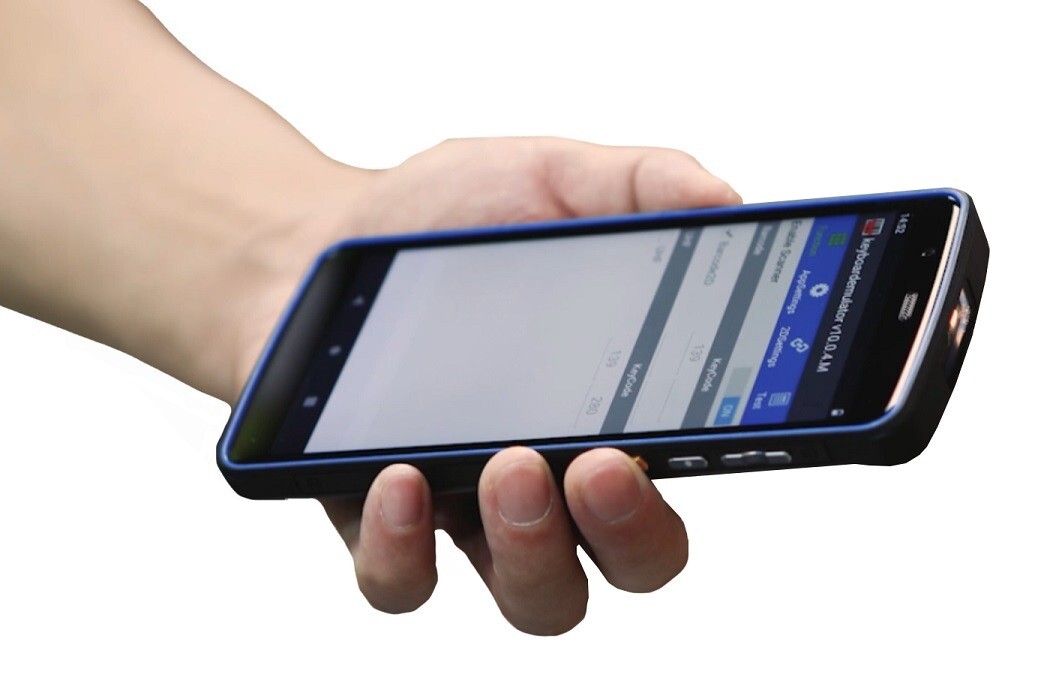
Setting up the Chainway 90 for barcode scanning with the ThunderTix App
- On your C90, log into Google with your Gmail account. A Gmail account is necessary to be able to download Apps from the Google Play store.
- Go to the Google Play Store and search for “ThunderTix”
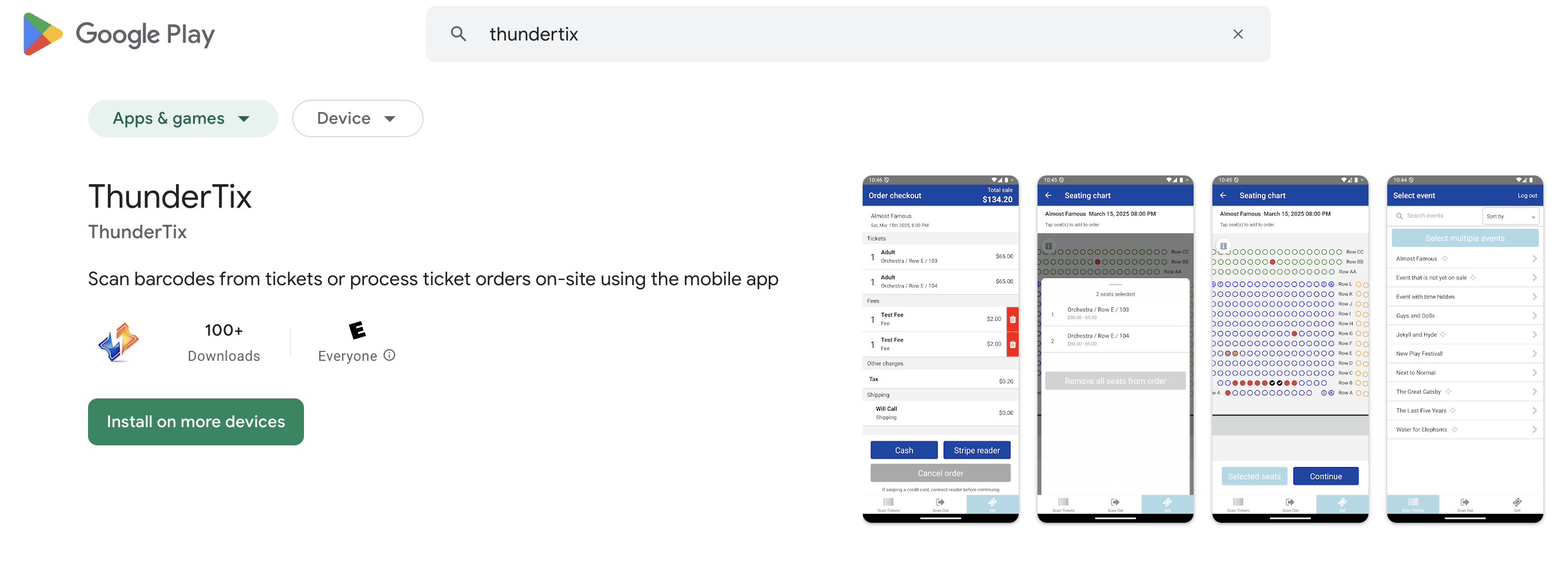
ThunderTix on Google Play - Install the ThunderTix App on the C90
- Once ThunderTix has been installed, open the ThunderTix App
- Login on the ThunderTix App using your ThunderTix login credentials
- In the ThunderTix App, tap Profile on the bottom right menu [figure 1]
figure 1 - Scroll down to Scanner Settings and turn on Use External Scanner [figure 1 above
- Exit the ThunderTix app and swipe up to see the Chainway C90 apps [figure 2]
figure 2 - Open InfoWedge [figure 2]
- Go to Basic Data Formatting and Enable it [figure 3]
figure 3 - Go to Send ENTER key and Enable it [figure 4]
NOTE: do not enable the TAB keyfigure 4 - Exit the DataWedge settings
- In the Apps, open the Keyboard Emulator [figure 2]
figure 5 - Check the box for Barcode2D [figure 5]
- Toggle the Enable Scanner to ON [figure 5]
Scanning tickets using the ThunderTix App
- From the Scan tab, choose your event
- Choose the desired event date
- On the C90, you'll point the top of the scanner (where the laser is) towards the barcode or QR code and click either of the yellow buttons on each side of the device. The yellow button is what triggers the laser to read and transmit the barcode to ThunderTix.
- As soon as the barcode is scanned, you'll see either the green success screen or the red invalid screen.


View our video tutorials
Will the scanners identify the ticket type and display the name at the time the ticket is scanned?
How do I scan barcoded tickets for an event?
Are there available USB scanners that once they're in the cradle the scan light stays lit?
Barcode Scanning: How To Guide
Barcodes: Using the Order Lookup Tool
How can I do some test scans to prepare for my event?
Can we set the computers to make an audible tone when scanning tickets?
