
Support Forum
Connect ThunderTix to ChatGPT - Mon - Jun 29, 2026 - 6:29pm
-
 Once your request has been approved, we will let you know. You can then follow the steps below to connect ChatGPT and start exploring your ThunderTix data.
- Open ChatGPT and go to Settings.
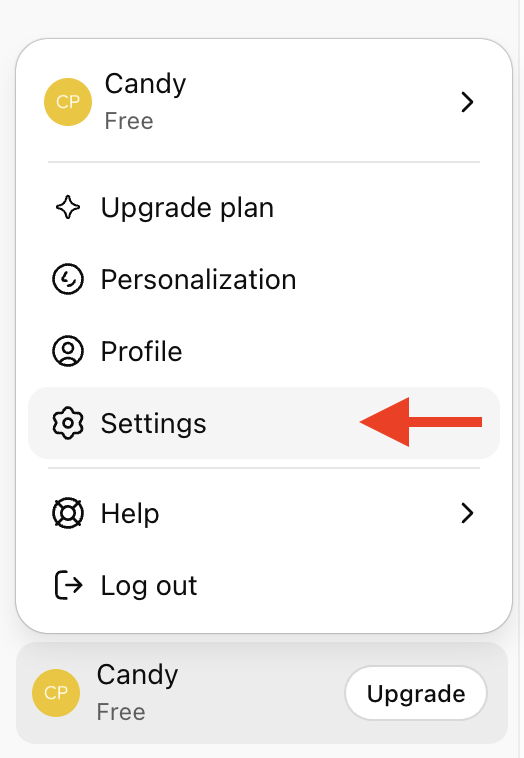
settings - Click Apps.
- Open Advanced settings and enable Developer mode.
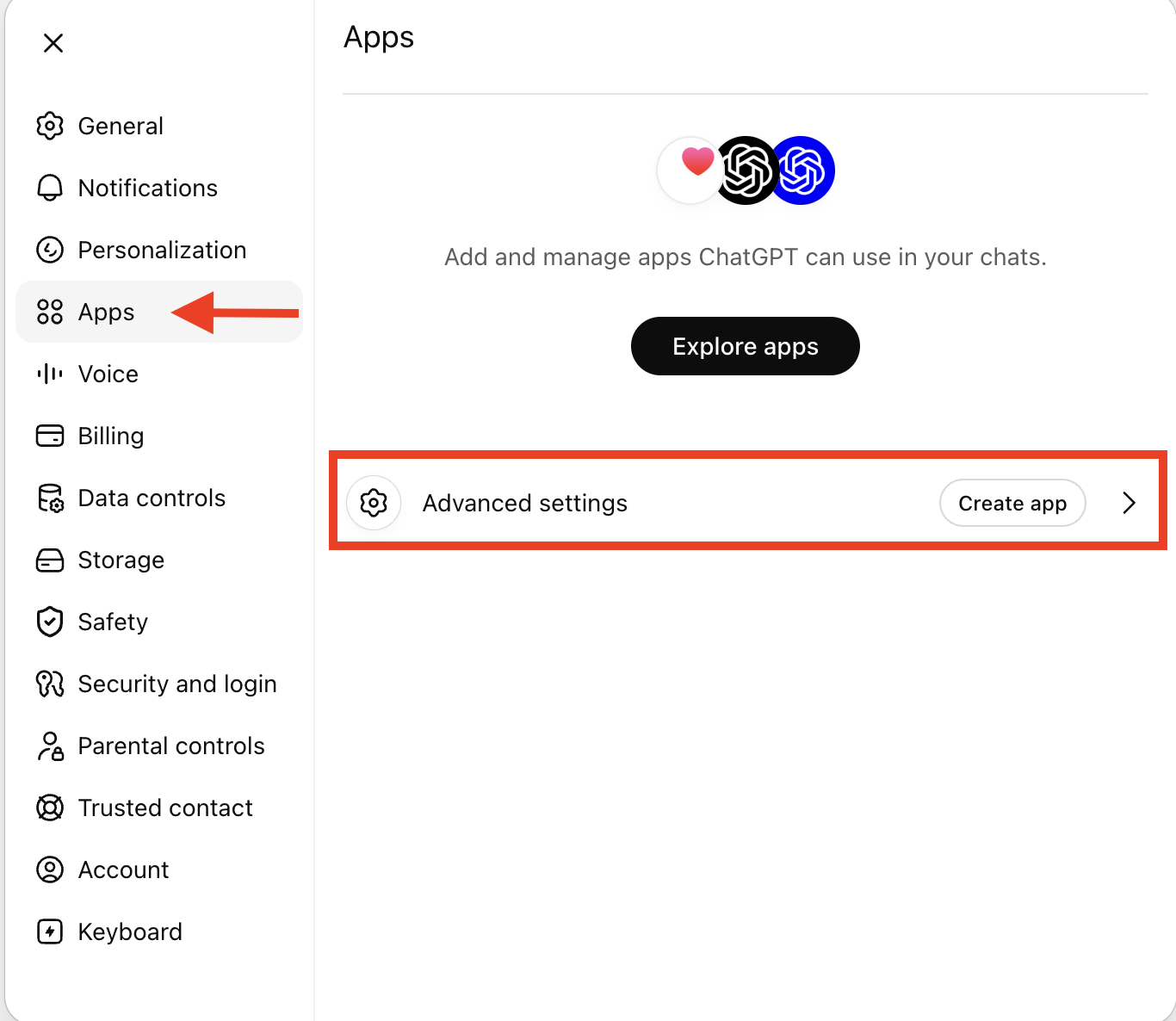
Advanced settings - Click Create app.
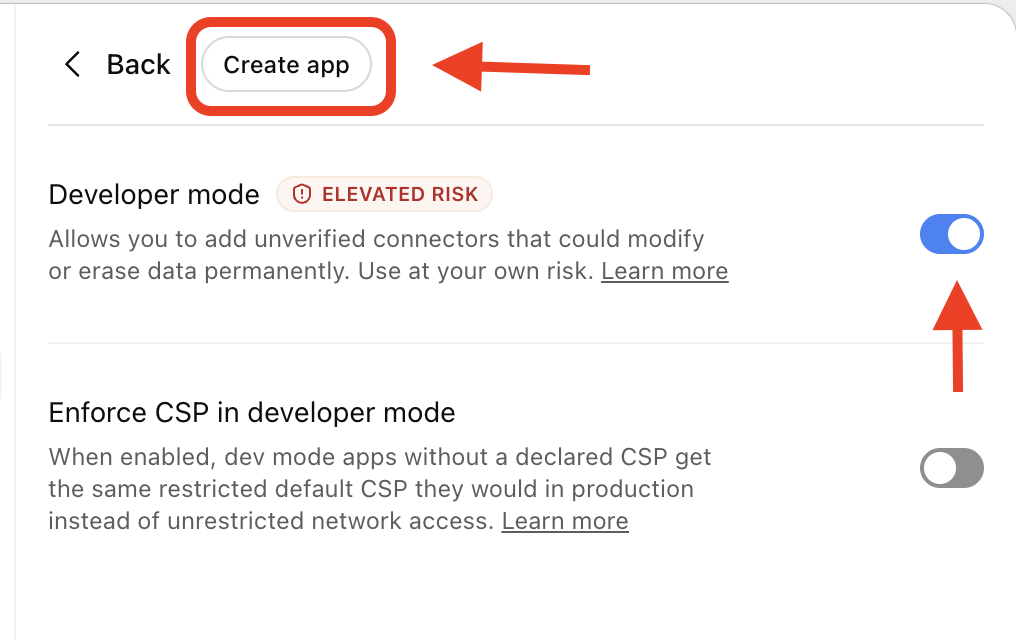
create app - Enter the following details:
- Name: ThunderTixMCP
- Connection type: Server URL
- Remote URL: https://admin.thundertix.com/mcp
- Authentication: OAuth
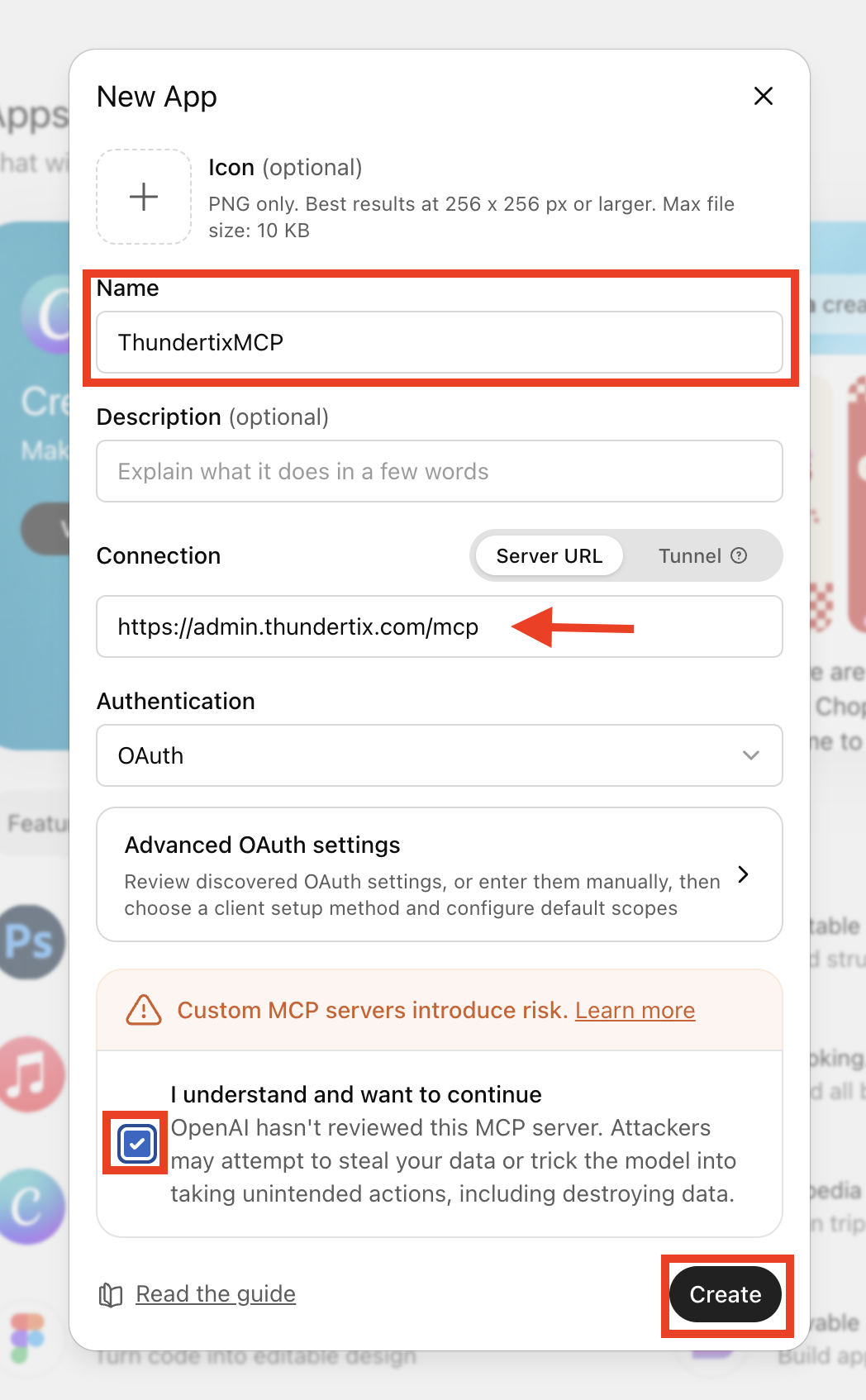
Details
- Confirm the checkbox acknowledging that custom MCP servers may introduce risk, then click Create.
- Click Sign in with ThunderTixMCP.
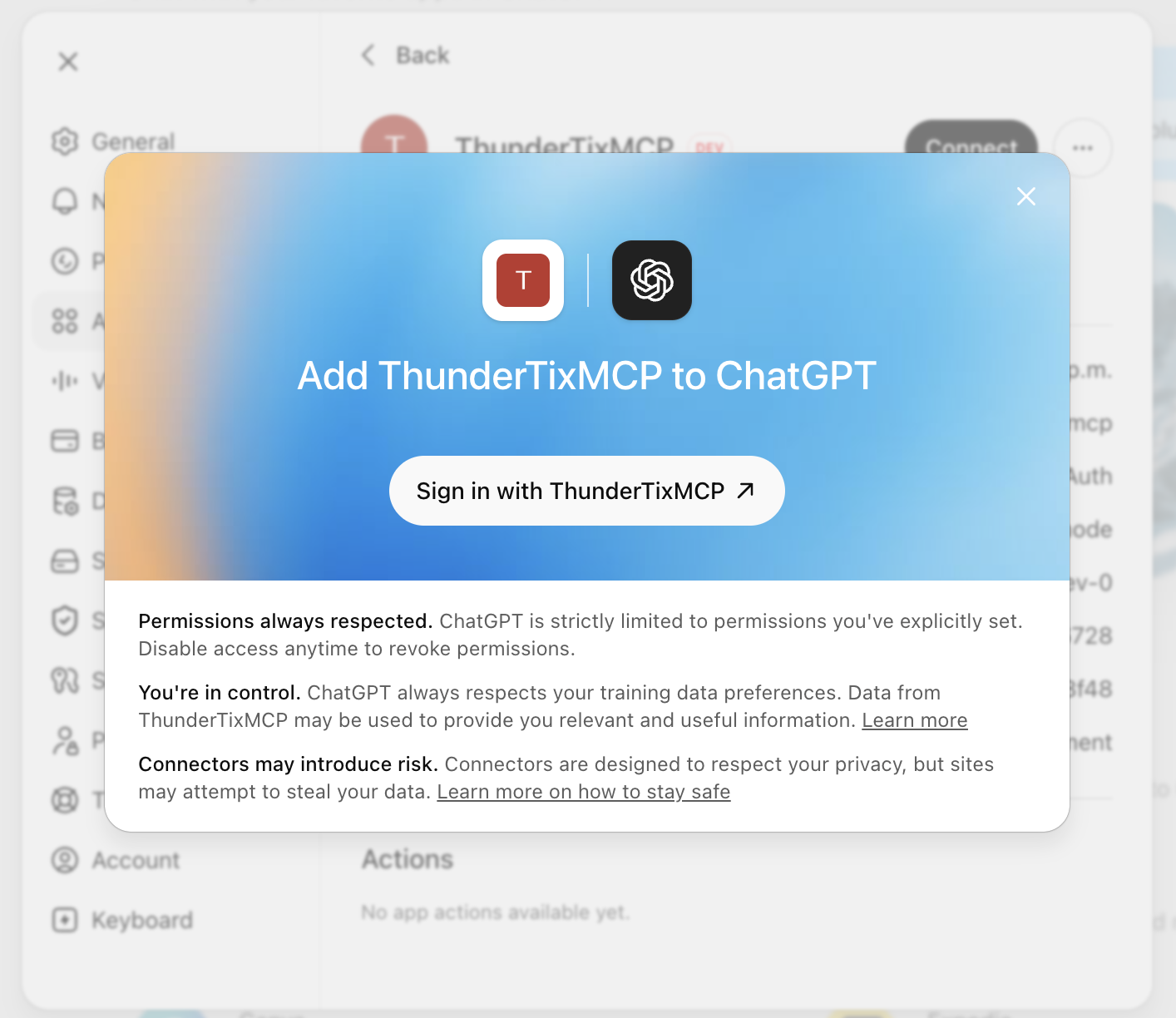
Sign in with ThunderTix - Sign in with your ThunderTix credentials when prompted.
- Authorize the connection between ThunderTix and ChatGPT.
- Once connected, ThunderTixMCP should appear in your Apps settings.
After that, ChatGPT can use the ThunderTix connection during your beta testing. This AI Connector is still a work in progress, and we are very eager to hear your feedback. - Open ChatGPT and go to Settings.


View our video tutorials
What is 'Theatre Mode'?
How to submit a support request to customer service
ThunderTix Users Community on Facebook
How can I create a reminder of an upcoming task?
Can I connect ThunderTix to Quickbooks?
A Word about New Feature Requests
Google Analytics (G3 or UA codes) have been deprecated
