
Support Forum
How can I create a reminder of an upcoming task? - Mon - Dec 12, 2022 - 11:18am
-
Through the task manager in your ThunderTix account, you can keep track of upcoming things such as meetings, creating a new event, or sending out an e-blast to market a season.
Tasks are located in the top right menu options under the list icon.
To create a new task, please do the following:- Click the Tasks icon in the top right-hand corner
- Click the green plus sign* or click View All Tasks and select Create Task
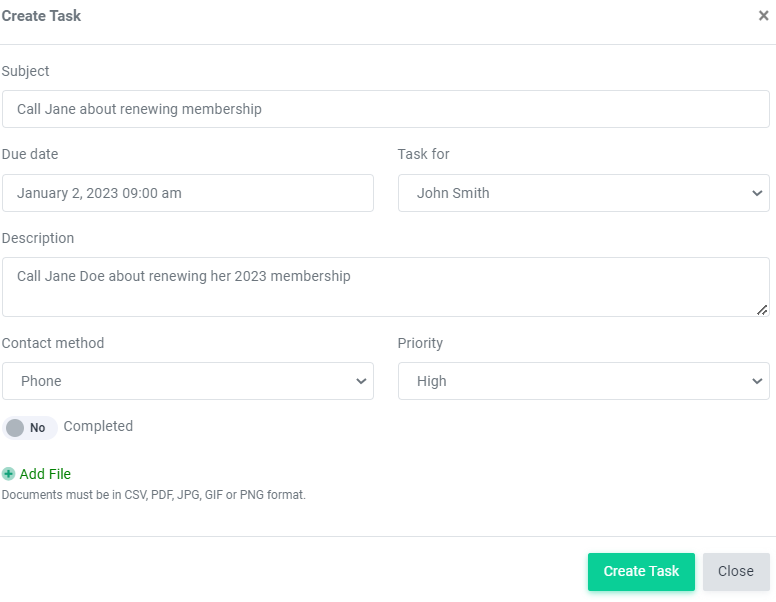
- Enter the task information, such as a subject, description, and due date
- Click Create Task
* When creating a task using the green + sign, the current page you are on in your ThunderTix account will save with the task. This is great for tasks related to a specific patron record, event, product, etc.
At the task due date, a notification will appear on your tasks page.
All current tasks can be viewed by clicking your Task manager page. You can view upcoming tasks, completed tasks, or tasks assigned to other account users. Once a task is completed mark it complete by changing the toggle under Completed to Yes.


View our video tutorials
What is 'Theatre Mode'?
How to submit a support request to customer service
ThunderTix Users Community on Facebook
Can I connect ThunderTix to Quickbooks?
A Word about New Feature Requests
Google Analytics (G3 or UA codes) have been deprecated
Test Discussion with bullets & images
