Let's say I have a few upcoming performances of a show, and I want to mass mail or message my patrons attending those specific events information regarding it. One way to achieve this would be by going using the Patron database:
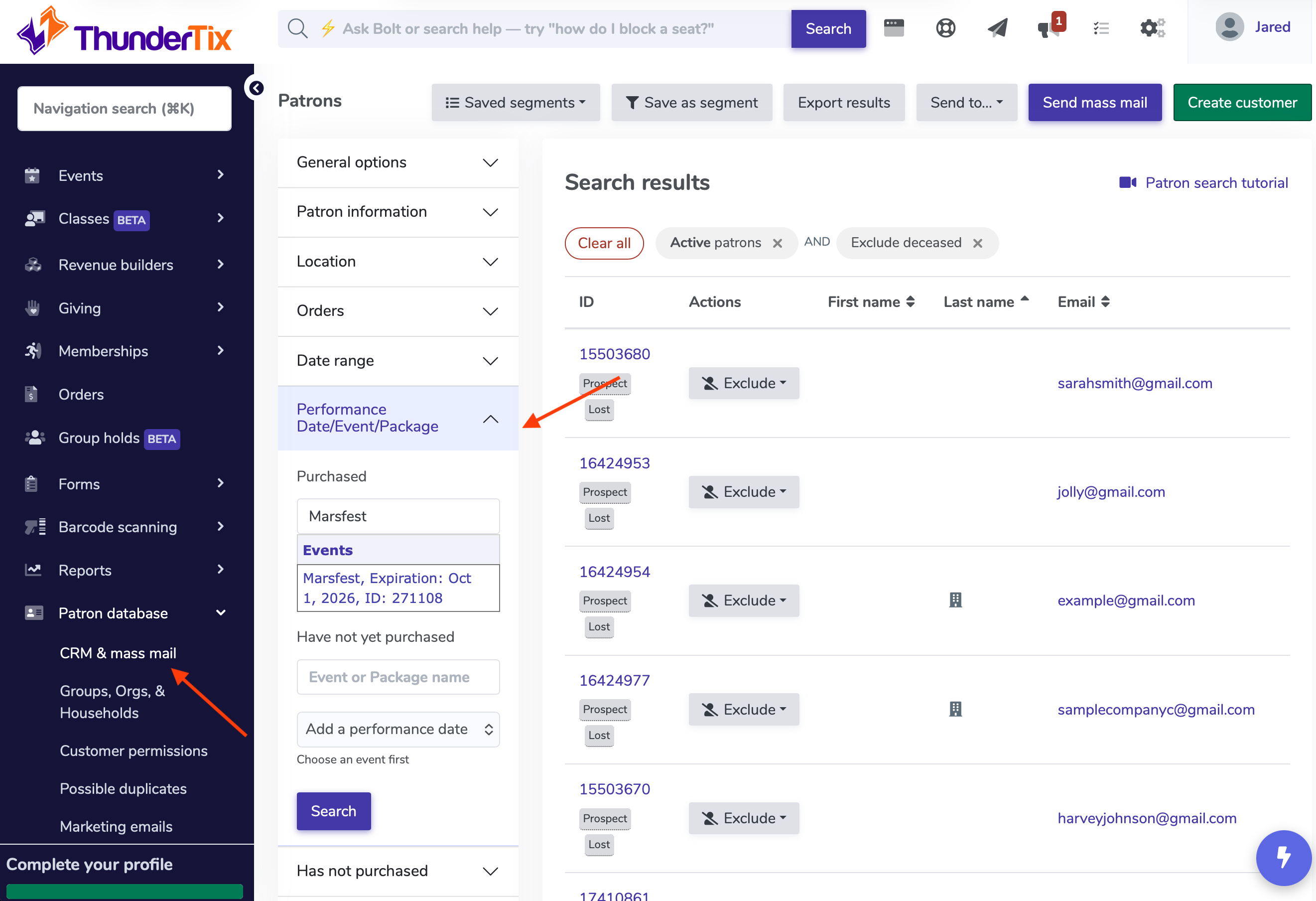
On the main menu bar go to Patron database > CRM & mass mail
On the lefthand side of the page, you'll see a variety of ways to segment out patrons; via specific dates, donations, or memberships to name a few.
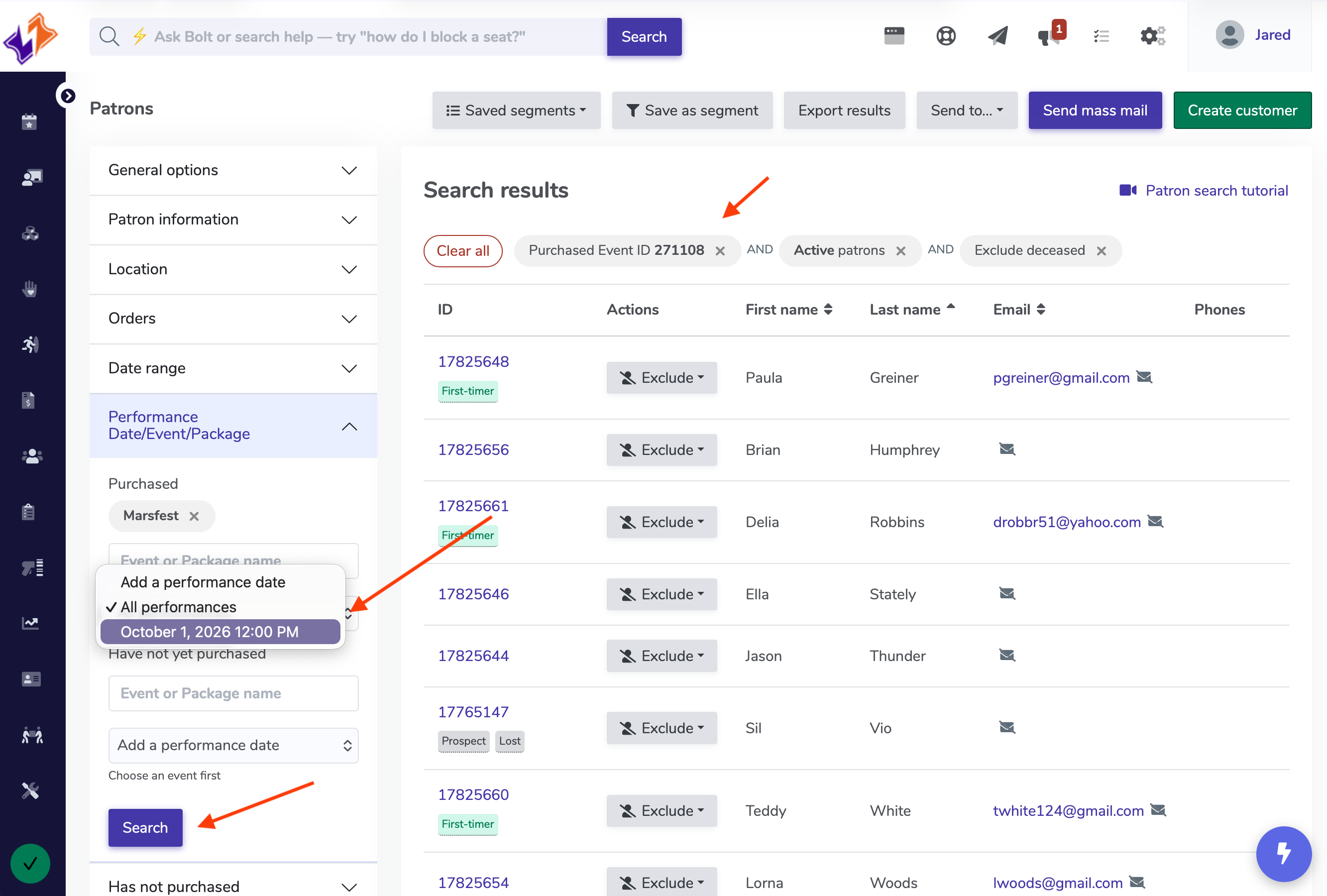
In our case, we're going to select 'Performance Date/Event/Package'. This will allow us to then type in an event name, for example 'Marsfest'.
If your event has multiple performances, you can click the individual date of the relevant performance, and can add more specific performance dates by repeating and selecting another date.
Emailing a class instead? If your venue offers classes, you’ll also see a Classes filter on the left side of the page. Select it and pick your class from the list. Both past and upcoming classes are listed, with their dates beside each name so they’re easy to tell apart.
Your search results will show the person who signed up for each enrollment, usually a parent or guardian. Each person only appears once, even if they enrolled more than one child, and anyone who dropped the class won’t be included.
Next, you'll hit the blue search bar, which will segment out only the patrons that are listed to attend the event. You can verify whose segmented out by checking the top middle of the page under 'SearchResults', and the criteria in gray.
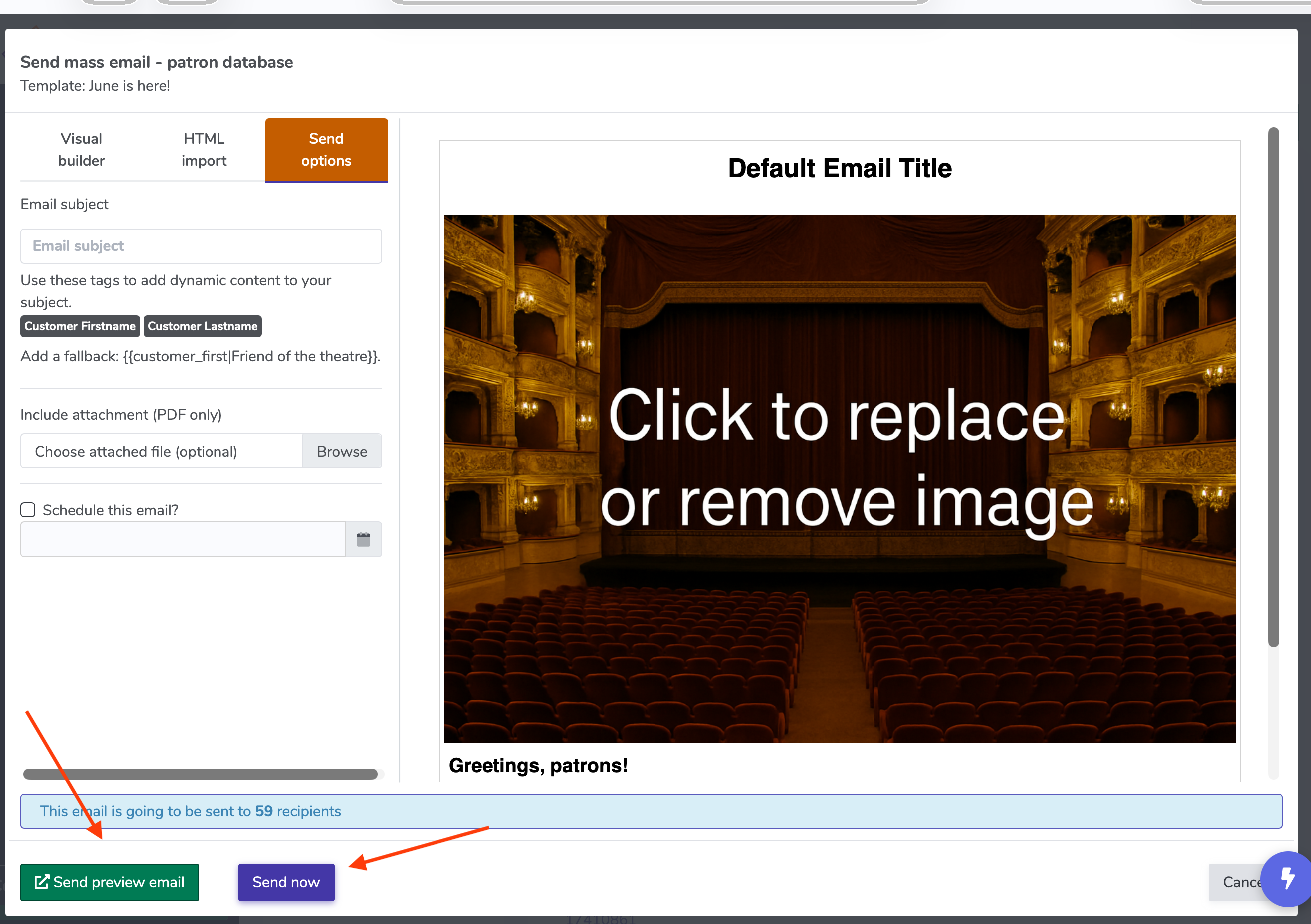
On the upper right hand corner of the page, you'll see a blue button 'Sendmassmail'. You'll want to click that and from here you can select either a template you've already created (in Templates > Massemail) or select the green button 'Create new email' to start from scratch.
When you've completed or selected the template, you can specify an Email subject, and schedule the email for a time of your choosing on the left of the page.
From here, you can hit 'Send preview email' to send a preview email to yourself, or you can hit 'Send now' if you're ready to message your patrons.