
Support Forum
How do I customize my membership renewal email? - Mon - Oct 26, 2026 - 5:48pm

When a membership is set to renew automatically, ThunderTix emails the member before their renewal date. You can change what that email says and when it goes out.
- Go to Memberships > Membership Manager in the left menu. You’ll see a list of all your active memberships.
- Look at the Renewal column to find the membership you want to update. Renewal emails only go out for memberships that renew automatically, such as “Renewing annually from purchase date.” If the column says NA, that membership doesn’t renew, so it won’t send a renewal email.
- Click the blue name of the membership to open it. Then click the Emails tab at the top of the page.
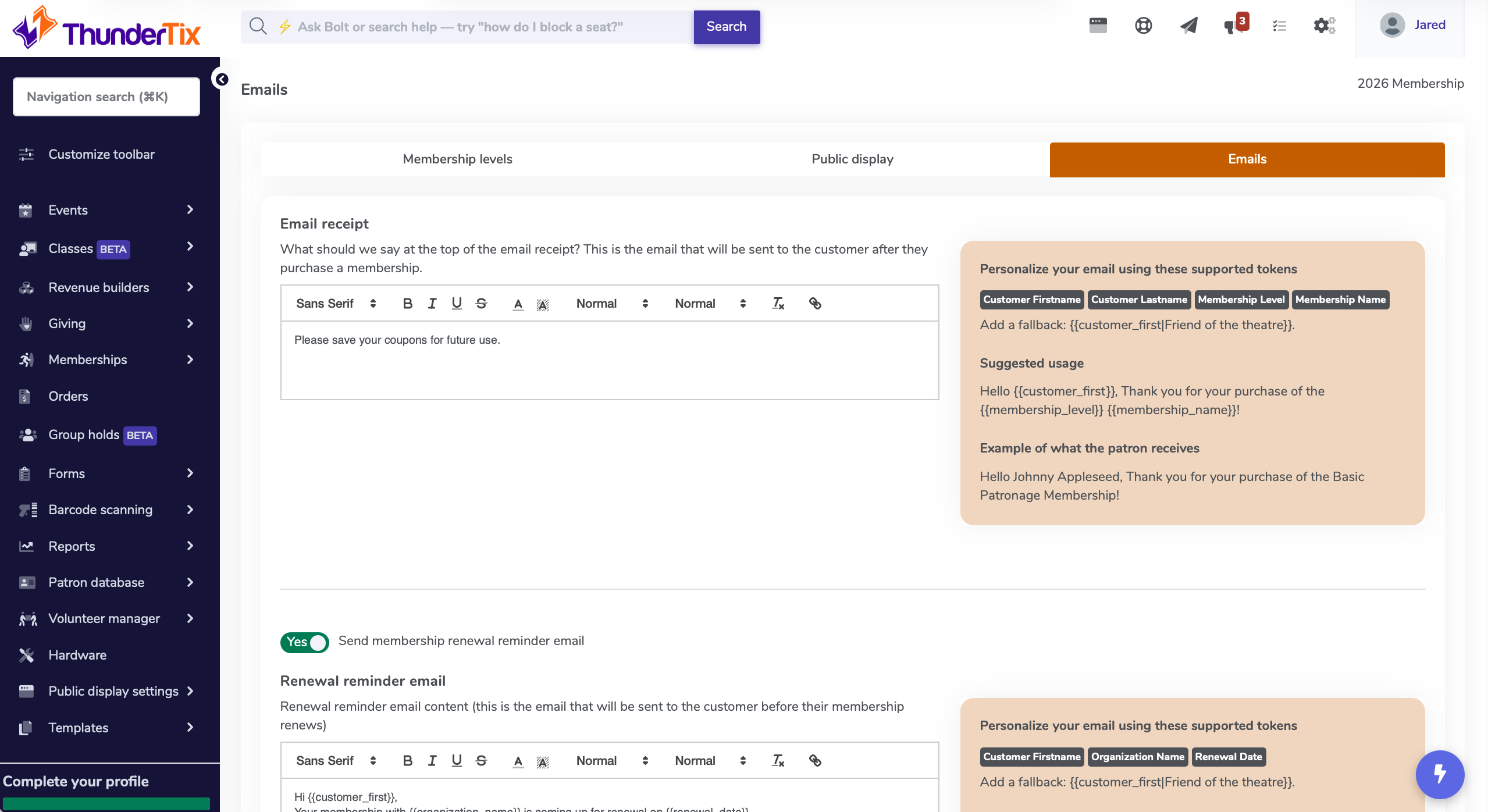

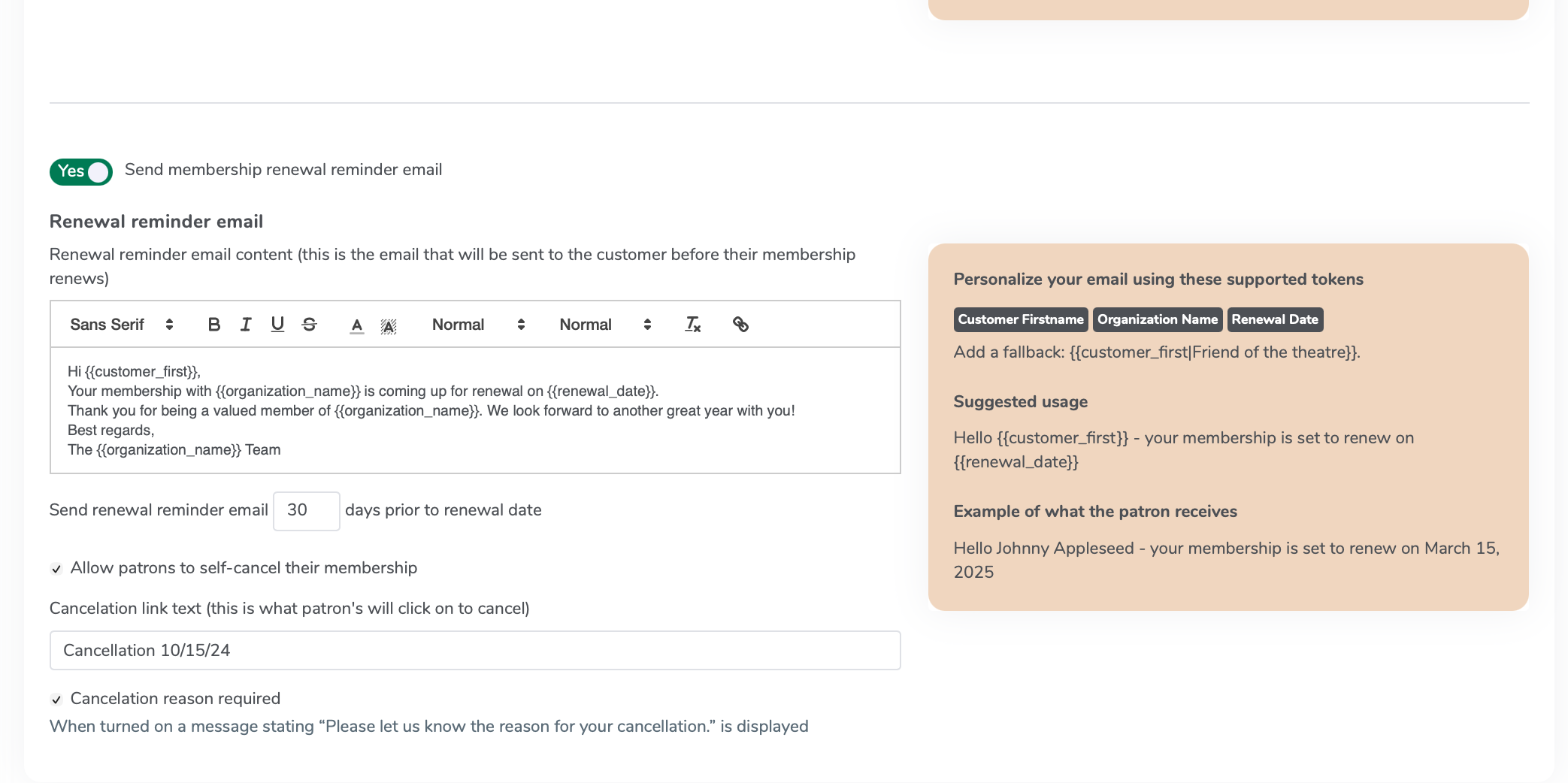
4. Type your message in the text box. You can use these tokens to fill in details for each member:
5. {{customer_first}} for the member’s first name
6. {{organization_name}} for your organization’s name
7. {{renewal_date}} for the date their membership renews
8. Next to Send email ___ days prior to renewal date, enter how many days ahead you’d like the email to go out. The default is 30 days.
9. To let members cancel on their own, check Allow patrons to self-cancel their membership. In the Cancelation link text box, type the words members will click, such as “Cancel my membership.” The link is added to the bottom of the renewal email.

Good to know
- Renewal emails only go to members whose membership renews automatically. One-time purchase memberships don’t get one.
- Each membership level has its own renewal email, so you can word them differently.
- If a member’s card can’t be charged at renewal, the order will show under Orders With Balances.
View our video tutorials
Can I sell memberships through ThunderTix?
What is a Membership?
How do I set up a new Membership?
Can I sell a Membership with a recurring payment if I don't have Square or Stripe?
How do I customize my Memberships button on our event website?
How do I set up Membership Levels?
How do I set up a membership benefit?