4. Choose the applicable product(s) by clicking the "Add to cart" button and then choosing the desired quantity, then click the blue "Continue" button.
5. This should bring you to the checkout page where you can pay for the additional product(s).
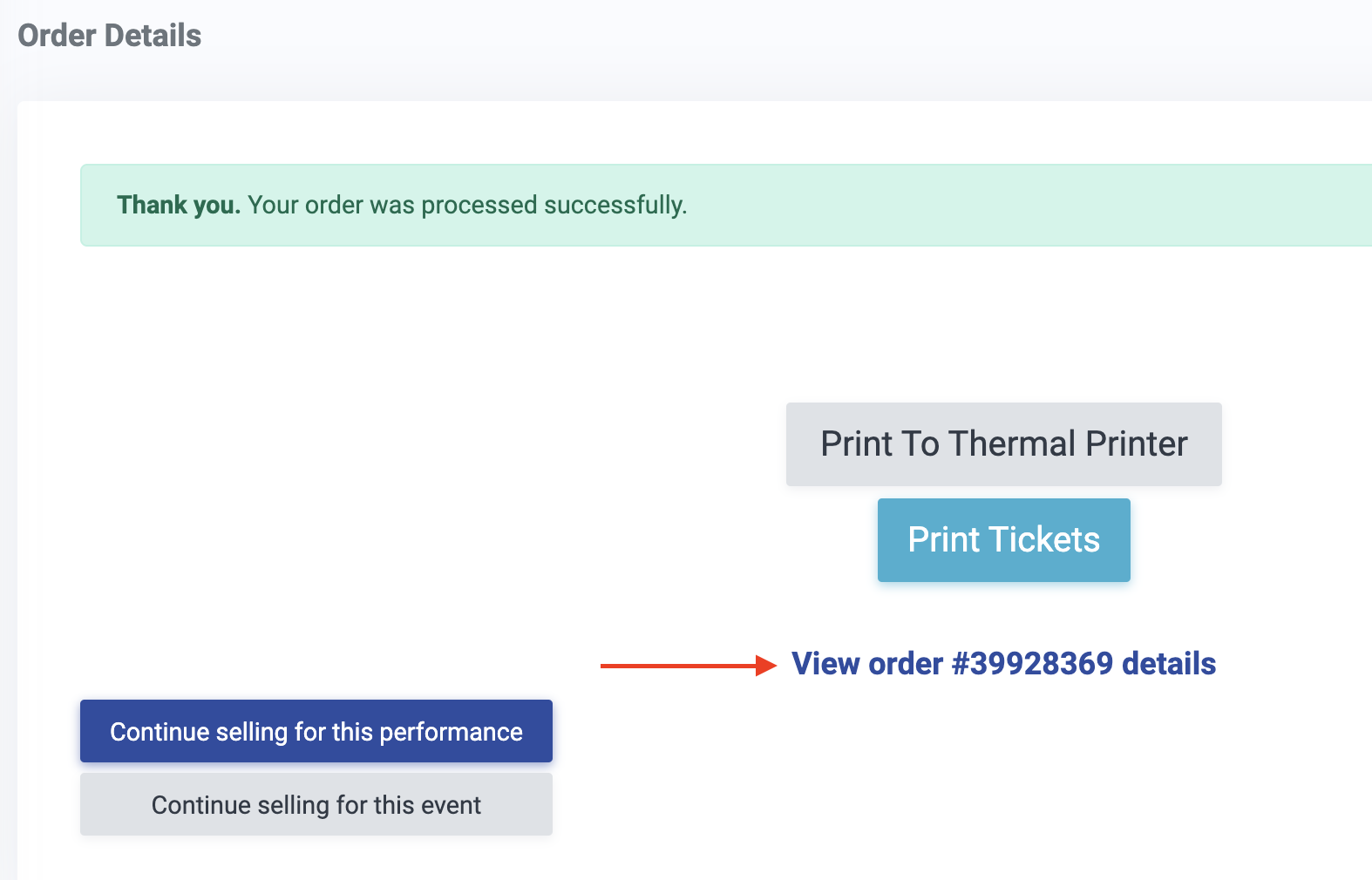
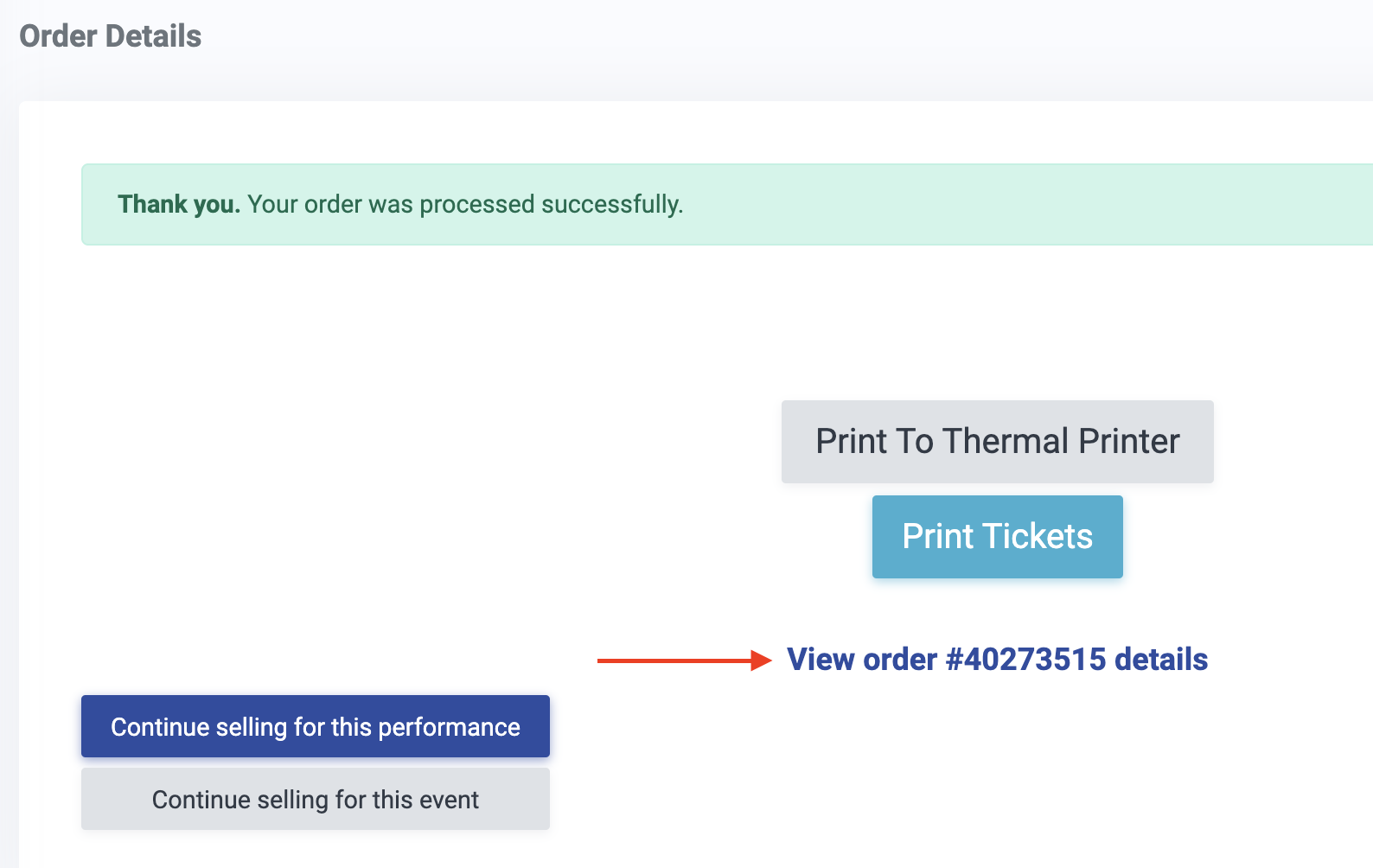
6. Upon clicking the "Quick Checkout" or "Confirm Order" buttons, you will be redirected to a page, where you can view the order details by clicking on the "View order #XXXXXXXX details" link.
7. The details from both the original purchase, and also any added products (or tickets), should be visible on the same order.
For tickets:
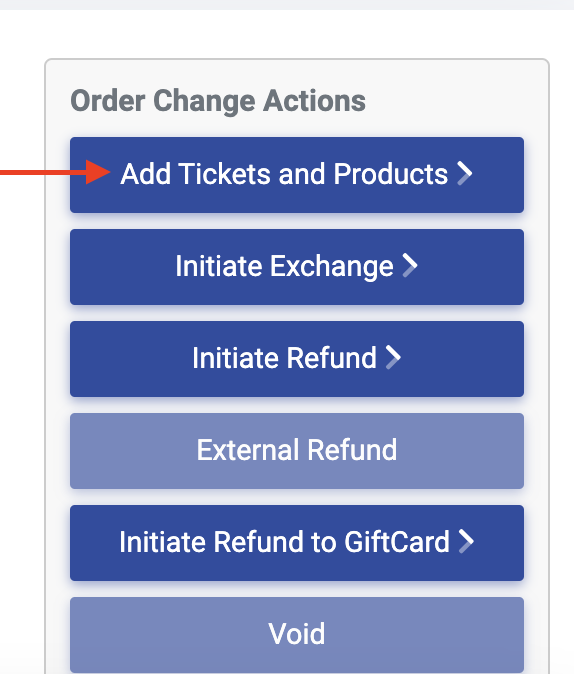
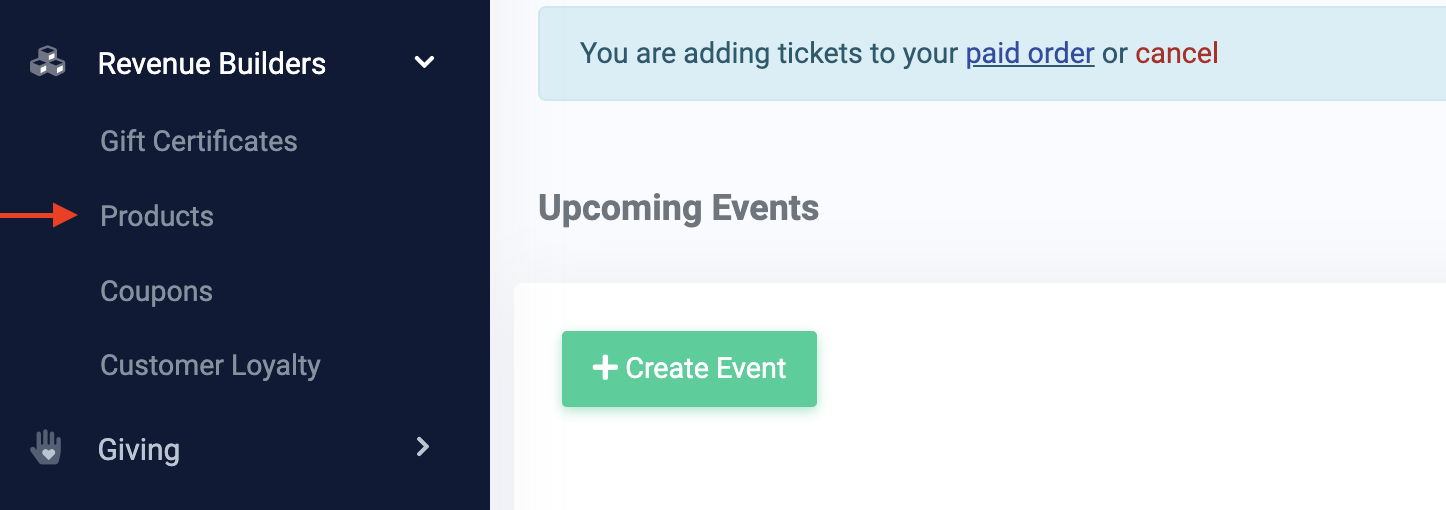
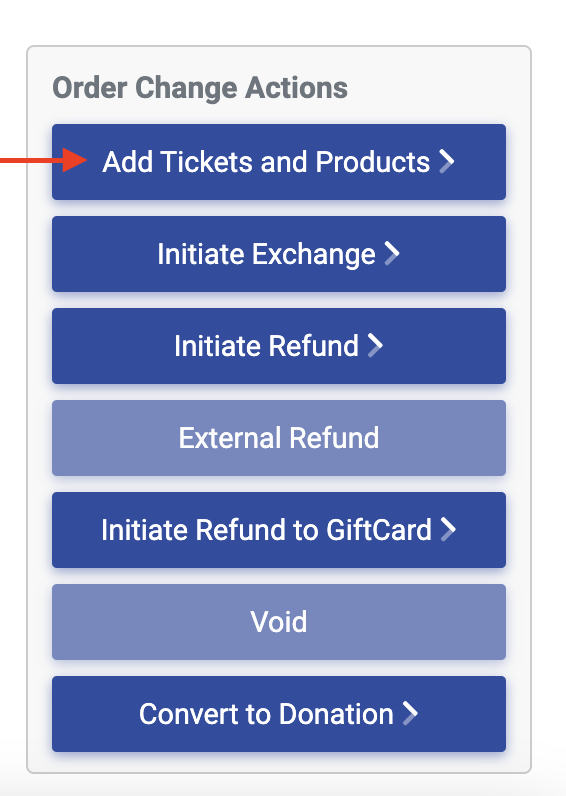
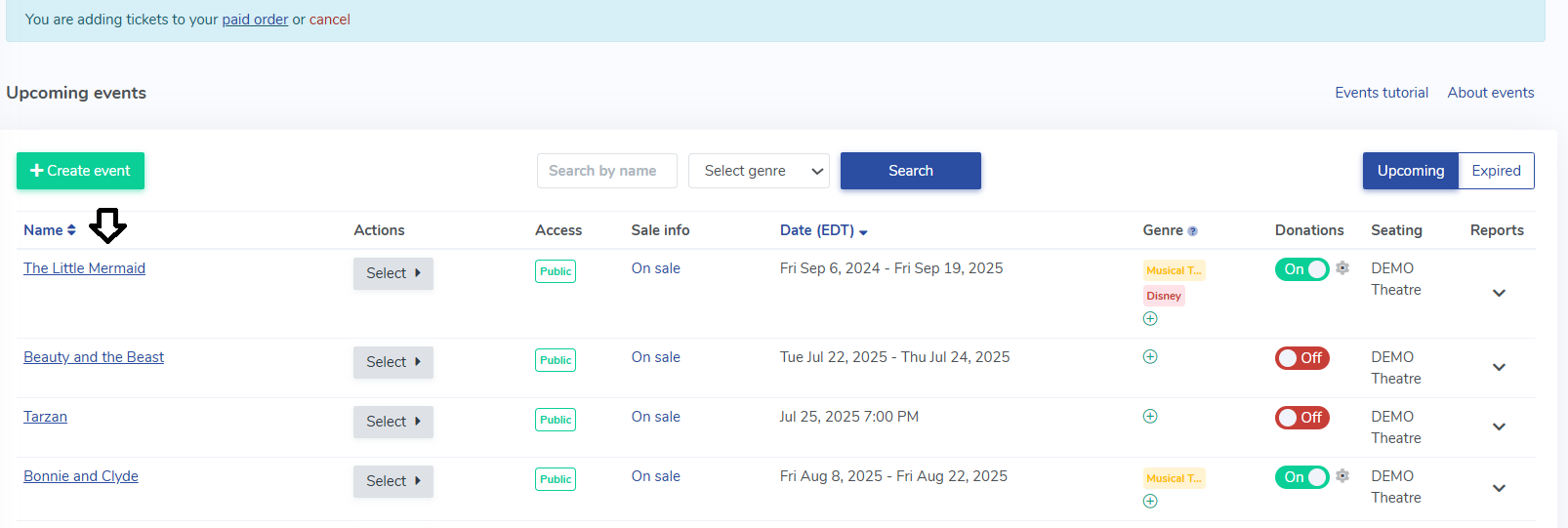
1. From the Order, click on the "Add Tickets and Products" button in the Order Change Actions box. 2. Choose the event for which you would like to add tickets to the order and click on the name of that event.
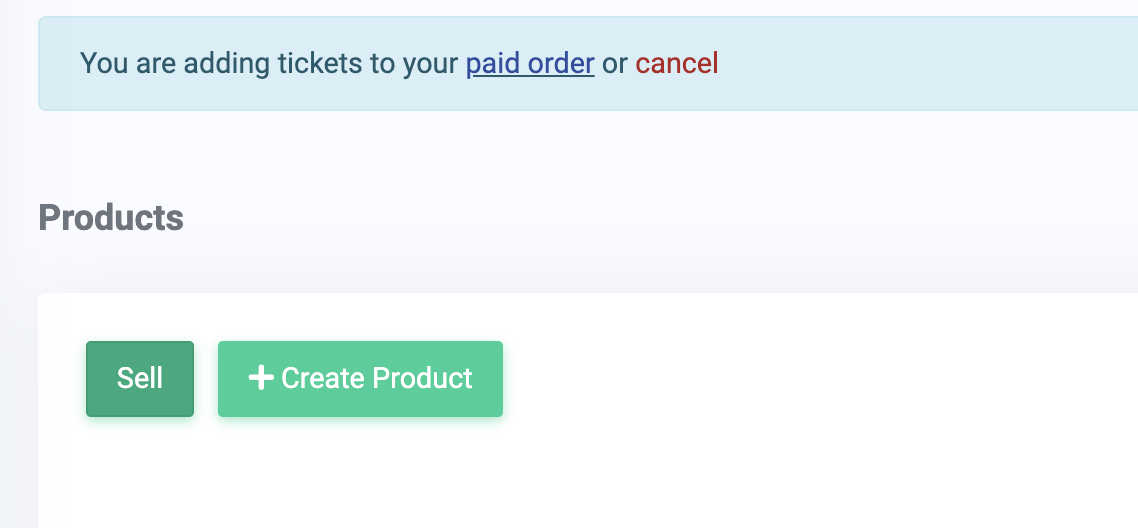
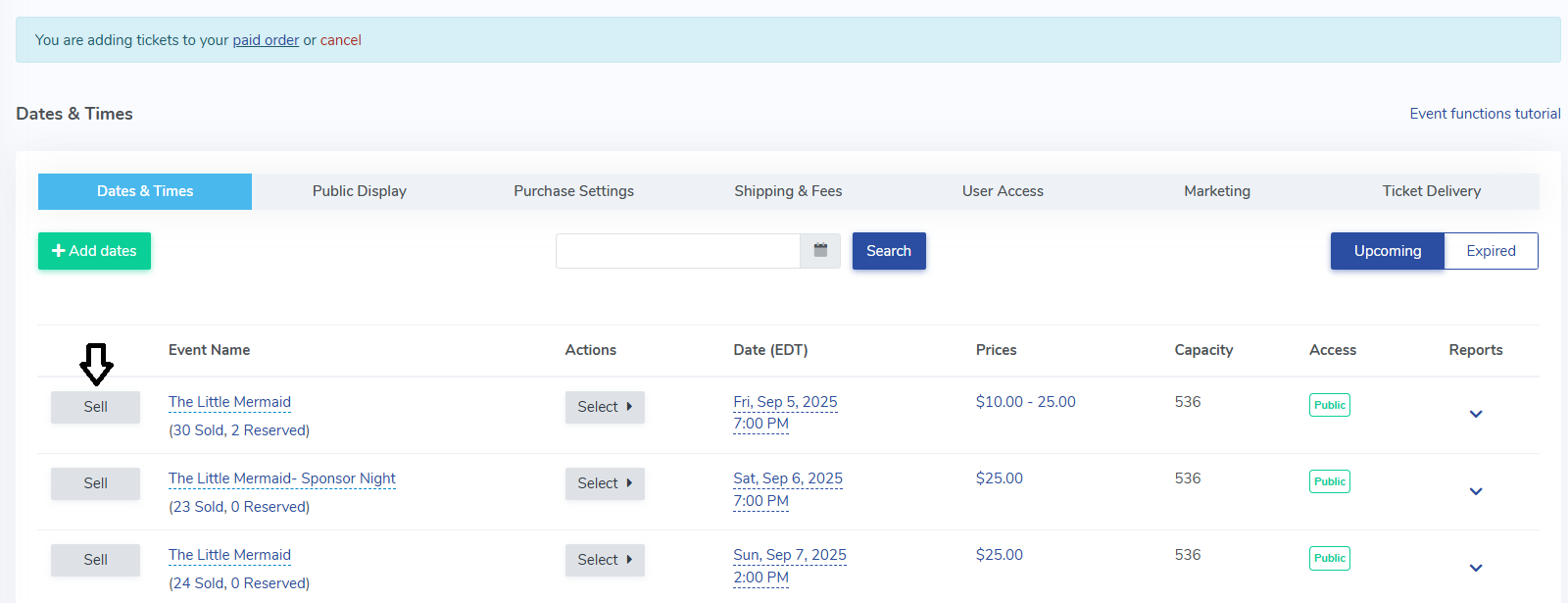
3. Click on "Sell" for the performance date/time you'd like to add tickets to.
Screenshot 2025-07-23 152255.png 93.04 KB 4. Choose the additional seats (if a Reserved Seating event) or the number of tickets (for a General Admission event) and click the "Continue" button.
5. Fill out any necessary ticket information, as needed, and click "Continue" again.
6. This should bring you to the checkout page where you can pay for the additional ticket(s).
7. Upon clicking the "Quick Checkout" or "Confirm Order" buttons, you will be redirected to a page, where you can view the order details by clicking on the "View order #XXXXXXXX details" link.
8. The details from both the original purchase, and also any added tickets (or products), should be visible on the same order.
*Please note that there is currently only the option to add products or tickets to orders with only these two items. Orders that include donations, gift cards, coupons, memberships, packages, etc. are not eligible to use this function. Please also note that at this time you cannot accept donations on an order with only products.

 To add products or tickets to an existing order, you'll want to do the following: