
Support Forum
How to perform a batch refund - Mon - Nov 10, 2025 - 12:24pm
-
 Batch refunds allow you to refund credit card purchases for all patrons for a given performance with a single transaction. (Note: cash and voucher transactions may be handled individually and separately.)To learn how to perform a mass refund especially for a canceled event, follow the steps below.
USE CARE! A batch refund cannot be undone!
1. Go to the Event Manager and select the Event in question
2. For the performance Date & Time you wish to refund, click Select
3. Click Batch Refund as shown below.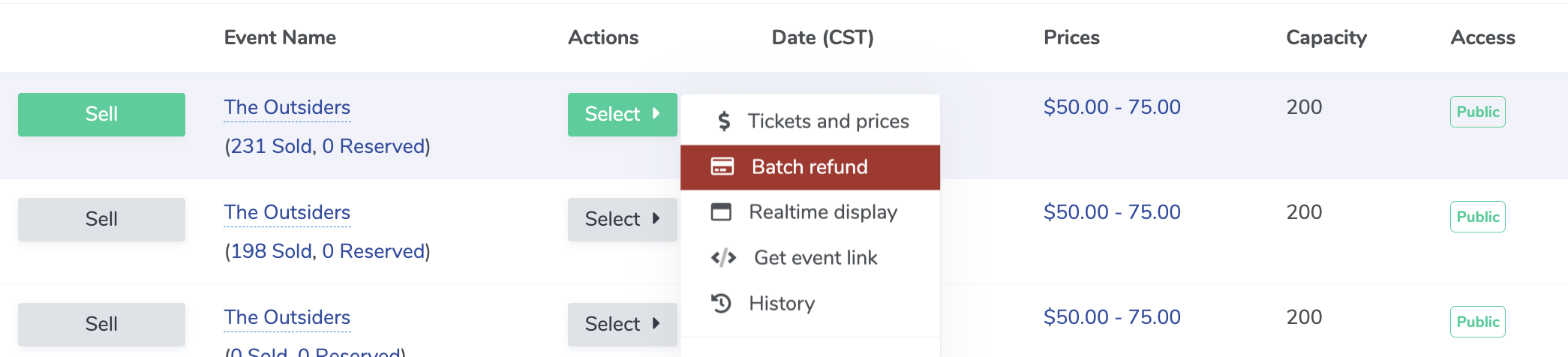
4. A popup will provide the option to refund the order to a gift card (retaining the revenue) or refund the order directly back to the credit card. Select the option you prefer. Both options follow the same directions.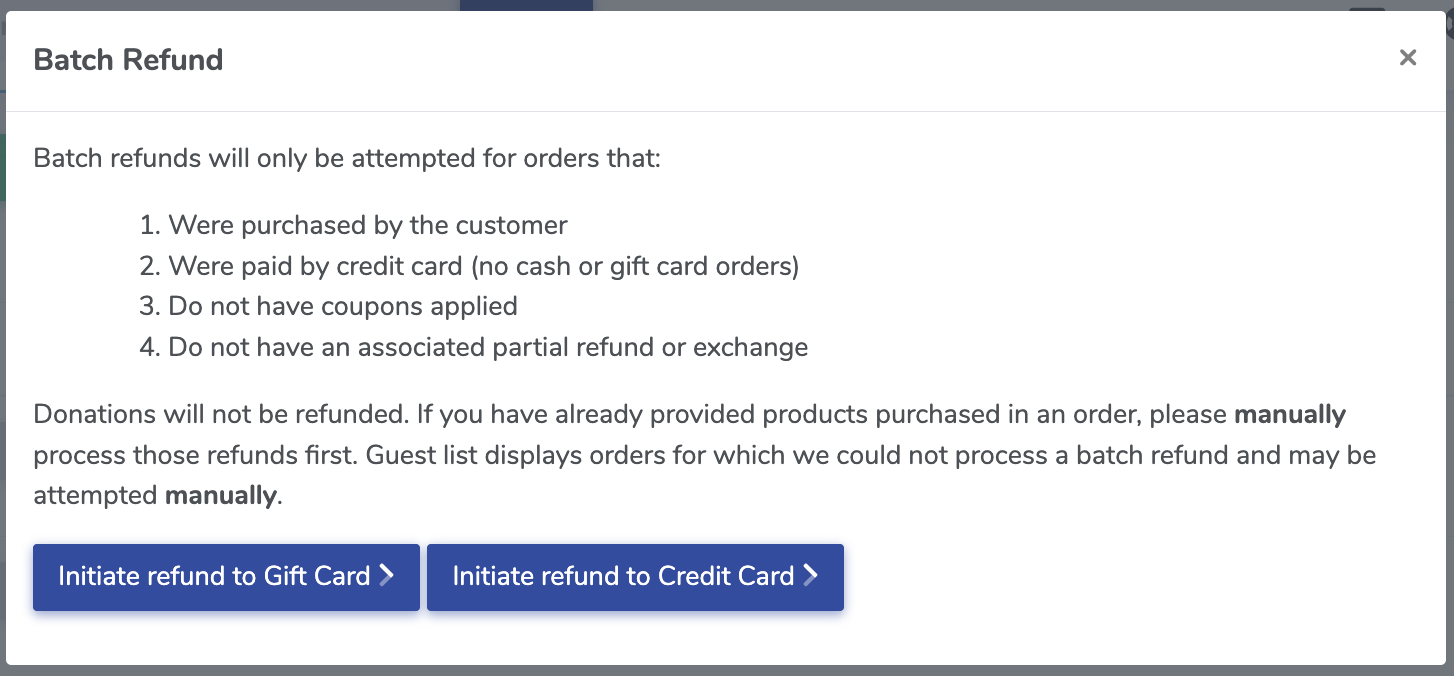
5. Read through the application criteria for refunds before proceeding. Note, for example, that donations are not refunded during this process.
6. Select whether you wish to refund all fees or retain fees. Retaining fees is the standard and helps cover all costs of ThunderTix.
7. Add any applicable notes and subject line.
8. Submit the refund, and we'll notify patrons automatically unless you deselect the email option.
That's it! Your refunds are done!


View our video tutorials
How do I delete an Order?
Why are orders missing from the Orders tab?
What happens to sales tax on an exchange?
How do I comp a ticket or comp an order (make a ticket complimentary)?
How can I waive fees for some orders?
How can we charge a small fee to our patrons for a ticket exchange?
Our show was canceled -- how do we process refunds?
