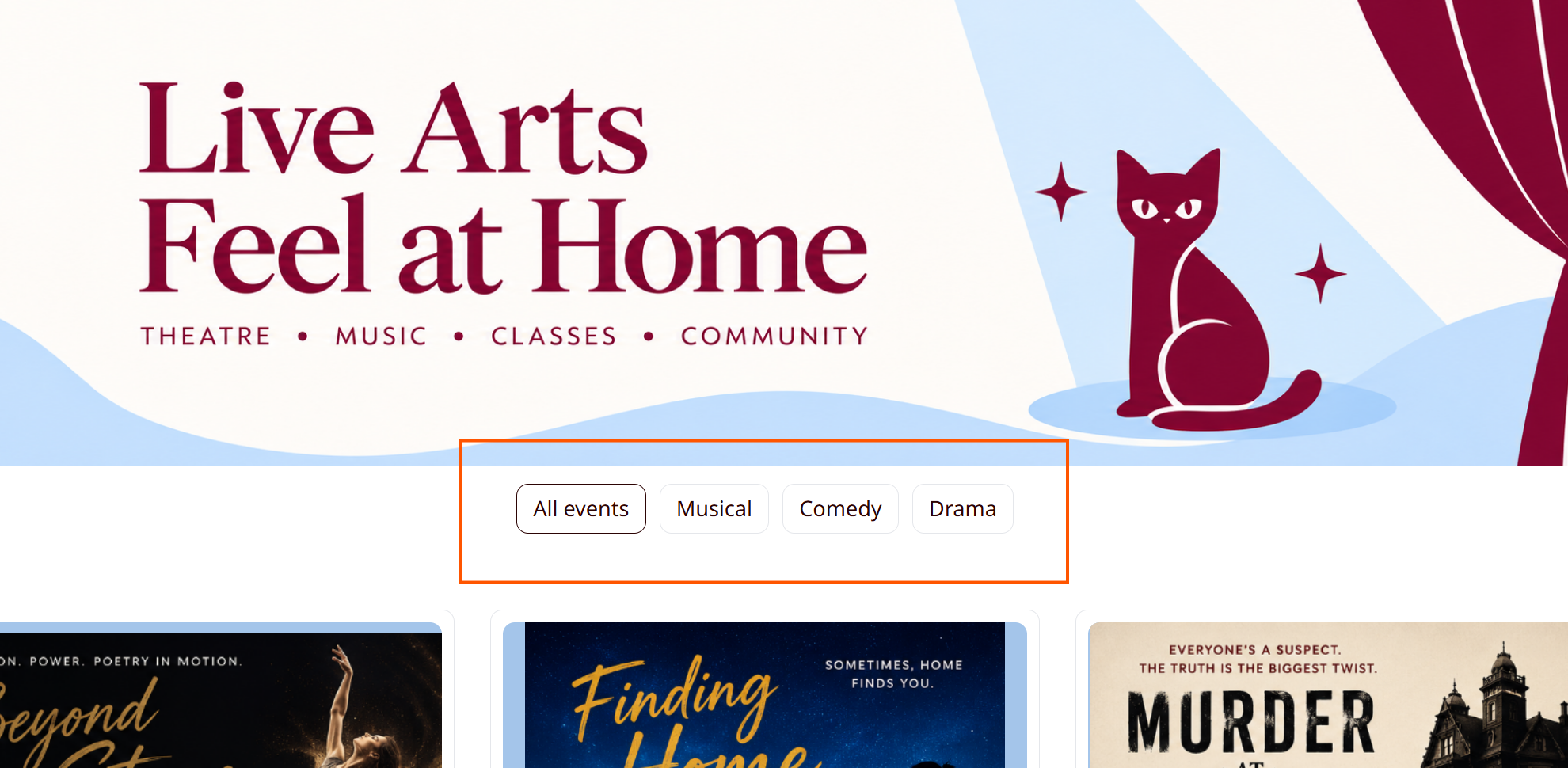
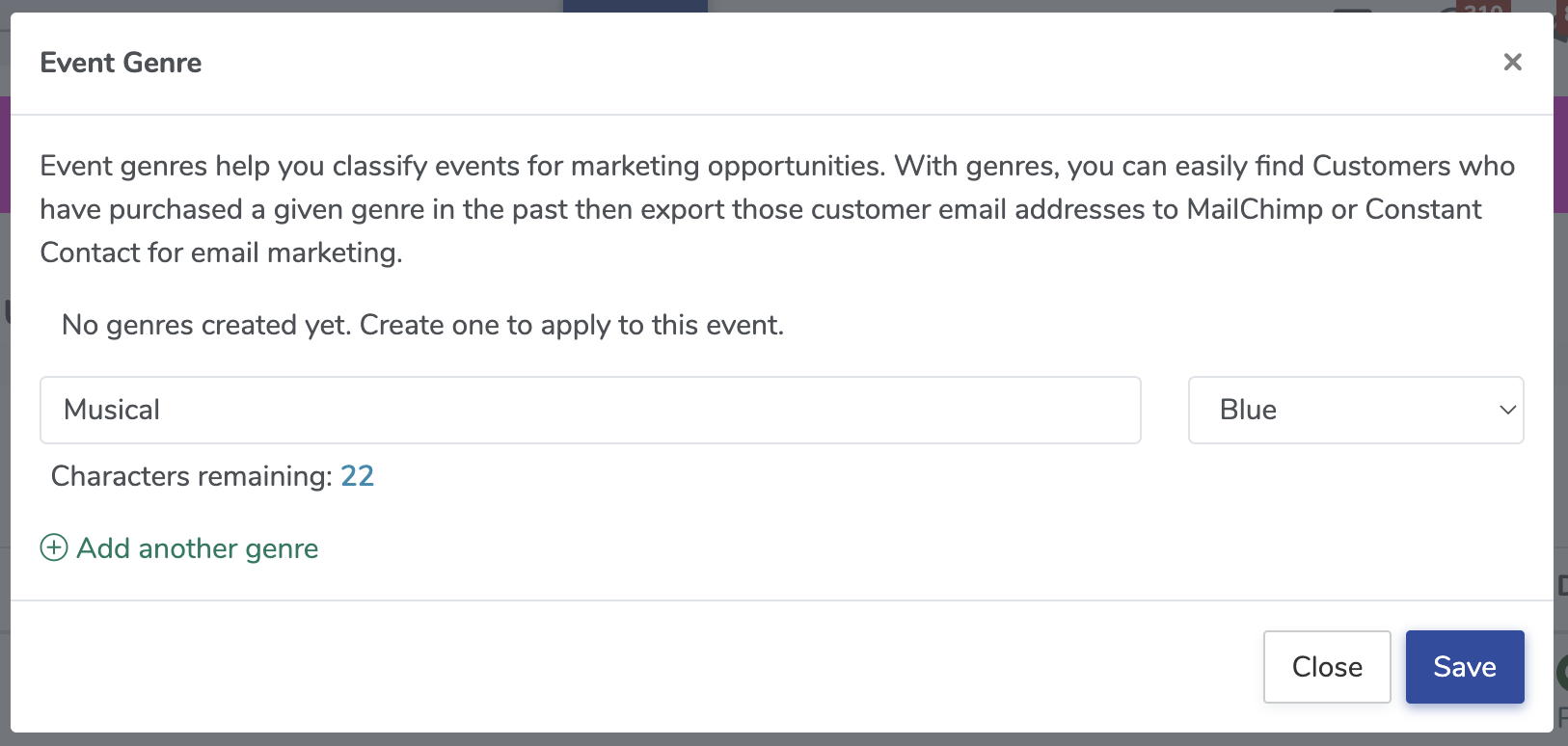
On your events index, you may have noticed the column for Genres. You can click the + icon to add various genres to your events. Previously, those genres were only visible to venue admins. We have recently released a change that allows you to display genres on the public side so they can be used as a filter.
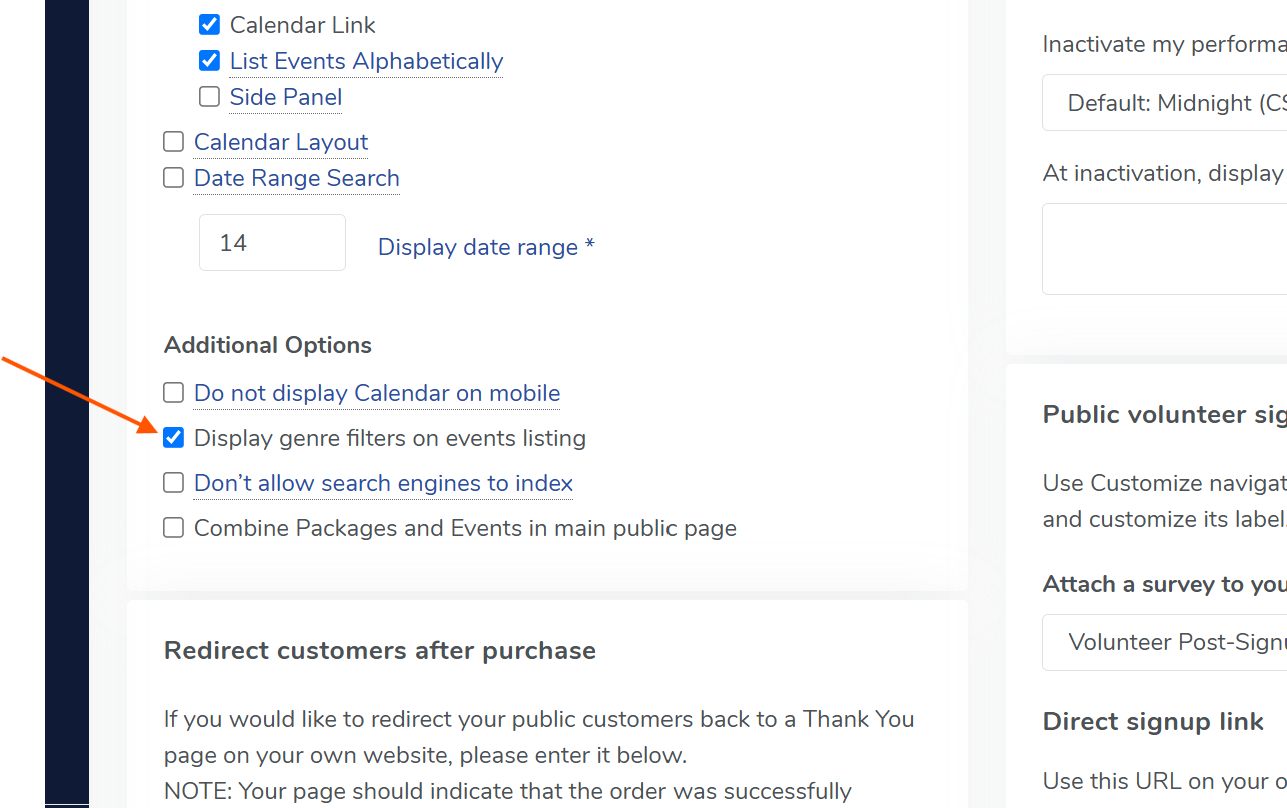
To enable genre filters, click the browser icon in the top right menu bar, then click Edit public display. This will take you to your public display settings. In the Public display block, enable the checkbox for Display genre filters on events listing. Voila! Your patron's can now filter by genre to easily find the events they're interested in.
To apply a color to a genre, click the + icon in the Genres column for any event on your events index. This will bring up your list of genres. Click the circle icon next to a genre and select your preferred color. If you have genre filters enabled on your public display, that color will also appear on your public events listing.