
Support Forum
How do I process a donation for a patron? - Tue - Aug 10, 2021 - 12:58pm
If you have not yet provided an Order History import to our customer support team, please do so using the Order History Template found in your Patron Database >> Import Customers. This will allow you to import order history for multiple patrons. This donation history would appear on the patron's record under IMPORTED ORDERS. (In ThunderTix, the term customer is synonymous with patron. While searching in the Patron Database and throughout the entire system, you may see customer and patron used interchangeably.)
If you need to process a donation for a single patron, you can do so in several ways.
To process a donation for a patron for a fundraising campaign, follow the steps below:
If you need to process a donation for a single patron, you can do so in several ways.
To process a donation for a patron for a fundraising campaign, follow the steps below:
- Head to Giving
- Click Fundraising Campaigns
- Click Donate on the campaign they wish to donate to
- Enter the donation amount and Continue
- Enter the payment and customer information at checkout
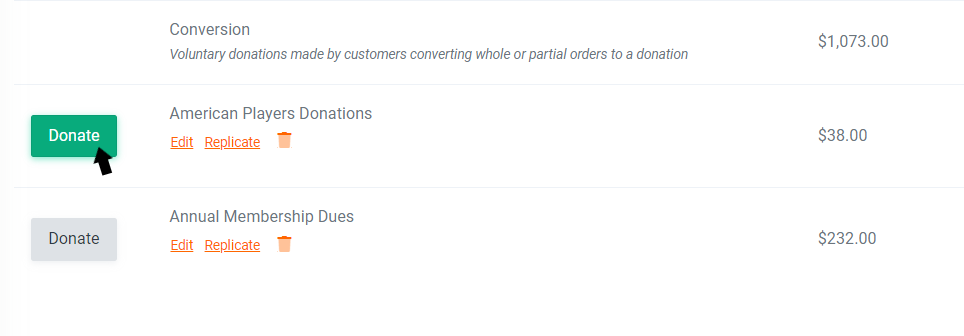
To process a backdated donation for a patron, follow the steps below:
- Head to your Patron Database
- Click Search and Mass Mail
- Search for the patron (customer) name and click their patron (customer) ID to be taken to their record
- Click Process Transaction >> Backdate Donation
- Select the fundraising campaign the customer donated to, and process the donation as a regular transaction
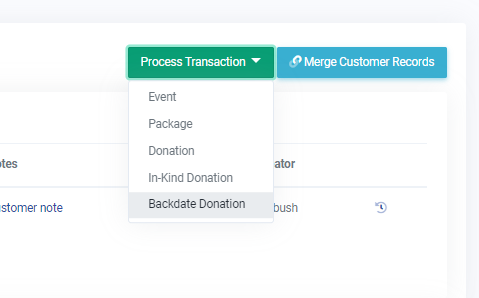
You can also convert an order to a donation. Doing so will return the tickets to your inventory but retain the revenue as a donation.
- Click the Orders
- Search for the order and click the order ID to open it in a new window
- Under Order Change Actions, select Convert to Donation
- Select the tickets you wish to convert under the Quantity column
- Select a specific fundraising campaign to apply the tickets to if any
- Click Convert to Donation
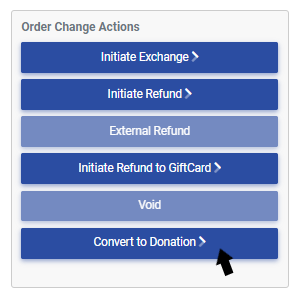
View our video tutorials
Where can I see the total collected donations?
How do I make a donation request? Can I customize the donation wording?
Can my customers make a donation without buying a ticket?
How can I customize the email sent to customers who make a donation through an event?
Fundraising Campaigns and Donations now available on events
Targeted Donation Messaging and Recurring Donations
How do the round-up donations work?


