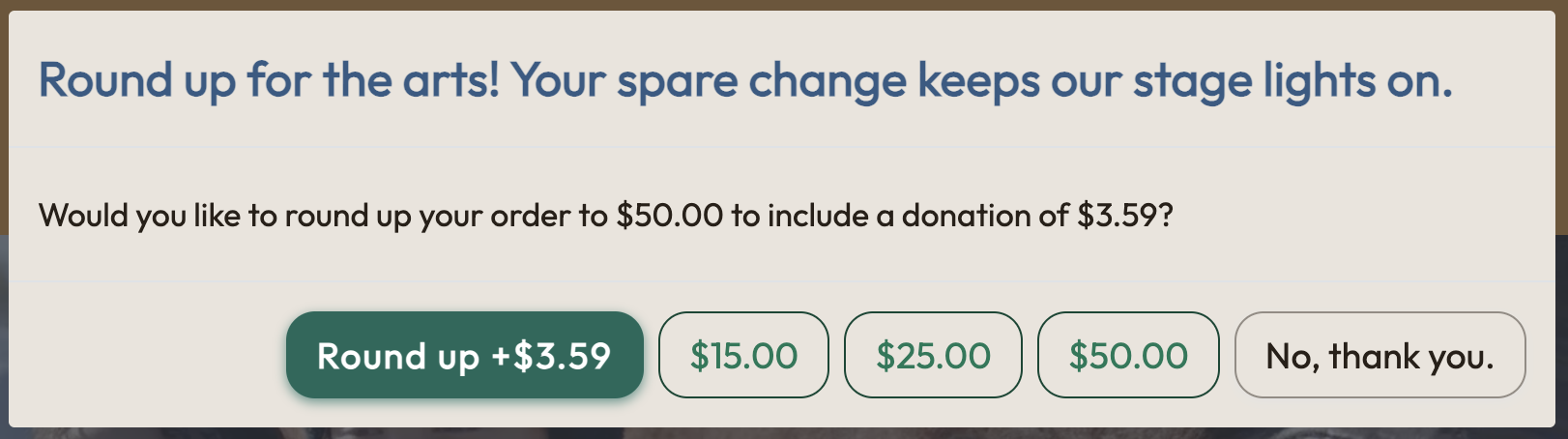
Round-up donations invite your patrons to add a small gift at checkout. When a patron reaches the checkout page, we ask if they’d like to round up their order total as a donation to your organization. Your box office staff see the same ask when they process an order.
Turn it on
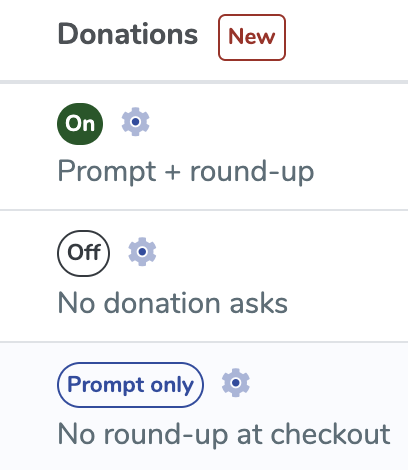
Round-up needs to be turned on in two places.
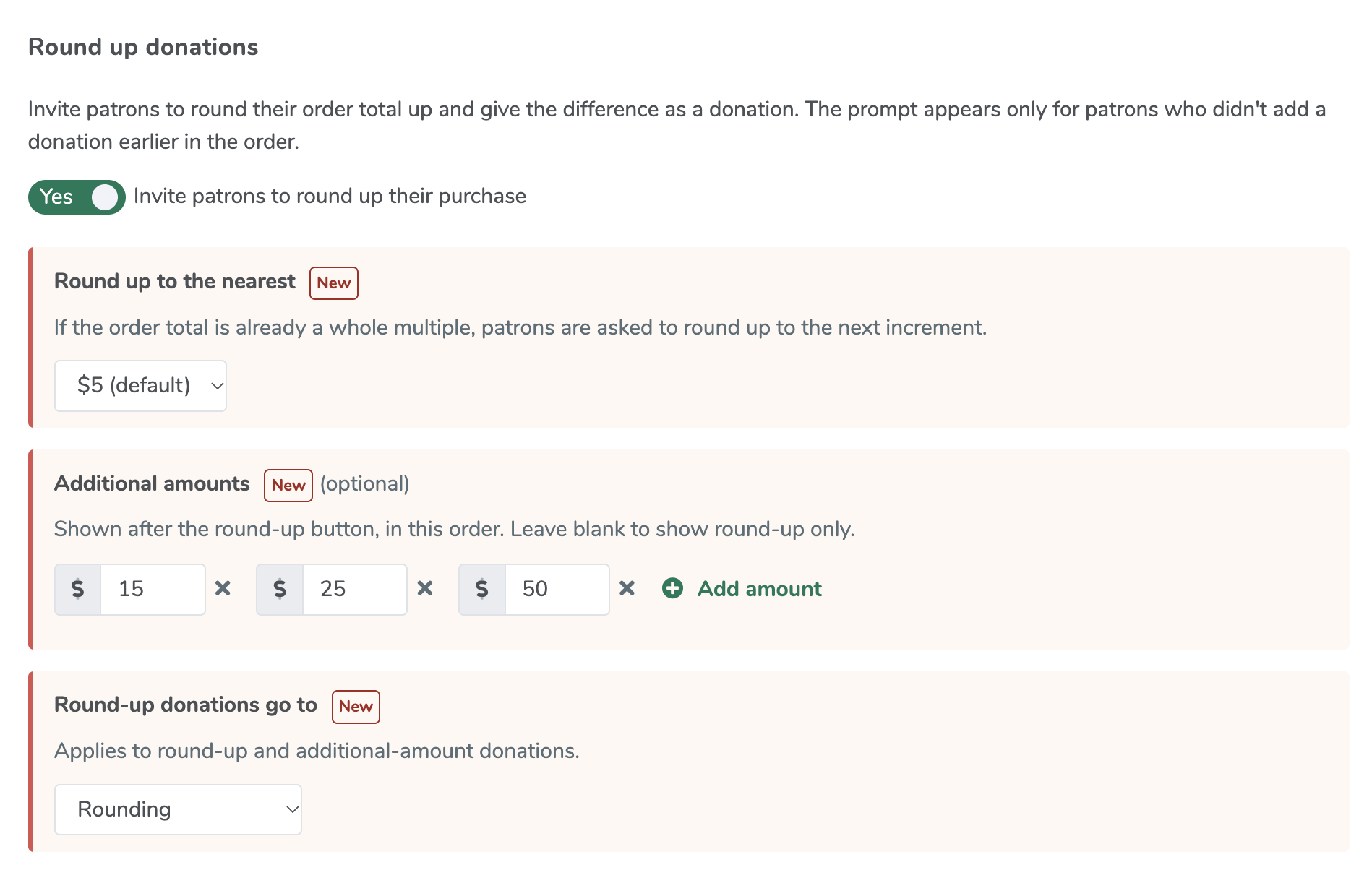
Your account. Go to Account Settings > Checkout Options and find Donations at Checkout. Turn on Invite patrons to round up their purchase. You can turn this on or off at any time. When it’s off, round-up never appears.
We ask the patron to round up to the next increment you’ve chosen: $1, $5, or $10. The default is $5.
For example, with a $1 increment and an order total of $24.31, the patron is asked to round up to $25.00 with a donation of $0.69. If you’ve added preset amounts, they appear as extra buttons:
Round up +$0.69 | $5 | $10 | $20 | No, thank you
We always offer the next increment. With a $5 increment, a $20.00 order is asked to round up to $25.00.
The item the patron just added to their cart is an event with round-up checked.
The order doesn’t already include a donation. If the patron gave from the event page prompt or to a campaign, we don’t ask again.
Where the donations go
Round-up gifts go to your Rounding fund unless you choose a different fundraising campaign. Your reports mark them as round-up gifts, so you can tell them apart from regular gifts to the same campaign.