
Support Forum
What are Groups and Organizations? - Fri - Feb 20, 2026 - 3:08pm
-
 Groups & Organizations help you track orders and relationships when you’re working with companies, schools, tour operators, nonprofits, and other repeat buyers. Instead of only seeing an individual buyer on an order, you can also see (and report on) the group or organization behind them.
A Group/Organization is a shared record you can attach to many different orders and buyers. Examples:- A school booking multiple field trips over the season
- A bus tour company buying large blocks of tickets
- A corporate client hosting recurring events
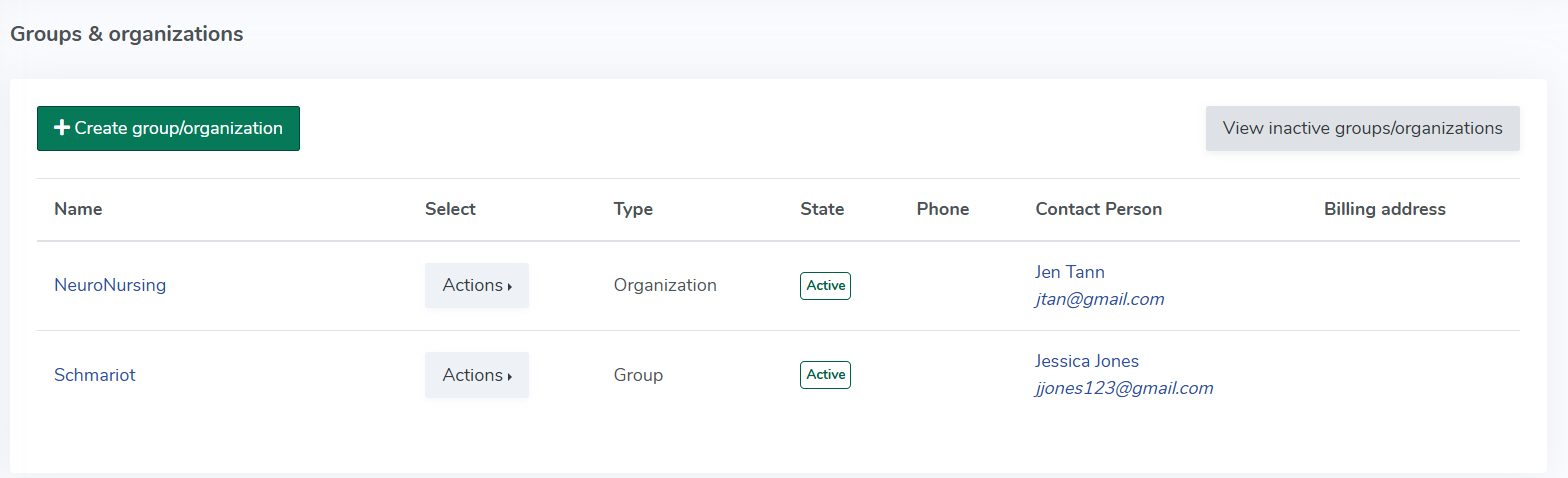
When an order is linked to a Group/Organization:- The group name appears under the buyer’s name on the order, with a clickable link to the group page.
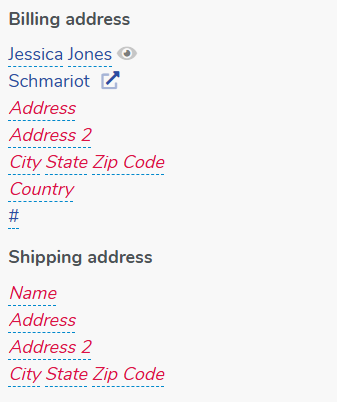
- Every buyer who has purchased under that group becomes a member of that group.
- The group page shows a list of all members and a list of all orders attached to that group.
Understanding the Group & Organization page
When you click the group name under a customer, you’ll be taken to the Group/Organization page.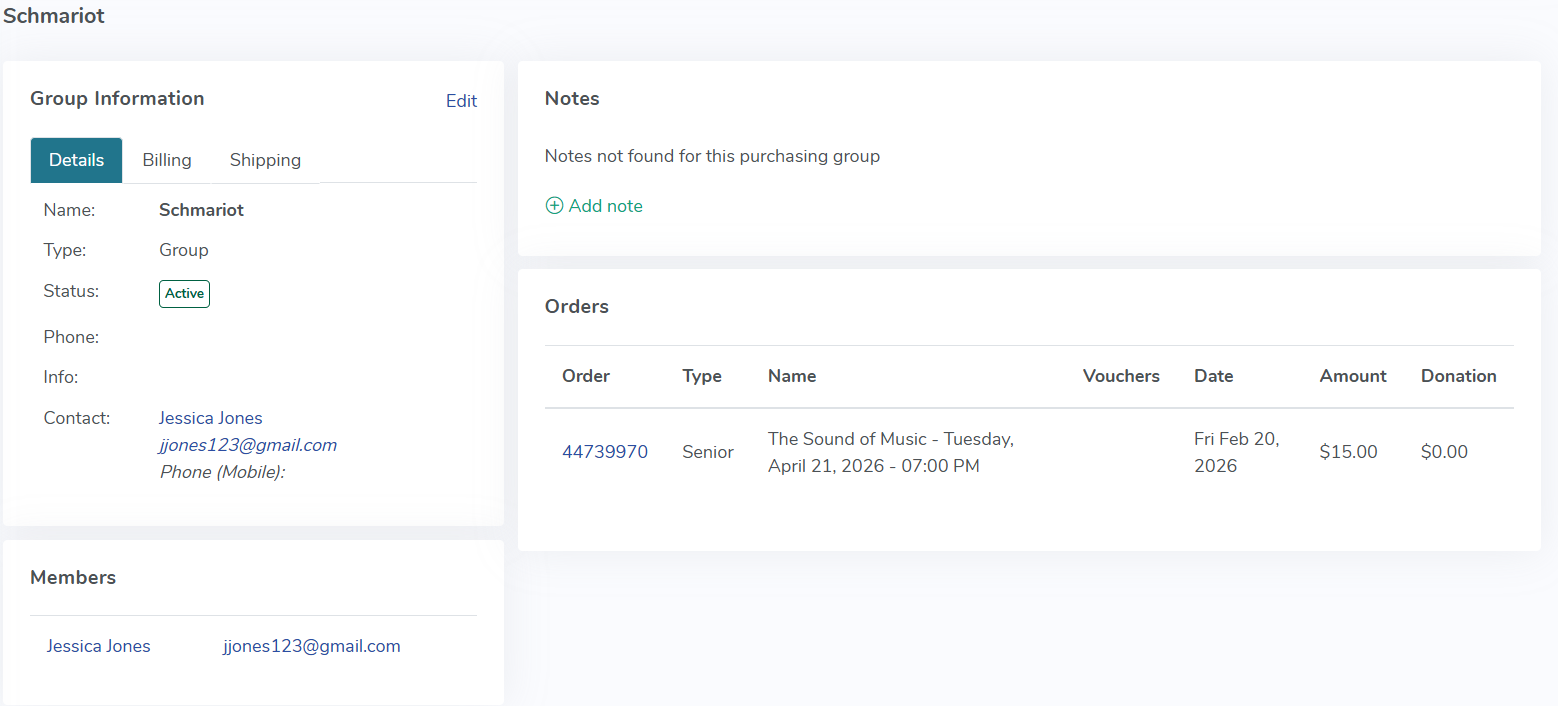
You’ll see:
1. Group/Organization header- The official name of the group or organization, which should match what you expect to see under customer names on orders.
- If you notice a mismatch between the company label on an order and the Group/Organization name, use the transfer and selection tools going forward to keep everything consistent.
2. Members section
Every buyer who has ever placed an order linked to this Group/Organization is listed as a member.- Members are added automatically when:
- You select a Group/Organization during order creation in the admin, or
- You transfer an order with a company name into a Group/Organization using the transfer icon.
- The Members section appears in its own block on the page.
- When there are many members, results are paginated (after roughly 15 members) so the page remains easy to scroll and read.
You can use the Members list to quickly see:- Primary contacts for the group
- How many unique people are part of the organization
- Who to reach out to for renewals, VIP treatment, or group communications
3. Orders section
Below the members, you’ll find the Orders associated with this Group/Organization.- Orders are listed in descending date order (newest first).
- This makes it easy to:
- See the latest bookings at a glance
- Review what they bought most recently
- Support billing questions and planning future events with the group
Order results are paginated when there are many orders, so the page remains responsive.
Best practices for using Groups & Organizations
To get the most value from this feature:
Always link group orders- Any time an order belongs to a company, school, club, or other group:
- Select the correct Group/Organization when you create the order in the admin, or
- Use the transfer icon on online orders where the buyer entered a Company name. For more information on how to transfer an order to a group or organization please see this discussion: How can I transfer an order to a group or organization?
- The more consistently you link orders, the more accurate your group history and reporting will be.
Keep naming consistent- Decide on a standard format for each organization’s name and reuse it:
- Example: “Thunder Data Systems” instead of mixing “ThunderTix,” “Thunder Data,” and “Thunder Data Systems.”
- Consistent names prevent duplicates and make your reports and group pages easier to understand.
Use the group page before negotiations- Before quoting a group rate, renewal, or sponsorship:
- Open the Group/Organization page.
- Review the most recent orders and overall volume.
- This gives you context for discounts, comps, or special arrangements.
View our video tutorials
Why can't all users see the patron database?
Is there a way to quickly recall a customer's info in case we need to call them?
Which customers get entered into the Customer Database?
How can I obtain customer data for those who have opted into our mailing list?
Is it possible to sort the guest list by the zip code from each order?
Customer Comments:
How do I disable the Auto-Fill feature on my account?
