
Category: Customers

Keep school groups, companies, clubs, families, and other buying parties in one place. One record holds the people, their orders, notes, giving, and optional ticket holds!
Create a group
- Open CRM & mass mail, then Groups, Orgs, & Households.
- Click Create Group or Organization.
- On the Grou
Group holds
A group hold reserves tickets for one group on one upcoming performance so those seats are not sold to the public. The group can buy from the reserved inventory with a purchase link, or staff can sell against the hold at the box office, until the hold expires or the tickets

How to Exclude a Patron from a Segment
Important: A search must be saved as a segment before you can exclude a patron from it. Patrons cannot be excluded from an unsaved search.
If a patron appears in a segment but should not be included, you can exclude them from that specific segment.
... (continued)
Segments help you organize patrons into targeted groups based on their activity, purchase history, donations, engagement, and other criteria. They make it easier to send relevant communications to the right patrons without rebuilding the same search each time.
How to Create a Segment
- Go

When you go to process an order and the customer has purchased tickets before, this pop up will appear. This just means that we have found one or more customer records with the exact same first and last name.
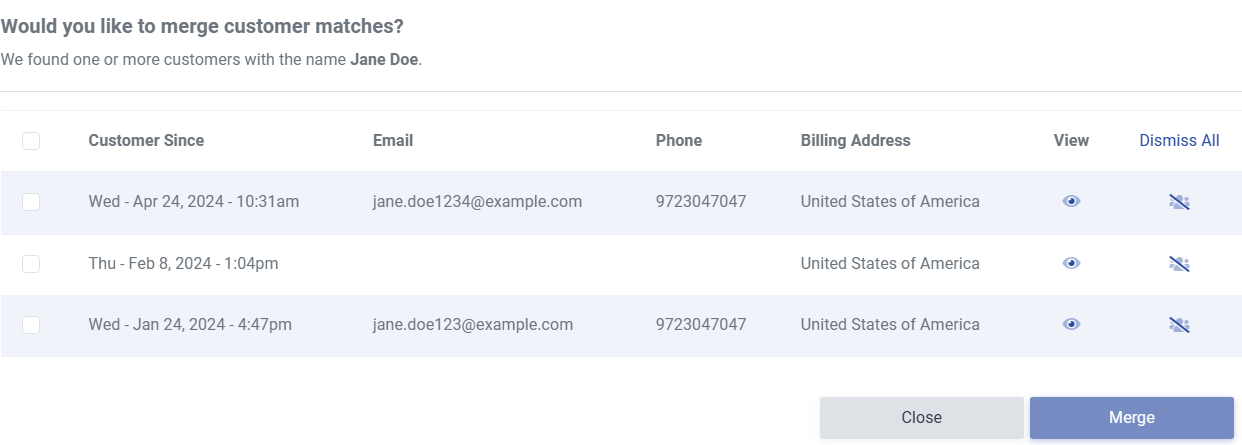
If they are the same person, you can click merge to merge the two together
... (continued)
If they are the same person, you can click merge to merge the two together

When customers use multiple email addresses for ticket purchases or donations, it makes it challenging to provide rewards through our Customer Loyalty Program or to find high-value buyers and donors since multiple customer records are created for each email address. Today, we’re makin
... (continued)

Merging duplicate customer records
Duplicate customer records happen naturally over time. A patron buys tickets with a work email one season and a personal email the next, or an imported list spells a name slightly differently. Merging combines those records into one, so all of a patro
... (continued)
Newest addition:
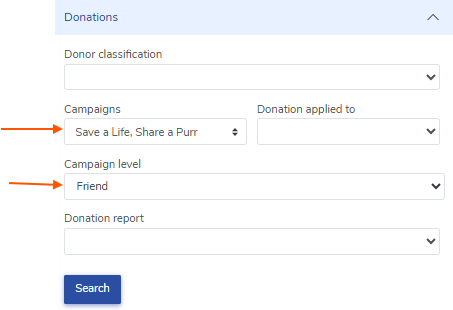
You can now filter your searches by fundraising campaign and a specific campaign level! Simply go to the donations tab and select the fundraising campaign, and you will see another box populate where you can select a campaign level within said campaign.
Genre Search:
... (continued)
Genre Search:
Household Management:
We've made several improvements to how households work in ThunderTix, making it easier to manage relationships between patrons and get a clearer picture of giving across an entire household.
Smarter Donation Tracking Across Households
Donation history now properly r
CRM Audience Segmentation Recipes
Looking for new ways to use ThunderTix CRM data to drive ticket sales, increase engagement, and improve patron retention?
We've put together a collection of CRM Audience Segmentation Recipes that provide practical examples of how to build targeted audie
... (continued)
ThunderTix allows venue admins to block a patron from placing future orders when needed. This can be useful for handling chargebacks, disruptive behavior, fraudulent activity, or suspected ticket reselling.
What happens when a patron is blocked
When a customer is added to the block list
... (continued)

The CRM now includes enhanced query logic that gives you more flexibility when building patron searches. This update improves how multiple selections are handled and introduces new exclusion options for refining results.
What’s new:
OR functionality for selections
Previously, when select
... (continued)
Connect patrons in your Patron Database to a household to tie donations together! When one member of the household makes a donation the other members of the household will receive a soft credit for the donation on their record, allowing venue staff to recognize all members of a househ
... (continued)
If you need to investigate a suspicious order, you can open the related payment directly from ThunderTix in Stripe. From there, Stripe also gives you the option to block the customer from making future payments through Stripe.
Open the payment in Stripe from ThunderTix
- Find and open the
Groups & Organizations help you track orders and relationships when you’re working with companies, schools, tour operators, nonprofits, and other repeat buyers. Instead of only seeing an individual buyer on an order, you can also see (and report on) the group or organization behind th
... (continued)

We’re excited to introduce Auto-Fill Patron Information on the Waitlist, a new feature designed to save time and reduce manual entry when adding customers to an event waitlist.
How it works:
When you begin typing a last name, email address, or phone number while adding a customer to t
... (continued)
How do I print a receipt for my customers?
First, go to any order:
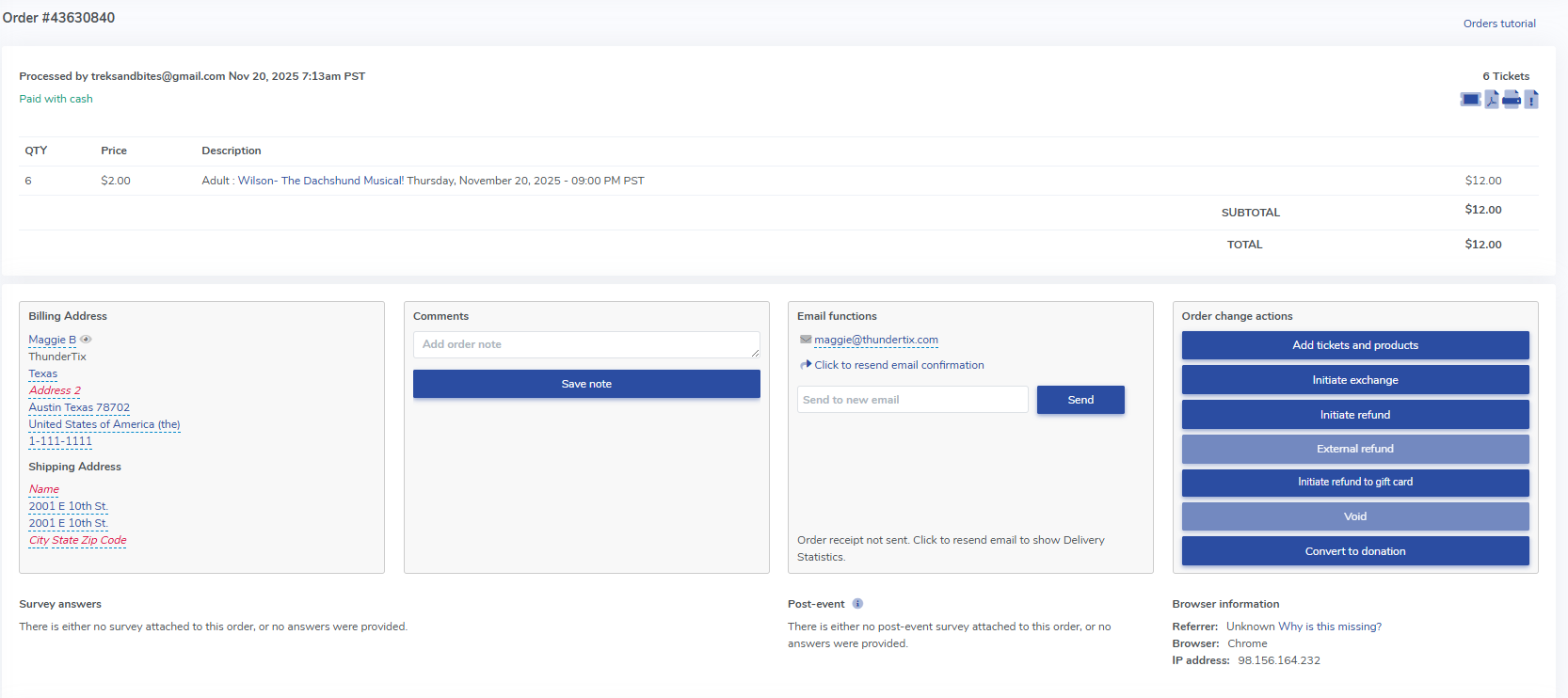
Then, simply click "File" > Print on for your browser. Upon doing so, a printable receipt will populate. We pull the logo shown at the top of the printable receipt from the logo uploaded for your email confirmation r
We’re happy to share an update that makes email confirmations clearer and easier to read—especially for group and large ticket orders.
What’s changed?
Moving forward, email confirmations now include the total number of tickets purchased in the order.
Instead of having to manually cou
... (continued)
There's an easy way to identify new patrons. To obtain a list of all customers that were new in a given time period, do the following:
- Head to the Patron Database
- Click Orders
- Enter "1" in Orders
- Click Date Range
- Enter a date range
- Click "Retrieve new customers only"
- Click Search


Reminder Emails for Reservation Payments:
You can send reminder emails to customers with reservations, letting them know that their payment is due a set number of days before the event!
1. First, go to the side bar and click on Patron Database > Customer Permissions in the drop-down me

At any time, you can view and download all customers that opted in during the checkout process to get updates and/or newsletters.
- Click Patron Database > CRM and Mass Mail
- Under General Options select 'Opt-in only'.
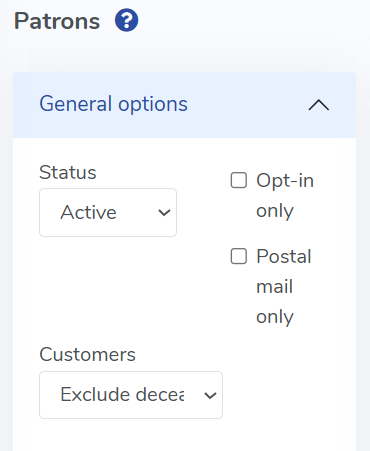
- Click Search Customers
- Then, click Export Results
If you'd like to search for a customer who has not purchased a ticket since X date, please follow the steps below:
- Head to Patron Database > CRM & Mass Email
- Navigate to the 'Has not purchased' tab
- Click the 'Since'
- Enter the starting date

Happy s
First, you'll need to ensure that your Mailchimp account is connected to ThunderTix. Head over to Account > Account Settings > Marketing and ensure that your Mailchimp API is entered in the Mailchimp field. At any point, you can export all "new customers" over a specified time period
... (continued)
Have you ever wanted to target emails to customers that purchased tickets to certain categories of events, such as Comedy or Musicals? Now, you can search all patrons that purchased tickets to the "Comedy" and "Musical" genres AND purchased tickets within your selected date range.
To
... (continued)
To
Search your Patron Database for event purchases and donations at the same time!
To perform the search, follow these steps:
To perform the search, follow these steps:
- Head to Patron Database > Patrons Search
- Click on the Event/Package tab dropdown
- Search for an event using Purchased or Have not yet purchased
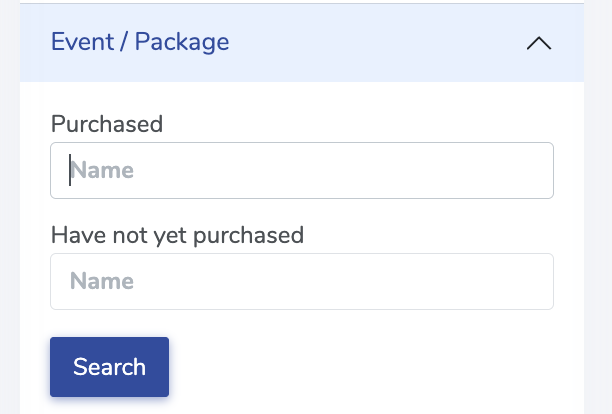
- Your list will pop
The answer is yes! Head to Patron Database > Patron Search to perform your search. Enter in the beginning of the email address in the email field.
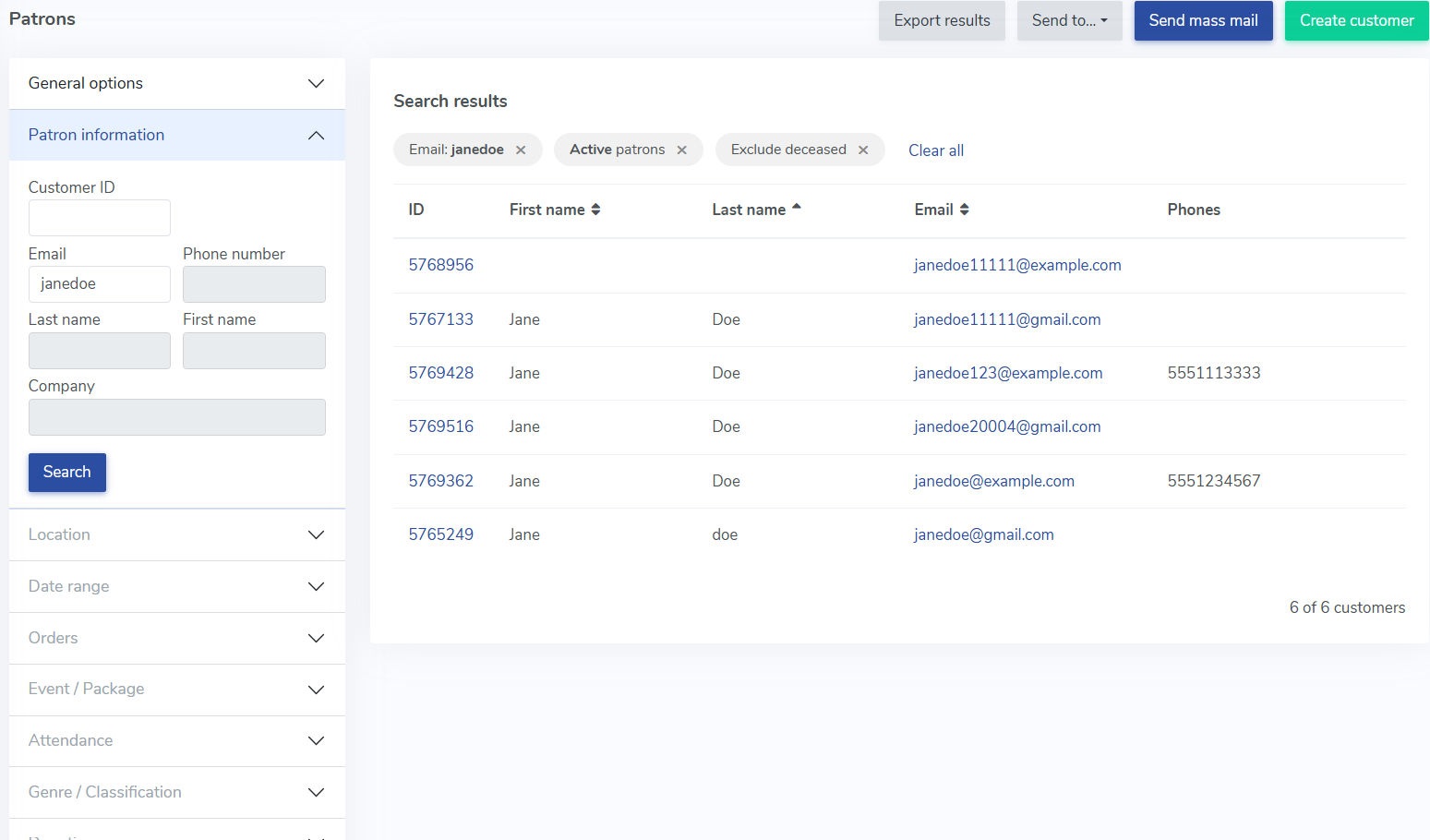
Click on Search Customers to search for all possible matches with the partial email address.
From
... (continued)

Click on Search Customers to search for all possible matches with the partial email address.
From
