
Support Forum
Post Your Event Directly to Facebook - Mon - Jun 8, 2026 - 11:05am

We're excited to introduce our Facebook Integration with AI Social Sharing, designed to help you promote your events faster and easier than ever.
Here’s how it works:
AI-Powered Event Promotion → Turn your event details, including title, date, location, and description, into ready-to-use Facebook posts.
For Facebook → Generate a suggested post, review the content, add or update the image, and publish or schedule it directly to your connected Facebook Page.
Here is how you would do this:
- Go to Settings → Integrations & Pixel Tracking.
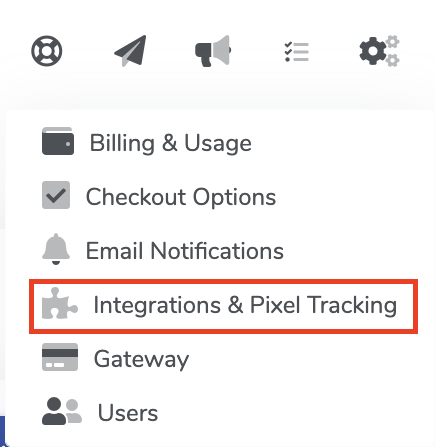
Integrations & Pixel Tracking - Find the Connect Facebook Page box and click Connect Facebook.
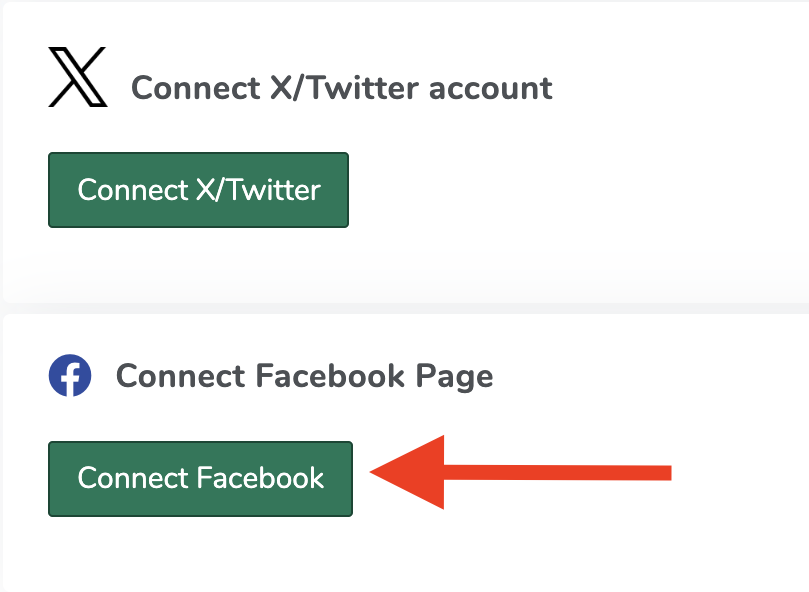
Connect to Facebook - Follow the Facebook prompts to sign in, approve the connection, and select the Facebook Page you want to connect.
- Once connected, ThunderTix will show the name of the connected Page.
- Then, go to your event, open the Marketing tab, and click AI Social Sharing.
- Click Post to Facebook. A draft post will open with AI-generated text based on your event details.
- Review the post, make any edits you’d like, and add, replace, or remove the image if needed.
- Choose Post now to publish immediately, or select Post on to schedule the post for a later date and time.
- Once posted, you’ll see a confirmation message with a link to view the post directly on Facebook.

Post

Your Facebook post will automatically include a link back to your event page, so customers can easily view the event and purchase tickets.
View our video tutorials
How can I change the name shown for the mailing list?
How do Surveys work?
How do I use Google Analytics to track my ThunderTix website traffic?
How do I set up a Goal in my Google Analytics account to track sales?
How do I track sales for online advertising?
How can I connect my Mailchimp account to ThunderTix?
Constant Contact Integration