
Support Forum
How can I make my ticket prices dynamically increase before the event? - Wed - Dec 19, 2018 - 5:33pm
-
ThunderTix offers you the ability to set up dynamic ticket pricing, allowing you the flexibility to increase ticket prices as your events draw nearer. In ThunderTix, you can easily change ticket prices at any time or set the prices to change to a given amount at a specified number of days prior to the event.
- Navigate to Event Manager
- Click on the name of your event
- Locate the performance you'd like to adjust pricing for
- Click on Manage Tickets and Prices under Actions > Select > Tickets and prices
- To dynamically price a ticket, click on the pencil icon in line with the Ticket Type you wish to change
- Then follow the detailed instructions below to implement an automated price change on a your chosen date(s)
Step 1:
To automatically change a ticket price on a certain day, ThunderTix allows you to replace the original price with a new price -- either at a higher or lower rate -- and replaces this new price and expires the old. First, enter in your initial price which is shown in the screenshot as $15. Often this is an early bird price to motivate customers to buy early. After entering the price, look for the hourglass icon shown next to the price. Click this icon to initiate dynamic ticket pricing to change prices before the event.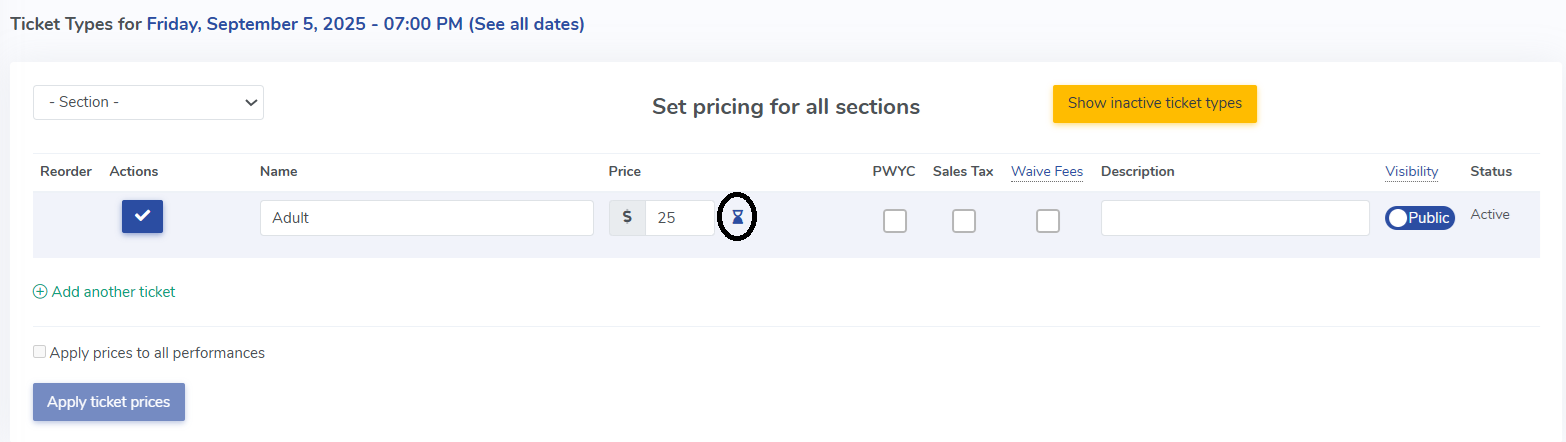
Step 2:
When you open the dynamic pricing, you'll see new fields alongside your price. The first field will read "Now", and represents the price you are charging "now" or on the day your ticket sales begin. Next, consider when you want this price to expire and move to the new price. For example, it is common to raise prices on the day of the event. You might want your price to end one day before the event begins. In this case, you'll enter a "1" in the second box to indicate that the price should change one day before the event.
Step 3:
Now that you've set the date the initial price will expire, you'll need to set the new replacement price. Click the "+" sign link to open new fields to enter your "event day" pricing. Enter your new replacement in the price field. The screenshot shows a price increase to $20. The next field should always be one number less than expire days in the prior line. Continuing our example, we would enter a "0" as the new price activates zero days before the event, or in other words, the same day. We can continue adding new prices to represent as many price changes as needed. In our example, however, we'll leave the expire field for the replacement price blank to indicate that the price ends when the event ends. Final Notes All prices either expire or begin at midnight. Thus, in our example, the price will automatically increase to $20 at 12:00 a.m. on the day of the event. If you have different ticket types, you can use dynamic pricing on one ticket type, some ticket types or all.
You can also create multiple price changes per ticket if you wanted to have Early Bird, Advanced, and Day of Sale pricing.
At any point during your event’s sale, you can follow the steps listed above and set up dynamic pricing. If you have created dynamic ticket pricing, a good way to check that the number of days is correct is to view the ticket after the prices and tiers have been saved. You can click on the Manage Tickets and Prices link for that performance and you can see the ticket prices with date ranges related to the event. All ThunderTix plans have access to dynamic ticket price options.


View our video tutorials
Can we collect extra information on an order?
How can I customize a tour date message for the public without making tickets available?
Is it possible to set the maximum number of seats but not change the current defaults?
Can I still sell tickets at the door using ThunderTix after I take my event offline or after it has expired?
Why is one of my event's dates showing as 'Sold Out'?
Is there a way you could show the PDF image we have uploaded just like the Event Image?
How can I make tickets available at box office only 1 hour before show time?
