
Support Forum
How Reservations Work: Reserving tickets or seats for payment at a future date - Wed - Aug 16, 2017 - 2:31pm
-
 Reservations allow you to "reserve" tickets in a customer's name and collect payment at a later date. This is common for venues that block seats in a patron's name, tours that book large groups, or theatres that wish to allow patrons to send a check by mail. We even have automated payment reminders to allow customers to pay for reservations at a later date via a secure online payment as described below.
How do I process a reservation?
To reserve seats or tickets in a patron's name, and collect payment later, navigate to the Event Manager and take the following steps:- Click on the name of your chosen event
- Click Sell next to your event
- Add the desired tickets to your cart
- Click Continue
- From the payment options, click the "sofa" icon process a Reservation
- Enter patron information and email address
- Process the order
A customizable email confirmation may be sent with the reservation information including seat locations if applicable along with the total amount due. To customize content, go to the Email Options tab when creating the event, or click on the name of your event > Ticket Delivery for existing events. Insert information about when payment is due in order to retain the seats and tickets before they are returned automatically back to inventory.Where do I see reserved seats or tickets?
Click on the name of your event > Dates & Times. Under each event date, we show how many tickets are sold and also how many tickets are reserved. When you click on the tickets reserved, you'll be taken into the Guest List for the tab labeled "Reservations". You may click the Reservation ID to either cancel or collect payment on a reservation. You can also see reservations in the Orders tab where the payment method is listed as "reservation". Finally, the Settlement Report includes a line item for "reserved" tickets have not yet been paid.
How do I collect payment on reserved tickets?
You have the option to collect payment on ALL or some of the tickets reserved. By default, we'll have all tickets pre-selected to collect the payment, but you can deselect any tickets that are not being paid. When you get to the checkout page, click the "trash can" icon to remove seats from the order. If you don't see the trash can icon, you'll need to first click "Split Tickets" which will add the option to remove individual tickets from the order.
Process the order as usual to collect payment using a credit card, cash, or check/voucher. We will send a standard email confirmation with included tickets.
Can customers pay for reservations online?
In the case where you wish your patrons to pay for their reserved seats online, you may set up our automated payment reminders. You may even set up a final due date before the system automatically returns those seats back to inventory. Take the following steps to set up the automated reminder:- Click Patron Database in the left menu
- Click Customer Permissions
- Go to RESERVATION PAYMENT AND CANCELLATION OPTIONS
- If you wish for customers to have the ability to cancel their own reservations, check the box to "Include a link in reservation confirmations to allow customers to cancel their own reservation."
- To set a final due date prior to an event when payment is expected, enter a value in "Number of days when reservation payment is due".
- To immediately return seats back to inventory when payment is not received by the date set in Step 5, check the box, "Automatically cancel all reservations not that are not paid by the specified time entered above."
- Customize your "Final Payment Notification" as desired.
How do I cancel a reservation?
To return the tickets back to inventory and remove any reservations for that customer, locate the order via one of the methods above (Where do I see reserved seats or tickets?). On the order summary page, look for the block labeled "Change Actions" and click the button, "Cancel Reservation". Confirm the cancellation to complete.IMPORTANT: We process and count reserved tickets exactly as we do regular ticket orders for two reasons. Some of our venues operate on "reservations only" and never collect payment, yet they wish to use ThunderTix to automate their reservations. Further, reservations consume the same resources as a regular ticket order including data storage. Tickets from reservations that are converted to paid orders are only counted once.
Can I set an automatic expiration date for a reservation?
To set an expiration date for a reservation head to Event Manager > Click on the name of your chosen event > Sell. When you get to the checkout page, toggle it to 'Reserve'.
Note: you must have the box checked for "Automatically cancel all reservations that are not paid by the specified time entered above" in your Patron Database > Customer Permissions for this option to appear.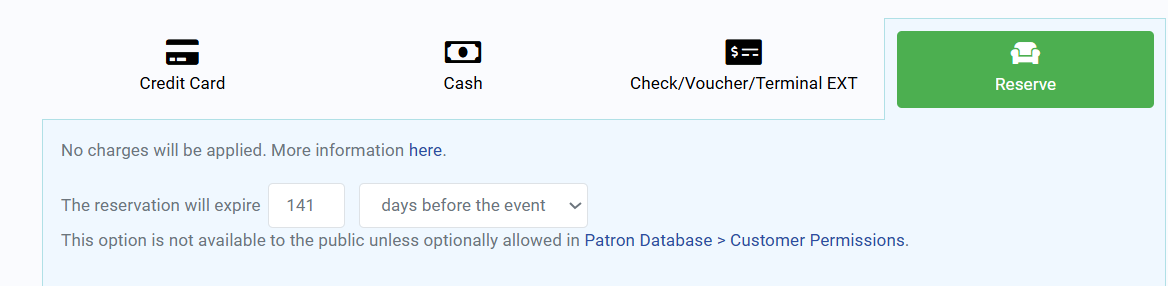
Simply enter in the number in how many days before the event or before today's date you'd like to have the reservation expire. The reservation will expire at 12:30 AM the following day. So if you set your reservation to expire on November 22nd, the customer will no longer be able to pay the reservation at 12:30 AM on November 23rd.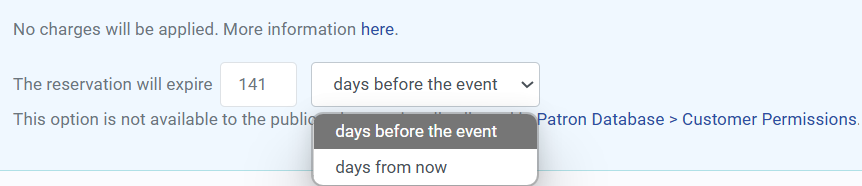
Can I customize when I send out my reminder emails?
To set up custom dates for your reminder emails head to Patron Database > Customer Permissions > Reservation Payment and Cancellation Options. Under Send a reservation reminder, simply click on the dates to change how many days out you'd like to send your reminder emails. Then click the blue checkmark to save your changes.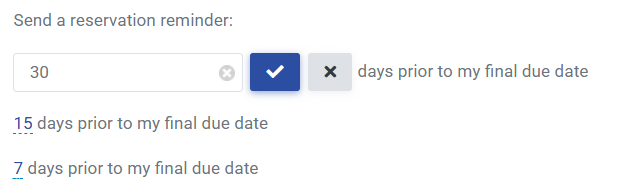
Reservations on Packages:
Please note that at this time, changes to reservations that were made via packages are not possible. Packages set up events for all of your prior subscribers, so we lock those reservations, thus it is not possible to select a different seat or add seats. We expect this to change, but for now, reservations made via the Package Manager will not allow edits.
Allowing Customers to create their own Reservations:
Please see this discussion on how to allow customers to create their own reservations:
Can patrons create their own reservations online?
Additional information can be found in this discussion:
What are customer permissions?
View our video tutorials
How do I delete an Order?
Why are orders missing from the Orders tab?
What happens to sales tax on an exchange?
How do I comp a ticket or comp an order (make a ticket complimentary)?
How can I waive fees for some orders?
How can we charge a small fee to our patrons for a ticket exchange?
Our show was canceled -- how do we process refunds?
