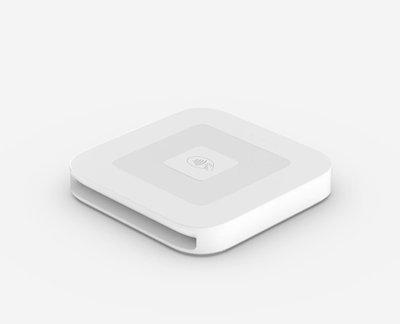
This is a step by step tutorial of how to authorize credit card transactions from a mobile device, how to grant permissions, connect with the reader, and charge a card using the Square reader (the exact model shown in the image below).
You will be prompted to grant permissions; The first permission is the location as this is required by Square for security reasons. Click on the “Allow While Using App” button.
Then you will be prompted to grant the microphone permission as this is also required by Square. Click on the “Allow” button.
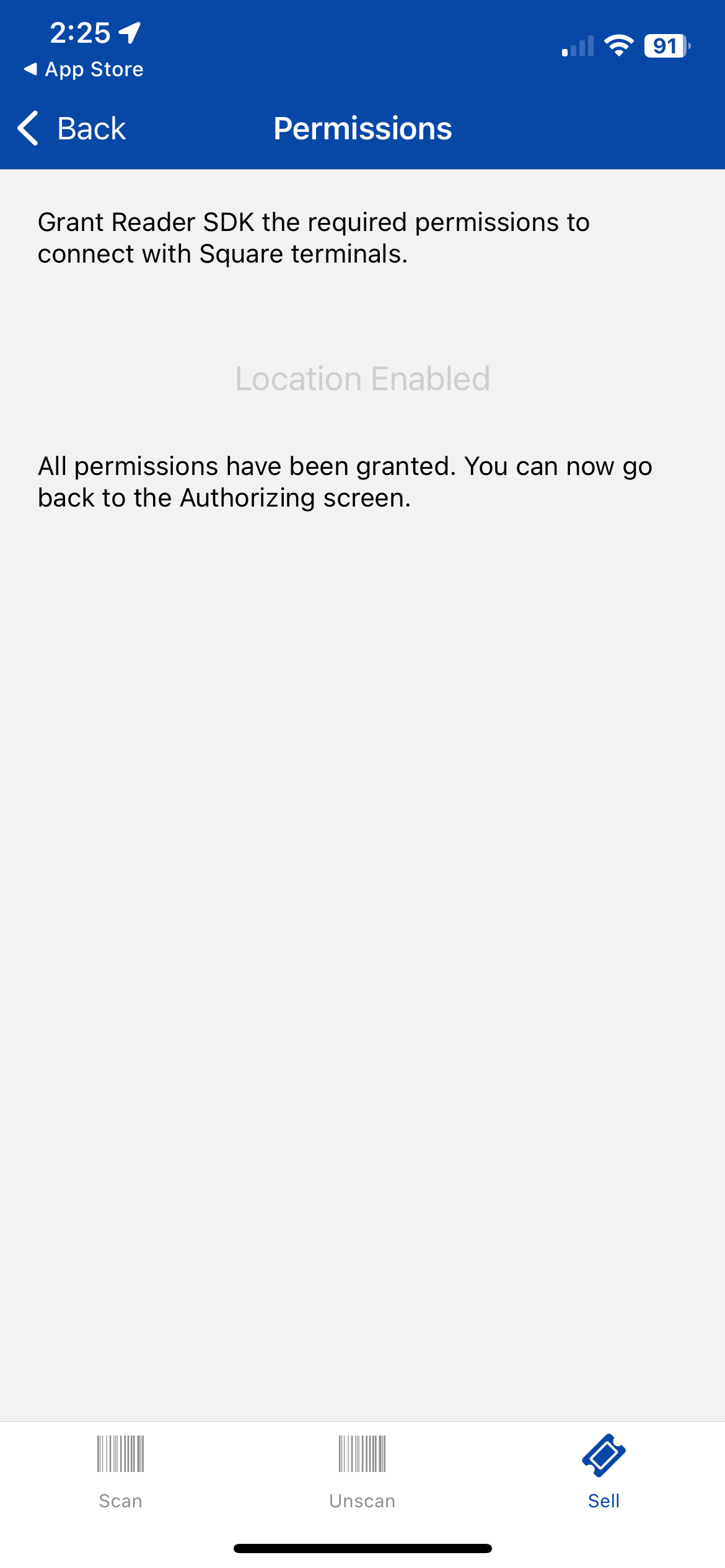
Once you grant both permissions -- location and microphone -- the screen should look like this:
Click on the “Back” button at the top left of the app.
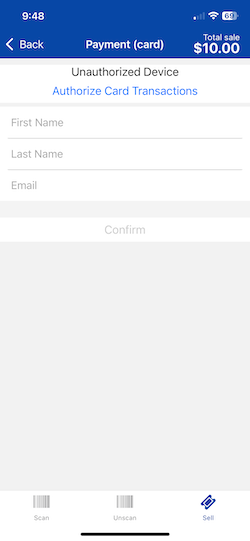
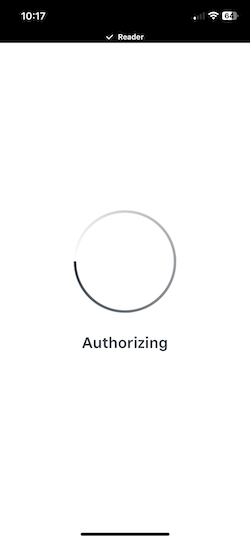
Now you will see the Authorization screen. Please wait while it is communicating with ThunderTix and Square to authorize credit card transactions.
Then you will be redirected back to the checkout screen where you will be prompted to grant one last permission: Bluetooth. Click on the “Allow” button.
Connecting with the Square credit card reader
The ThunderTix iOS App has been fully authorized to perform credit card transactions in 2 ways:
Manually entering the credit card information by keying in the number, expiration, etc.
Using a credit card reader to quickly capture and charge the credit card on hand, but it requires an extra step to connect with the Square reader.
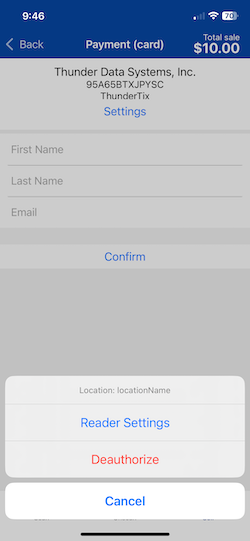
Now we will need to start the process to connect with the Square reader.
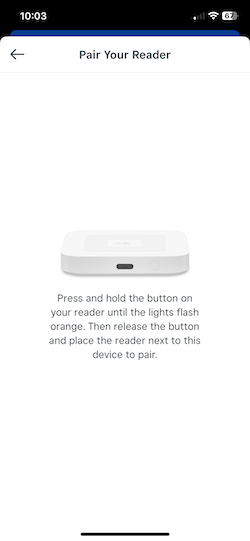
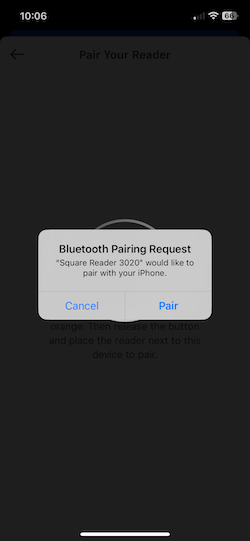
Follow the instructions to turn on and pair the Reader. As seen in the image below, press and hold the button on the Square reader until the lights flash orange. Then, release the button and place the Square reader next to your mobile device to pair them together.
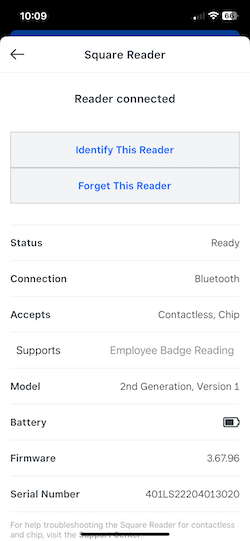
You will see a list of all Square Readers paired with the ThunderTix iOS app. Click on the "X" button on the top left to close the list of connected Readers.
Charge a credit card using the connected Square Reader
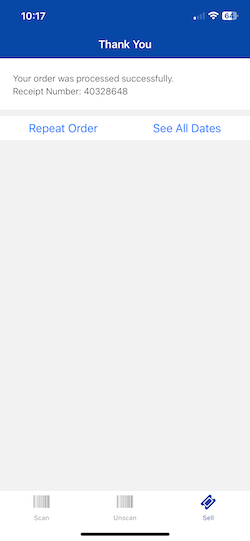
Now you can perform credit card transactions with the paired Square reader using the ThunderTix iOS App.
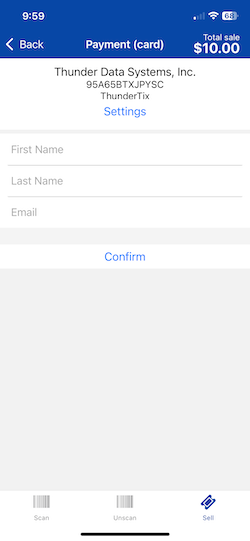
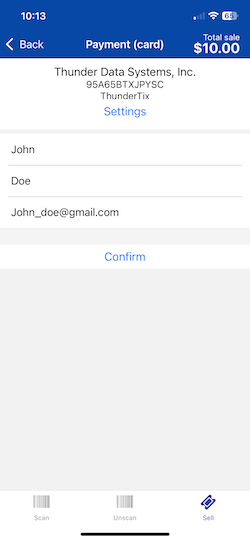
Like the web version of ThunderTix, when processing an order on behalf of a customer, the name and email fields are optional to keep the line moving. However, the more information you can collect from the customer, the better as all data is entered into your CRM for future marketing purposes.
Once you've entered the desired customer information, click on the “Confirm” button.
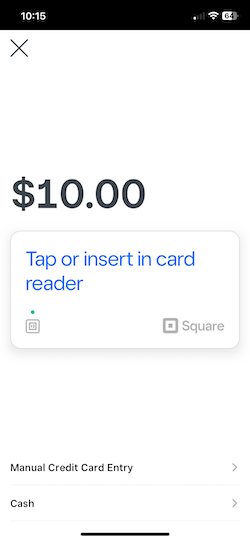
Then the iOS App and the Square Reader will be ready to receive the credit card by either tapping or inserting the credit card into the reader. Also you can choose 2 other ways of collecting a payment for the order:
Cash transaction.
Credit card transaction by entering the card information manually.
Each time you come back to start a new session using the ThunderTix iOS App using the Square reader, you will need to tap the button on the reader until you see green lights appear. The Readers listed will say "Ready" when the Reader is active again and ready to accept card payments.

 This is a step by step tutorial of how to authorize credit card transactions from a mobile device, how to grant permissions, connect with the reader, and charge a card using the Square reader (the exact model shown in the image below).