
Support Forum
How do I cancel a pending reserved seat order before the 10 minute time-limit? - Fri - Feb 6, 2026 - 4:15pm
-
 How to Cancel a Pending Reserved Seating Order
If a customer starts a reserved seating order but does not finish checkout, their seats will appear in orange on your seating chart as “pending.” As a venue admin, you can now cancel these pending reserved seating orders and release the seats back into inventory.
Step‑by‑Step Instructions- Open the Event’s Seating Chart
- Log in to your ThunderTix admin account.
- Go to the event where the seats are stuck in a pending (orange) state.
- Open the event’s Reserved Seating chart.
- Locate the Pending Seats
- On the seating chart, look for seats highlighted in orange.
- These orange seats indicate a pending reserved seating order, either started by a patron or by a venue admin.
- Right‑Click the Pending Seat(s)
- On the seating chart, right‑click on one of the orange pending seats.
- A small menu will appear with options for that seat.
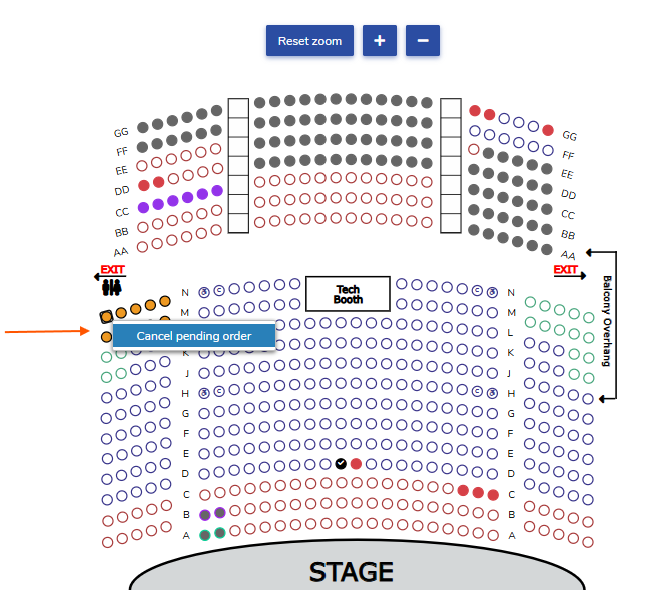
4. Select “Cancel pending order”
In the menu, click “Cancel pending order.” and then "confirm". This action cancels the entire pending reserved seating order associated with those seats, even if it was initiated by a customer.- After canceling, the seats will change from orange back to their normal color (available status).
- The seats are now immediately available for sale again.
- Open the Event’s Seating Chart


View our video tutorials
Why are my numbered seats not in order?
How can I add a wheelchair seat to my seating chart?
Where & How do I create a seating chart for reserved seating?
How do I assign different pricing to each section of my seating chart?
Where can I select our seating chart to a new event I created?
How can I share what seats are sold in our seating chart?
What is the difference between block and reserve for seats?
