
Support Forum
How do I block or unblock a customer in ThunderTix? - Tue - Mar 10, 2026 - 4:26pm
-
 We’ve added a new “Block customer / Prevent future orders” feature to help venues stop repeat problems and protect their revenue.
With this first version, venues can:- Flag a customer to prevent future orders
- Automatically record basic details when a blocked customer tries to buy again
- Store a reason for the block (with an optional note)
- Unblock the customer later if needed
1. Blocking a customer (“Prevent future orders”)
From a customer or order, venues now see a button:- + Add to block list

Add to block list
When a venue clicks this:
The customer’s email is added to a block list for that venue.- That email is then prevented from placing future orders through ThunderTix for that venue.
This helps venues quickly react when they identify a patron they no longer wish to sell to (for example, due to chargebacks, disruptive behavior, or fraud).
2. What happens if a blocked customer tries to purchase?
If a blocked email is used to place a new order:
ThunderTix stops the purchase so the order cannot be completed.- In the background, we log information like IP and device along with the venue and time of the attempt.
From the buyer’s perspective, the key behavior is simple:
the order does not go through.
3. Reasons for blocking
When adding a customer to the block list, venues can select a reason such as:- Disruptive
- Chargeback
- Negative reselling activity
- Fraudulent
- Other (with an internal note)
This allows venues to keep context on why someone was blocked, without exposing this information to the buyer.
4. Unblocking a customer
Venues stay in full control and can remove a block at any time.
• After a customer has been blocked, the button changes to:
- Remove from block list
• If the venue decides to allow that person to buy again (for example, if a situation is resolved), they can click “Remove from block list”.
• Internally, the block is turned off, and the button returns to:
+ Add to block list
indicating that the customer is no longer blocked.
Once unblocked, the customer can place new orders as usual
Remove from block list 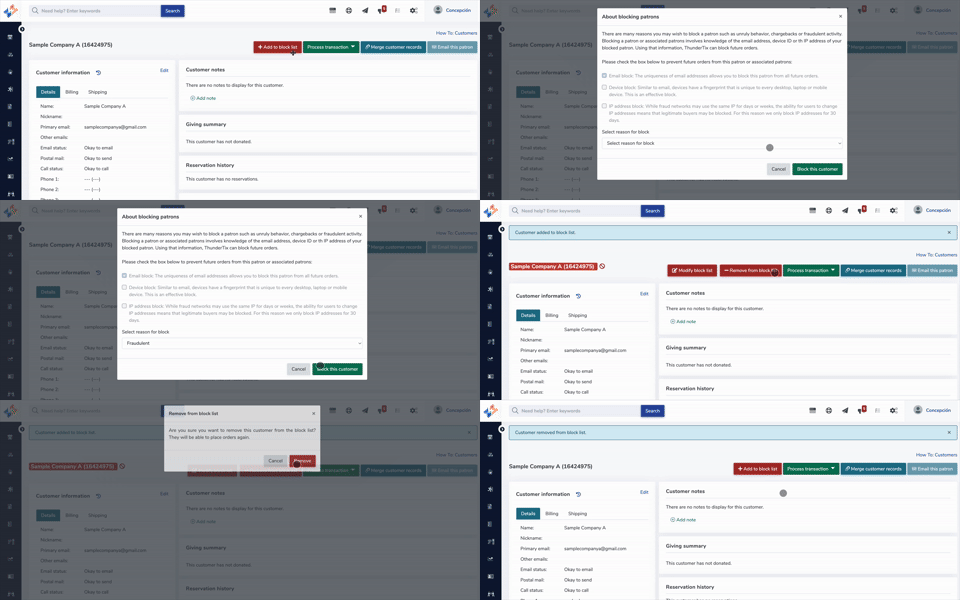


View our video tutorials
Do I need to complete a questionnaire for PCI compliance?
How do I connect my Authorize.net gateway with ThunderTix?
Where can I get my Verified Gateway Seal for my checkout page?
Declined Card, but Pending Charges on Bank Account
How do I connect my Moneris account with ThunderTix?
What credit card readers will work with ThunderTix?
Authorize.net error - "The merchant login ID or password is invalid or the account is inactive"
