When the waiting list feature is enabled, customers who join the waitlist for a sold-out event will automatically receive a confirmation email. This email lets them know they’ve been successfully added to the list.
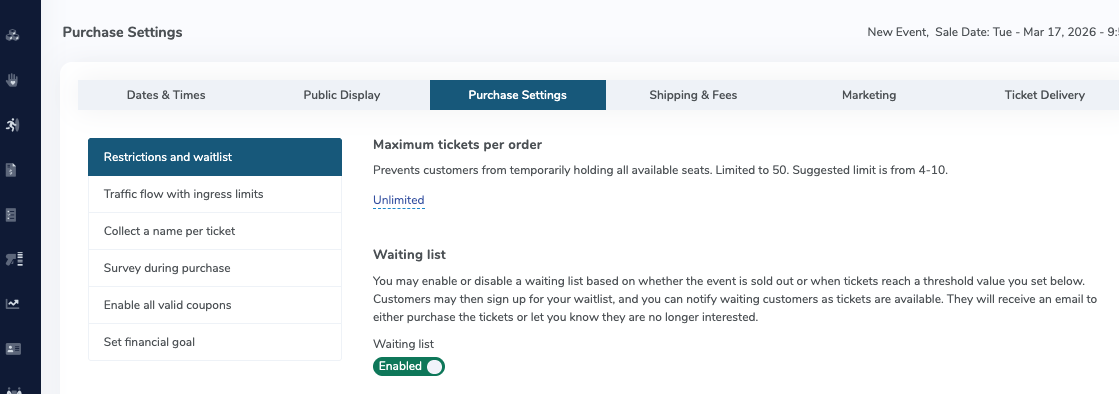
How it works: No additional setup is required. Once the waiting list option is enabled, confirmation emails are sent automatically to anyone who joins. The waiting list feature can be enabled via Event Manager > Event > Purchase Settings:
You have been successfully added to the waitlist for:
[Event Name] [Date] at [Time] [Account Name]
If tickets become available, we will notify you by email with instructions on how to complete your purchase. Please note that joining the waitlist does not guarantee that tickets will become available.
We recommend keeping an eye on your inbox, as once tickets become available through the link, the link is only valid for [WAITLIST TIME].
If you want your company logo to appear in the header of the email, make sure it’s added to the Confirmation Email template. You can do this by navigating to:

 Waiting List Confirmation EmailWhen the waiting list feature is enabled, customers who join the waitlist for a sold-out event will automatically receive a confirmation email. This email lets them know they’ve been successfully added to the list.How it works: