
Support Forum
How do I show all-in pricing (ticket price plus fees) on my events and packages? - Fri - Aug 21, 2026 - 1:24pm

How do I show all-in pricing (ticket price plus fees) on my events and packages?
All-in pricing means your patrons see the complete cost of a ticket, including your service fees and credit card processing fees, at the moment they are choosing seats or ticket quantities rather than at the final payment screen. ThunderTix supports this across reserved seating, general admission, and packages.
What your patrons see
- Reserved seating: hovering over a seat displays the total price along with the section, row, and seat.
- General admission: each ticket type displays its all-in price beside the quantity selector.
- Checkout: every fee stays itemized on the order summary, so the total is transparent but never a mystery.
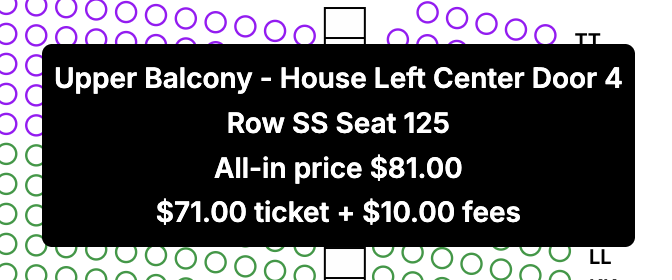
Fee display is controlled on the seating chart, not on the individual event. Turning it on applies to every event using that chart.
Quickest method (Fees column)
- Click Seating Charts in the left menu.
- Locate your chart in the list and find the Fees column.
- Toggle to Show. Select Hide to turn fee display off.
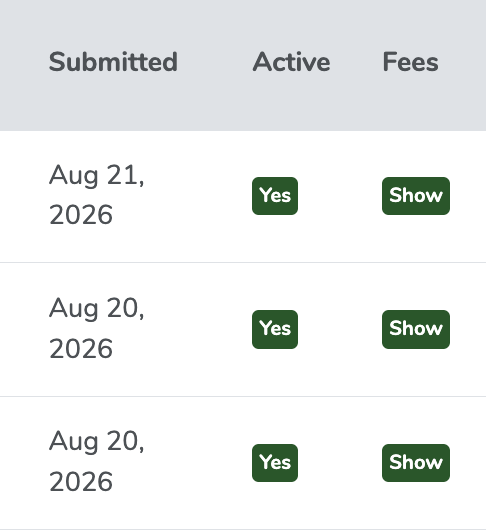
From the chart editor
- Click Seating Charts in the left menu.
- Click Edit on the chart you want to change.
- Scroll to the section titled SHOW TICKET FEES near the bottom of the page.
- Toggle to Yes to display fees, or No to hide them.
- Click Update to save.


When a seat has a single available price, the hover displays the full cost:
- Base ticket price
- Service fees
- Credit card processing fees
When a seat has multiple ticket types available (Adult, Senior, Child, Military), the hover displays "Total price varies by ticket type" instead of a single figure. This prevents confusion when several rates apply to the same seat.
If you charge a percentage-based fee per ticket and the seat carries multiple ticket types, we display a range of fees rather than one amount.
General admission events
Nothing to enable. General admission events always display fees alongside each ticket type, so the all-in price appears next to the quantity selector before anything is added to the cart.
If your venue needs to suppress the fee display on general admission events, this requires a custom CSS rule in your Public Display Settings. Contact support and we will provide the selector for your account.
Packages
Fees for a package are configured on the Shipping and Fees tab when creating or editing the package.
- Go to Events > Package Manager.
- Click Edit beneath the package name.
- Open the Shipping and Fees tab.
- Add each fee with a name, a dollar amount or percentage, and how it should be charged:
- Per package charges once for each package ordered, not once per included event.
- Per order charges once on the entire transaction regardless of how many packages are purchased.
- To use the fees already configured on the individual events instead, switch the toggle to Apply fees from the included events.
Important: package fees overwrite any fees charged individually on the events included in that package. If your events each carry a $2 service fee and you add a $5 per-package fee, patrons pay $5, not $5 plus the event fees. Use the Apply fees from the included events toggle when you want the event-level fees to carry through instead.
When a package includes reserved seating events, seat selection uses the same seating chart, so the hover display follows that chart's Fees setting.
Things to keep in mind
- The all-in total appears on hover only when a seat has a single pricing option. Seats with multiple ticket types show the "varies by ticket type" message.
- The Fees toggle is per seating chart. If you use several charts, set each one.
- Fees remain itemized at checkout regardless of the hover setting.
- Box office orders show the same pricing your patrons see online.
Why this matters
Federal and state regulations increasingly require ticket sellers to display the full price, including mandatory fees, from the start of the purchase rather than revealing charges at the final step. New York State has specific requirements in this area. Displaying all-in pricing keeps you compliant and reduces cart abandonment, since surprise charges at checkout are a leading cause of incomplete orders.
View our video tutorials
Why are my numbered seats not in order?
How can I add a wheelchair seat to my seating chart?
Where & How do I create a seating chart for reserved seating?
How do I assign different pricing to each section of my seating chart?
Where can I select our seating chart to a new event I created?
How can I share what seats are sold in our seating chart?
What is the difference between block and reserve for seats?