Updated: Sat - Oct 10, 2026 - 4:19pm
⚬
0 Comments
Announcements
We’ve rebuilt the round-up donation at checkout, and I’m excited to share it. Several of you asked for these changes, and your requests shaped almost every part of it.
What’s new
Round-up without the event page prompt. You can now ask patrons to round up at checkout without also showing the donation prompt on the event page. Each event has its own choice.
Choose your increment. Round up to the nearest $1, $5, or $10. If your ticket prices end in $0 or $5, the $1 option gives patrons a smaller, easier ask.
Add preset amounts. Offer extra buttons, like $5, $10, and $20, right next to the round-up button.
Pick the campaign. Send round-up donations to the fundraising campaign of your choice. No more moving them by hand for your reports.
Clearer reporting. Round-up gifts are marked as round-up even when they go to a named campaign, so your reports can separate them from regular gifts to that same campaign.
Box office too. Your staff see the same ask at box office checkout that patrons see online.
Nothing changes unless you want it to
If you already use round-up, it works exactly as it did before. Your increment stays at $5, no extra amounts are added, and gifts still go to your Rounding fund. Events that had Donations on still show both the event page prompt and the round-up ask.
How to set it up for your account
Go to Account Settings > Checkout Options and find Donations at Checkout.
Invite patrons to round up their purchase. This is the main switch. When it’s off, round-up never appears.
Round up to the nearest. Choose $1, $5, or $10.
Additional amounts. Optional. These appear after the round-up button, in the order you enter them.
Round-up donations go to. Choose a fundraising campaign, or leave it on Rounding.
The page shows a live preview of what your patrons will see, and it saves as you go.
How to set it up for an event
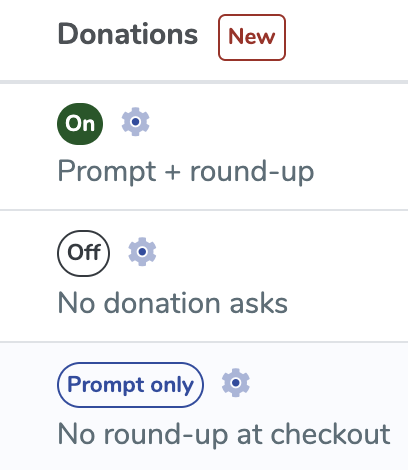
Go to Event Manager, then click the gear icon beside Donations for your event. You’ll see two checkboxes:
Show donation prompt on the event page
Include this event in the round-up ask at checkout
The Donations column in Event Manager now tells you what each event is doing: On, Round-up only, Prompt only, or Off. When you replicate an event, these settings copy to the new event.