
Category: Ticket Printing

Batch print thermal tickets by shipping method

Templates → Thermal Ticket
When Automatic print mode is ON
If all of the following conditions are met:
- Your venue has an active thermal ticket template
- A box office admin is proc



Each PDF ticket is customizable PER EVENT.
To customize the bottom text of your eTicket, head to Event Manager > Click on the name of your event > Ticket Delivery> eTicket Designer.
At the bottom of the page,
- Head to Templates > Thermal Ticket
- Under the option for Barcode, select QR code from the drop down.
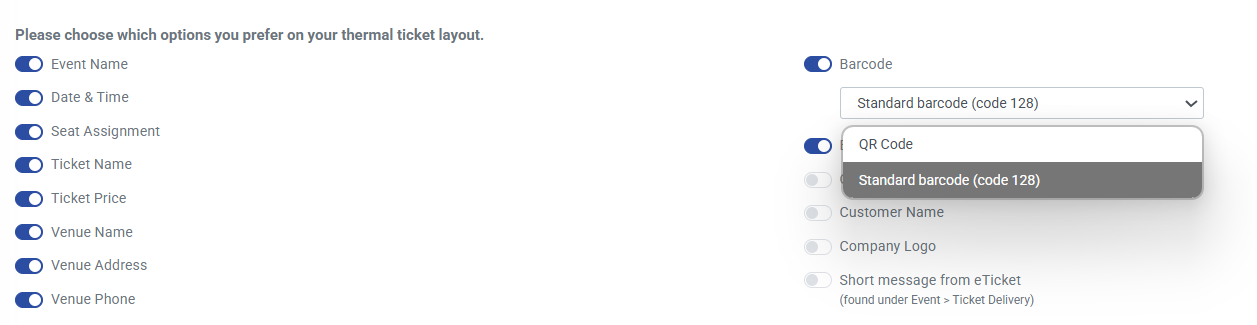
- Click the 'Update' button at the bottom of the screen to save your changes.
- The update wil

1. Head to the Templates Tab on your left hand menu >> Thermal ticket.
2. Scroll down to Shipping label and receipt >> switch the "Would you l
When you process a ticket order through ThunderTix, it creates a barcode for that event that is "scannable".
In addition, orders processed
1. Hea

Print Status Link Options
Your Guest List features two columns of print options for both Thermal (if enabled) and PDF tickets. The three Ticket Printing status names are listed below with an explanation of each:
Print - This signifies that neither an at-home-user nor a venue user access
Practical Automation ITX
Practical Automation eITX
Boca Lemur Datamax-ONeil
Additiona
Installing on Windows:
- Connect the Printer to the computer through Bluetooth.
a. Open "Add a device" in the Bluetooth menu and select the printer, it will be
However, you can upload a black and white logo to your Thermal Ticket template. We can then include that logo to appear on the
- Go to Orders.
- Search for the Order whose tickets need reprinting.
- Click the Order ID.
- Click the printer icon at the top right of the order
Since ticket barcodes and the PDF ticket documents are being created in the background, we limit an order to 50 tickets or fewer. This is to ensure that the software doesn't time-out processing the transaction.
By default, on information printed on the 'ticket' portion of the PDF is centered. If the short message is showing up left-aligned, double check the message to make sure that all information is on a single line (i.e. the Return key was not used to create separate lines between inform... (continued)
When a typo exists and tickets are generated, the tickets are saved as a document in the state that existed at the time the tickets were created. If the typo is fixed after the fact, the original tickets will remain the same and all tickets created after that time will have the corre... (continued)
