
Category: Account Settings

By default, ThunderTix itemizes per-ticket fees individually at checkout. On a 5-ticket order, that means 5 separate Facility Fee lines, 5 separate Special Event Fee lines, and so on. This can make an order's line-item list feel longer than it needs to, even though the total is the sa
... (continued)

ThunderTix allows you to add alt text (alternative text) to images used on your events, packages, and other public pages. This helps improve accessibility and supports WCAG 2.1 Level AA guidelines.
Why add alt
You can publish your contact information in your Public Display Settings. While we label the field as a phone number, it is not required, and it can be replaced with an email adress if preferred.
All of your publicly available pages will display the field at the bottom of the page.
All of your publicly available pages will display the field at the bottom of the page.
There are a few places for your terms and conditions.
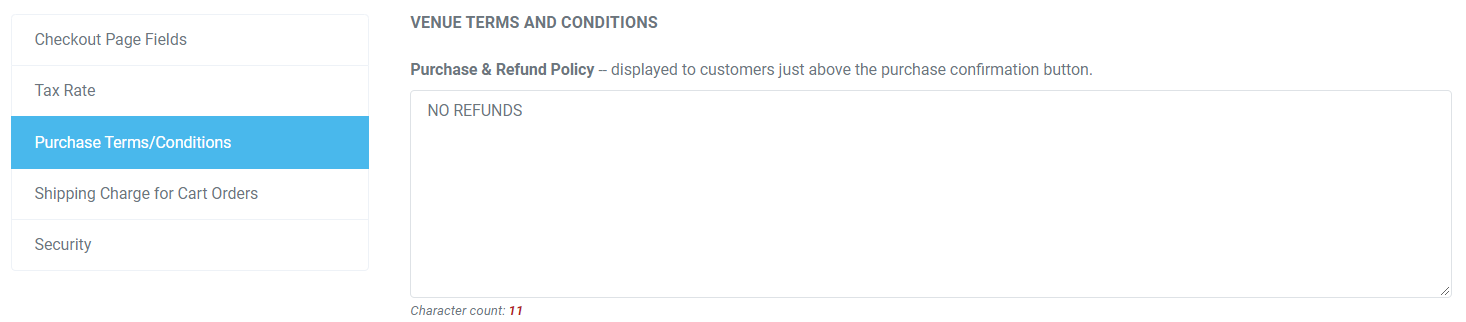
You can add purchase terms and agreements to your checkout page by doing the following:
- Head to Account Settings
- Click Checkout Options
- Select Purchase Terms/Conditions
- Enter the text you wish to appear on the checkout page
You can al
There are three different display formats available in your ThunderTix Account. They are Standard Listing, Calendar Layout, and Date Range Search.
They will be described below. The listing of all events is found under Public Display Settings > Link Builder > Link > Display all events
... (continued)
They will be described below. The listing of all events is found under Public Display Settings > Link Builder > Link > Display all events
1. First, Reset your password to something more memorable than the given password.
a. Enter in your new password in the blanks
b. Click update after changing the password
a. Enter in your new password in the blanks
b. Click update after changing the password
2. Next, Create a new Event using the +Create Event button:
a. Hover over the Events Tab on the left-han
The venue address and phone number is set with each event. This allows you to have events at different venues with the correct address and phone number varying per event.
To set the venue address for an event, follow the steps below:
- Head to Events > Event Manager
- Click on the name of
The default is Central Time (CST) or (CDT), but can be changed to any other time zone.
If your time zone is currently showing incorrectly from where you are located, you can change your time zone at any time.
If your time zone is currently showing incorrectly from where you are located, you can change your time zone at any time.
- From your top menu in the upper right corner, click the browser icon and cli
In the account settings, you can determine which fields you want to display for all customers that process orders. The data options available for the checkout page are: Phone number, Company name, Billing Address, and Shipping Address. These settings will be applied for every order p
... (continued)

Some organizations would like to require that their staff enter certain fields at checkout when processing orders. You can now choose from a list of fields to require be entered for all administrators logged into ThunderTix from the box office. This new set of required fields can help
... (continued)
Head to your Account settings > Checkout options
There's a new option labeled, "Would you like to have a default state/province pre-selected during checkout?"
- Change the setting from "No" to "Yes"
- Choose the state or province where your organization is based as seen below
- At checkout f
Build Your Own packages allow patrons to receive a discount when they purchase a minimum number of events (defined in the setup of your pick-any package). They also have the option to select more than the minimum of events required. If they do, the discount will be applied to all even
... (continued)
Hi Luke,
I am opening this support request so that our customer support team can assist you.
When I click on your public-facing display, I no longer see the trial mode banner. If you still see the banner, can you please reply with a screenshot here?
Best,
Haley
I am opening this support request so that our customer support team can assist you.
When I click on your public-facing display, I no longer see the trial mode banner. If you still see the banner, can you please reply with a screenshot here?
Best,
Haley
Sometimes you may want to add specific venue terms and conditions or policies such as age requirements for your customers to agree to finish purchasing tickets.
You can add these purchaser agreements by following the steps below:
1. Head to Account Settings and click Checkout Options
2.
... (continued)
You can add these purchaser agreements by following the steps below:
1. Head to Account Settings and click Checkout Options
2.
You have the option to hide your event site from search engines. Please follow the steps below to enable the feature:
1. Head to Public Display Settings > Edit Public Display
2. Under PUBLIC DISPLAY OPTIONS, uncheck the box for "Allow search engines to index"
3. Click Update to save yo
... (continued)
1. Head to Public Display Settings > Edit Public Display
2. Under PUBLIC DISPLAY OPTIONS, uncheck the box for "Allow search engines to index"
3. Click Update to save yo
Sometimes, you may wish to keep a receipt copy of each transaction processed for record-keeping.
To receive a copy of the order confirmation to a box office email, follow the steps below:
1. Head to Account Settings >> Click Email Notifications
2. Scroll to ALERTS
3. Enter an email ad
... (continued)
To receive a copy of the order confirmation to a box office email, follow the steps below:
1. Head to Account Settings >> Click Email Notifications
2. Scroll to ALERTS
3. Enter an email ad
In your Account Settings, you can determine which fields you want to display for all customers that process orders. To enable or disable checkout page fields, please follow the steps below:
- Head to Account Settings >> Click Checkout Options
- From the Checkout Page Fields tab, under REQ
ThunderTix does not support multiple tax rates at this time. Here is a feature request to vote on for multiple account tax rates:
Multiple Sales Tax Rates
Multiple Sales Tax Rates
The tax rate is set in your Public Display Settings >> Edit Public Display. Items like tickets and products can be taxable or not
... (continued)
The Live Monitor Display allows you to display events on a TV monitor in your entryway, or lobby. Digital events signage in your lobby is a great way to inform loyal and new customers about all your upcoming event dates and times with their availability. We’ll automatically update the
... (continued)
Some HTML is allowed in your Purchase Terms/Conditions (Refund) section. However, there is currently no way to allow a new window to be opened using "safe settings". We follow a safe policy where users cannot divert users to another page "behind the scenes" that a link opening in a n
... (continued)
