
Category: Volunteers

Volunteer Certifications
Certifications let you keep track of what each volunteer is trained or cleared to do, like usher training, box office training, or a yearly background check. Once you add them, you can quickly find the right people when you staff an event.
This article covers:
- Cr

To create a role for your volunteers, follow the steps below:
- Head to the Volunteer Management tab on the left hand menu > Roles.
- Click the green + New Role button in the top right corner.

- Enter in the name of the role, a description, and the requirements for the role. For example, if
To create volunteer opportunities for your events follow the instructions below:
- Navigate to the Volunteer Management tab > Volunteer Assignments> click Manage on the event where you would like to add a volunteer opportunity. If no opportunities have been assigned to your event your s
A standalone volunteer opportunity are volunteer opportunities that are not tied to a specific event or performance. Examples include ongoing office help, community projects, or recurring weekly roles.
To add a standalone volunteer opportunity follow these steps:
To add a standalone volunteer opportunity follow these steps:
- Head to Volunteer Mana
Tracking volunteer hours is a great way to save time and avoid manual recordkeeping! But what happens if a volunteer signs up for certain hours and ends up working more (or less) than expected?
To adjust volunteer hours- even after the shift is complete, follow the steps below:
- Go to Vo
To export a list of volunteers for your event follow the steps below:
- Head to Events > Event Manager
- Click on the name of your event
- Under the reports tab click on 'Export volunteer signups'
*Please note that if your event has multiple performances, you will need to select your date of
You can absolutely have your volunteers arrive more than 24 hours before your performance time! Follow the steps below to achieve this.
- Head to Volunteer Manager > Volunteer Assignments to modify a role
- Click Manage for the event you'd like to update the arrival and depature time.
- Click


Volunteers are created in two different ways, as follows:
- On the public side: How to create a volunteer from the public side
- On the admin/box office side: How do I create a volunteer from the admin side?
To register as a volunteer, they will sign up by filling out the form with the requ
... (continued)
Volunteers are initially created in two different ways, as follows:
- By the volunteers themselves, on the public side.
- On the admin/box office side, by enabling the volunteer option for an existing user.
Public side
A volunteer can sign up on your public page, if that setting is enabled (
... (continued)
Volunteers are initially created in two different ways, as follows:
- By the volunteers themselves, on the public side.
- On the admin/box office side, by enabling the volunteer option for an existing user.
Admin/Box office side
From the admin/box office side, an admin can enable a user to b
When initially signing up, a volunteer should receive 3 emails, as follows:
- The volunteer will receive an email notification, indicating that their application is being reviewed and that they will get another email once their application has been reviewed. It will look something simil
Once a volunteer has signed up, you, as the admin, will receive the following notification via email. The subject will be New Volunteer Signup:
 Screenshot of new volunteer sign up email
Next, you, as the venue admin, can choose to accept the volunteer. To do so, you'll navigate to Volu


When someone signs up as a volunteer they will receive a confirmation email, an email informing them that they have been approved, and an email to set up their password. Once they have set up their account, they will be able to log into ThunderTix to see and sign up for upcoming volun
... (continued)
- Head to Account Settings > Users page (from the cog icon in the upper right corner).
- Click on the user's email address to view their profile.
- Click "Edit permissions".
- In toggle titled 'Is this u
To assign a volunteer to a role, please follow these steps:
- Head to Volunteer Management > Volunteer Assignments
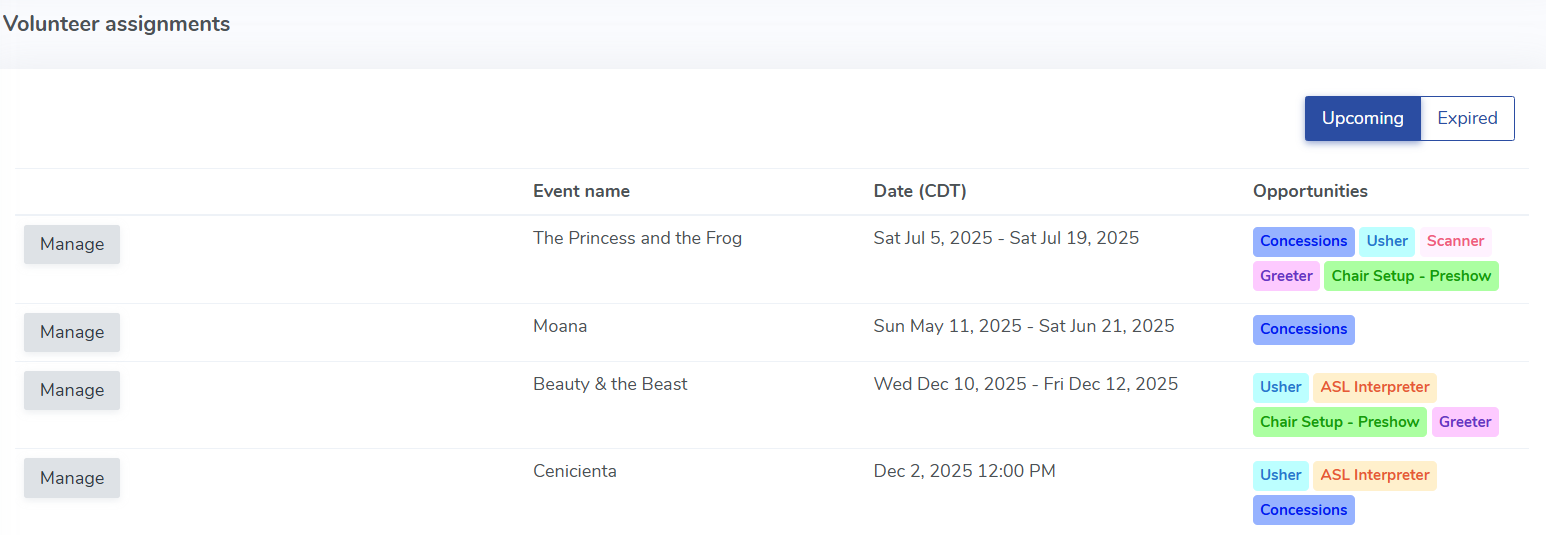
- Click the Manage Button to see all roles for the event.
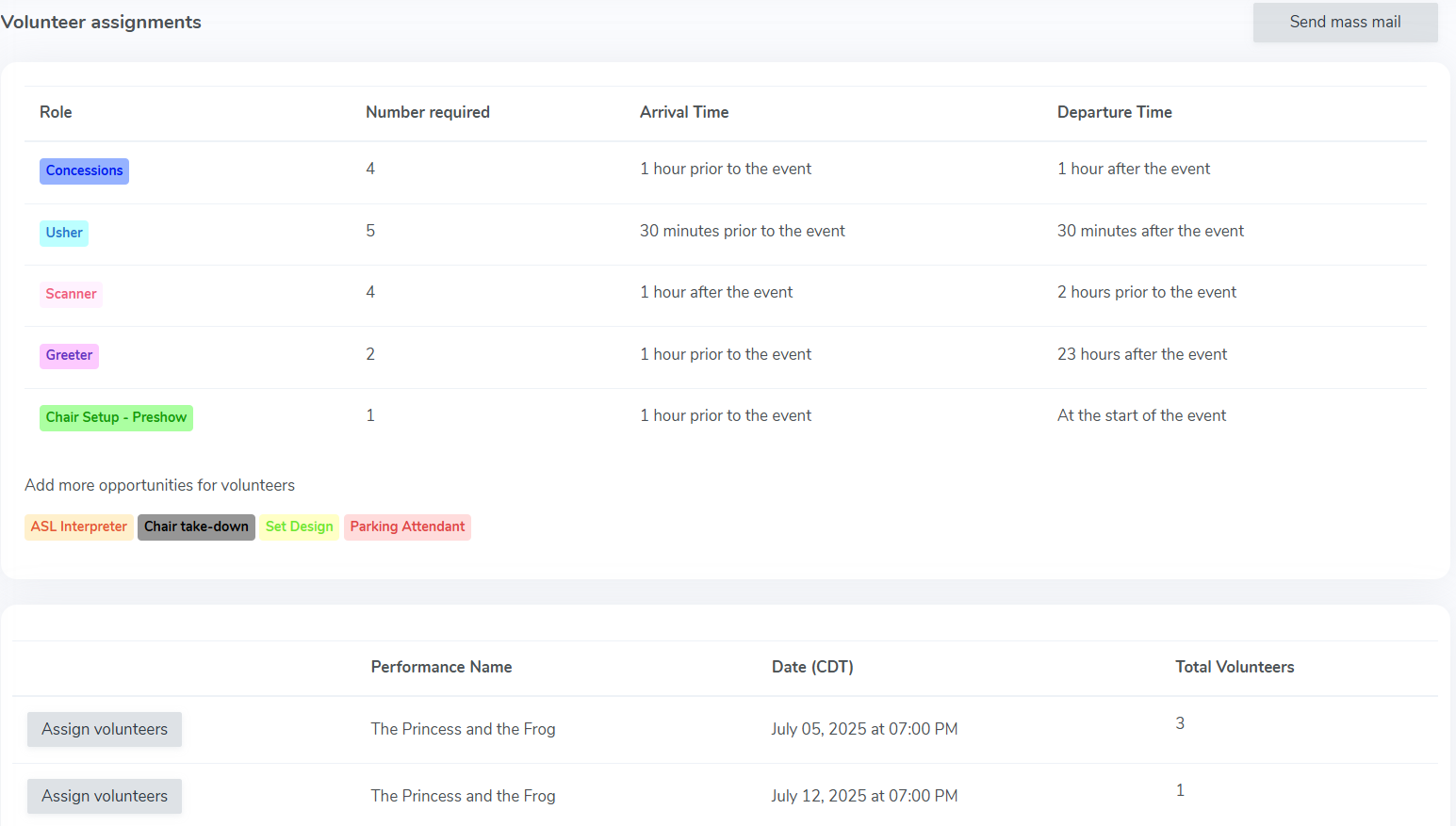
- Click on the 'Assign volunteers' button to assign volunteers to each performance.
- Click on the green +Assign Volunteer
