
Category: Orders

Sometimes, you may sell tickets in ThunderTix but collect the customer’s payment somewhere else — for example, using a retail credit card terminal that is not connected to ThunderTix.
If your organization uses a payment gateway other than Stripe or Square, ThunderTix cannot process tha
... (continued)

ThunderTix now displays total ticket pricing directly on the seating map when patrons hover over seats. This update improves pricing transparency and helps ensure compliance with pricing regulations.
Total price shown on hover
When a seat has only one available price, the full ticket co
... (continued)

When you create an order from the admin side:
- Start a new order as usual in the admin.
- In the customer section, use the group/organization selection popup to search for an existing Group/Organization
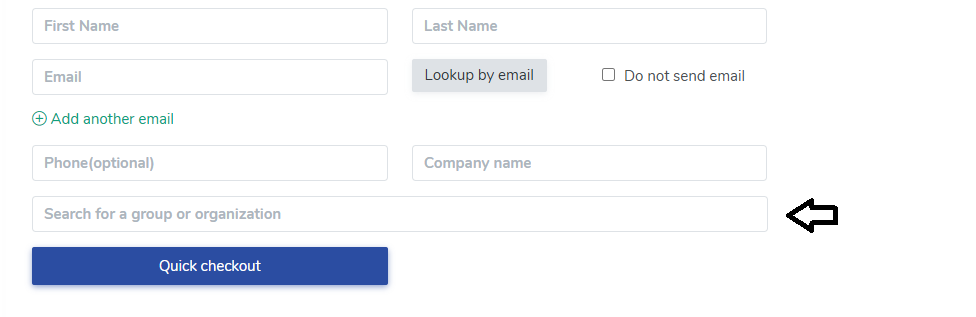
- Select the correct group.
After you save:
- The group name will appear beneath the customer
On the public purchase page, buyers can optionally enter a “Company” name at checkout. This field is useful for the buyer, but, it does not auto‑create or auto‑fill a Group/Organization (to protect private data and avoid accidental linking between unrelated buyers).
However, as a venue
To select multiple seats on a seating chart for your event please follow the steps below.
- Head to Events > Event Manager > Sell
- Click and drag your mouse/cursor over the seats you wish to select
- We will show the seats you selected as pictured below
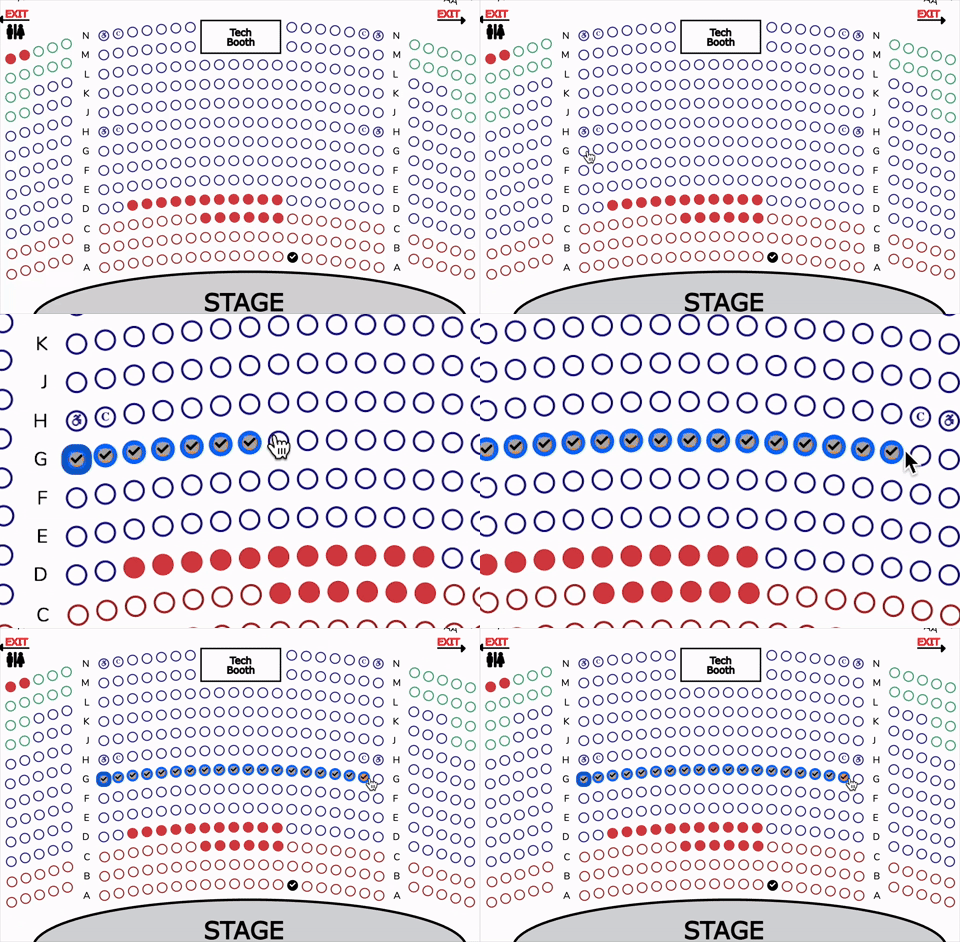 Select multiple seats
4. If you are sati
Yes! You can now take split payments for any order. When checking out, first choose the appropriate payment method for the first payment and then click the option to "Make a partial payment". In the box that appears below, enter the amount of the first payment. Once all of the custome
... (continued)
Head to Event Manager > Manage > Sell. You should see your seating chart for the event you selected.
If you hover over a seat, we will show all of the seats in that order as notated in the seating chart legend.
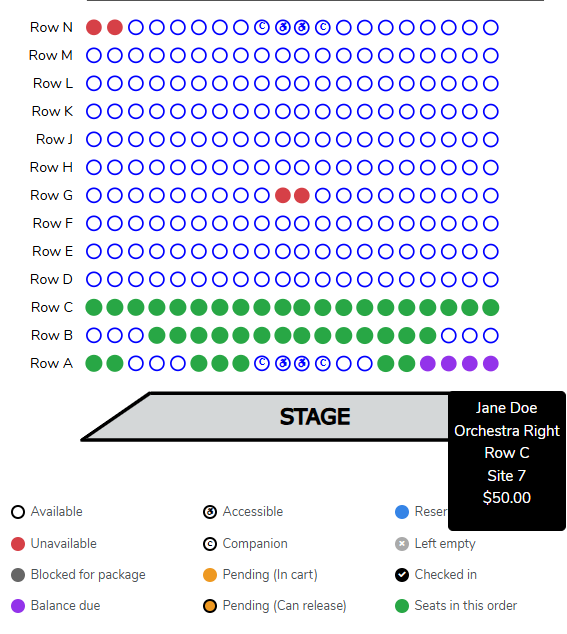 This allows you to easily add tickets to an order or show large groups th
Gift Cards Can Now Be Applied to Orders with a Remaining Balance
We’ve improved how gift cards work when completing orders with an outstanding balance.
You can now apply a gift card to an order even if a partial payment has already been processed. This allows you to:
- Take a partial payme
To search for a customer's order on a performance seating chart please follow the instructions below:
- Head to Events > Event Manager > Click on the name of your event > Click Sell on the performance you want to search for
- Enter in the last name in the search box in the top right hand c
To remove General Admission tickets on a reservation follow the steps below:
... (continued)
As a venue admin, you can view what tickets were refunded, released, or both on an order.
In the order view, if any tickets are refunded, released, or both- they will populate in a list in red underneath the list of tickets that have not been refunded or released. Only the tickets li
... (continued)
In the order view, if any tickets are refunded, released, or both- they will populate in a list in red underneath the list of tickets that have not been refunded or released. Only the tickets li

To add products or tickets to an existing order, you'll want to do the following:
For products:
1. From the Order, click on the "Add Tickets and Products" button in the Order Change Actions box.
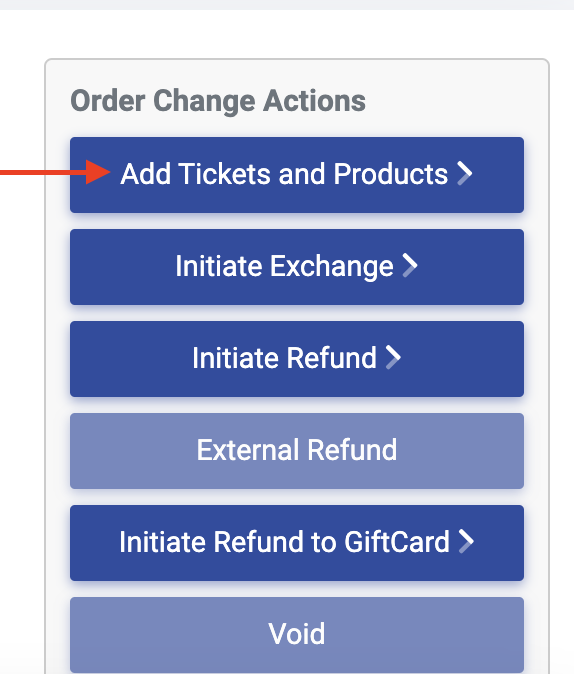 Screenshot 2024-07-23 at 8.19.37 PM.png 63.12 KB
 2. Locate your products by heading to th



If a show is canceled and you are unable to transfer the tickets to future event, you may use our bulk refund for batch refund processing, or you may individually refund each order.
How to perform individual refunds
We offer an excellent video tutorial, Exchanges, Refunds and Voids: Thu
... (continued)
How to perform individual refunds
We offer an excellent video tutorial, Exchanges, Refunds and Voids: Thu
There are no expenses for canceling an event. You can even refund your customers in full, refund order amounts to a gift card, or even convert purchases to donations. All of these options are available when viewing the order. We also have a batch refund process that can refund all tra
... (continued)
Batch refunds allow you to refund credit card purchases for all patrons for a given performance with a single transaction. (Note: cash and voucher transactions may be handled individually and separately.)To learn how to perform a mass refund especially for a canceled event, follow the
... (continued)

Reservations allow you to "reserve" tickets in a customer's name and collect payment at a later date. This is common for venues that block seats in a patron's name, tours that book large groups, or theatres that wish to allow patrons to send a check by mail. We even have automated pay
... (continued)
- Head to Event Manager > Click on the name of your event > Sell to see the Seating Chart for your event.
- You will then right click on the seat you would like to refund and click 'Select for Refund'. You'll notice the seats highlighted with a black ring around each selected seat for the
You can enter them by placing an order. When you place the order, select Cash as the method of payment. To place an order please navigate to the Event Manager, find your event and begin processing your order. Upon arriving at the checkout page, do the following:
- Click the dollar icon l
You can create a Private ticket type, that can be used for sales at the box office. To do this, please navigate to the Event Manager.
- Click on the name of your desired event
- Click on Select then Tickets and Prices
- Click +Add Another Ticket
- Enter the necessary information and press the Pub
If you would like to display the fees per ticket on your reserved seating events, please follow the steps below:
- Navigate to the Seating Charts tab on the lefthand menu.
- Click 'Edit' on the seating chart for which you would like the fees to be displayed.
- At the bottom of the page, there
We do not allow an exchange after a partial refund has been issued on the original order. This is by design to ensure accurate financial tracking and prevent inconsistencies in order history.
Once a portion of the ticket price has been refunded, the order is considered finalized in te
... (continued)
Once a portion of the ticket price has been refunded, the order is considered finalized in te
When you get to the checkout page, you have several options available if you find that changes need to be made to the order.
- You can add a round-up donation even after first saying "No"
- You can add a general donation even if no donation was entered when adding tickets to the cart
- You ca
To remove tickets from a reservation follow the steps below:
- Navigate to the reservation order
- Select 'Process or Change' from the Order Change Actions Menu
- Click the trashcan icon next to the ticket(s) you'd like to remove from the order.

- That's it! The ticket will be removed from the o
Patrons have the ability to request a refund from a link provided in their confirmation email. Only users logged into their ThunderTix portal, and with the necessary permissions, can process refunds on behalf of patrons.
To allow patrons to request a refund, follow the steps below:
To allow patrons to request a refund, follow the steps below:
- Hea
Once you've sent over your patron import file and it has been successfully imported by our team, you'll want to send over your Order History Import file. There are a few things to keep in mind as you prepare this file, so we want to provide a breakdown of best practices.
The sole purp
... (continued)
The sole purp
If you have a customer who would like to process a transaction or donation via Wire Transfer, you will process the transaction as normal. When you get to the checkout screen, select 'Other Payments'.
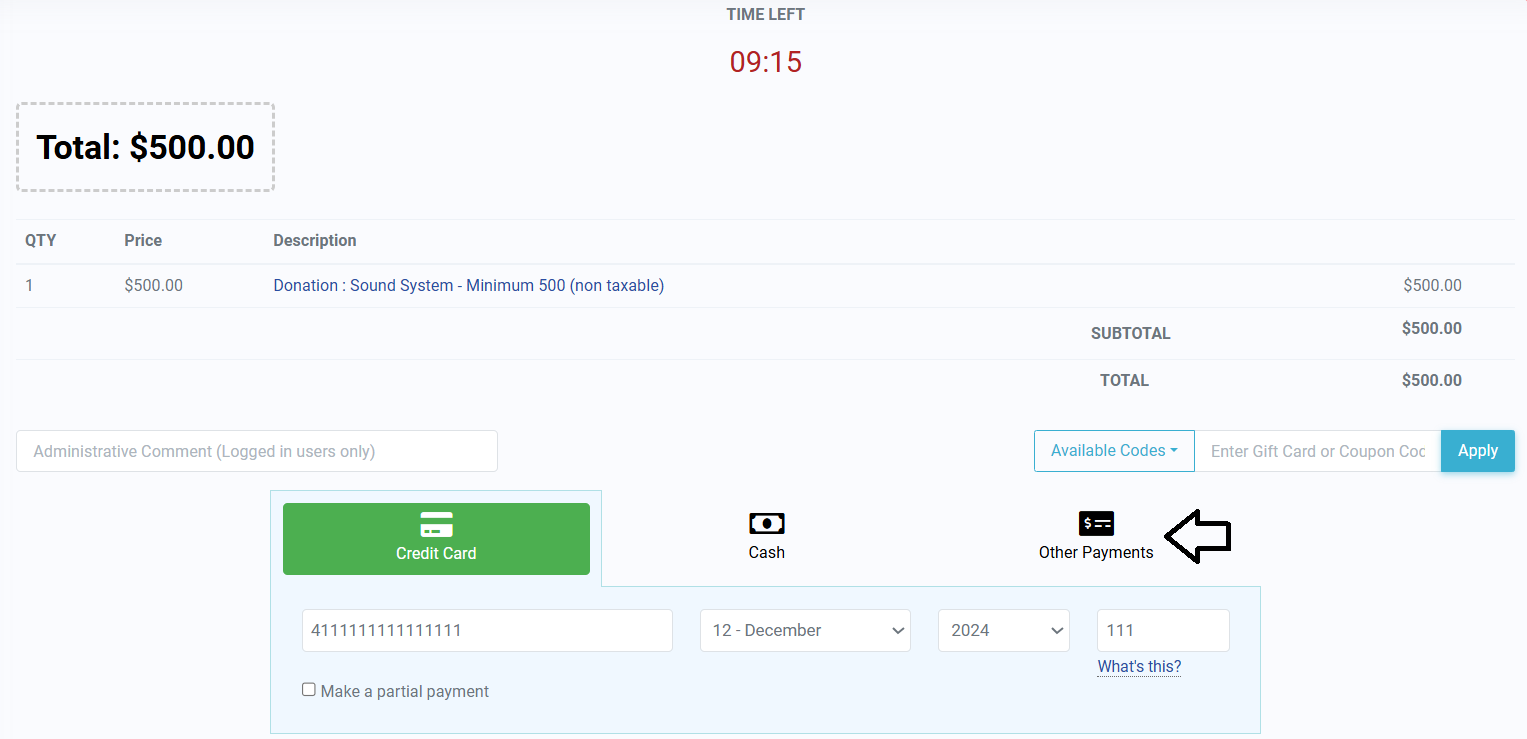
From the drop down menu, select 'Wire Transfer.'
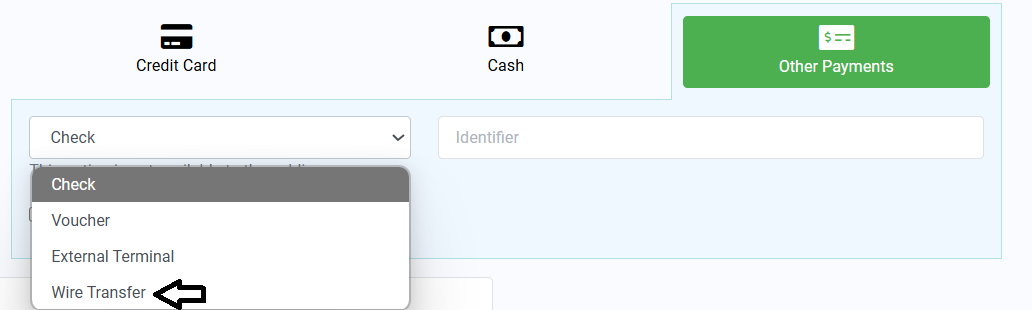
Once you select 'Wire Transfer' simply
... (continued)An abandoned order is simply an order that was never completed. It occurs when a customer gets to the checkout page and either decides not to purchase the tickets at that time or the time runs out from the 10 minutes allowed.
We provide a feature that will send an email notification wh
... (continued)
We provide a feature that will send an email notification wh


